
What this article helps you do
Use Enterprise Hub and Brain confidently by understanding:
- What Enterprise Hub is vs. what Brain is—and when you use each one
- How navigation changes based on your role and permissions
- How to move between Enterprise Hub and Brain
- Which key areas live in each product, so you can find what you need faster
Before you begin
- Make sure you can sign in to your organization’s Enterprise Hub and/or Brain. Access depends on your role and your organization’s configuration. See How do I log into the Enterprise Hub?.
- If possible, confirm which role you have. Your organization may use different internal naming, but the in-app labels should match the current terminology.
- Keep in mind that some menu items only appear when your role includes access to that area.
How it works
Enterprise Hub vs. Brain
Enterprise Hub is where enterprise administrators monitor organization-level activity and access administrative tools. What you see in the left-hand menu depends on your role and permissions. Learn more in What is the Enterprise Hub?.
Brain is the administrative system where authorized enterprise administrators manage configuration, users, and content tools. For an introduction to its content tools, see Brain Glossary & Key Terminologies.
In many cases, you’ll use Enterprise Hub for monitoring and day-to-day administrative tasks, and Brain for content management and additional enterprise configuration.
Navigation is role-dependent
Enterprise Hub and Brain tailor what you can access based on:
- Your role and permissions
- Whether a feature is enabled for your organization
- The product areas your organization uses
If you don’t see a menu section someone else mentions, your role may not have access to that area, or the feature may not be enabled. For organization-level availability, see How do we enable the Enterprise Hub?.
Terminology you may see
Snappy Kraken updated terminology across Enterprise Hub and Brain so names are clearer and more consistent.
If you see older terms in documentation or links, they refer to the same areas:
- Enterprise — previously “Fleet”
- Advisor Workspace — previously “Vessel”
- Auto-Launch — previously “Mass Launch”
- Contact Group — previously “Audience”
This update changes labels only. Features and workflows still work the same way. See August 2026: Updated Brain Terminologies for more details.
How to do it
1) Find your way around Enterprise Hub
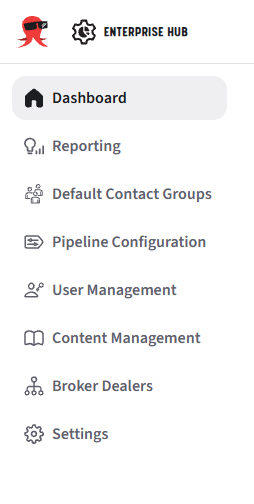
After you sign in, you’ll see a left-hand menu. Your menu may not include every section listed below.
- Dashboard — A high-level view of advisor activity, subscriptions, and product engagement across your enterprise. Learn what the top section of the dashboard shows and how to review active integrations.
- Reporting — Advisor activity, content performance, and AUM Pipeline Reporting when configured. See How to Access Advisor and Content Reports.
- Default Contact Groups — Default groups used to organize contacts in Advisor Workspaces, including groups associated with pipeline stages. For pipeline-related setup, follow the Prepare Default Contact Groups section of the AUM Pipeline Reporting guide.
- Pipeline Configuration — Opens the Pipeline Stages page, where authorized administrators configure stages and their associated dynamic contact groups. Follow the Configure Pipeline Stages section of the AUM Pipeline Reporting guide.
- User Management — A list of users where you can review advisor details. If you need to support an advisor directly, see how to sign in on behalf of an advisor.
- Content Management — Opens campaign template management in Brain. Related tasks include scheduling or delaying campaign steps and using Auto-Launch for coordinated campaigns.
- Broker Dealers — Broker dealers associated with your enterprise, where applicable. For the related template review workflow, see How to Submit a Campaign Template for Pre-Approval. Submission begins from the template.
- Settings — Enterprise configuration options available to your role. Some settings are managed in Brain; for example, see how to add a custom enterprise signature.
If you don’t see one or more of these sections, your current role may not grant access.
2) Move between Enterprise Hub and Brain
Depending on your permissions and your organization’s configuration, you may be able to move between products within your session.
Try these options:
- Select Content Management in Enterprise Hub to open campaign template management in Brain, if your role includes access.
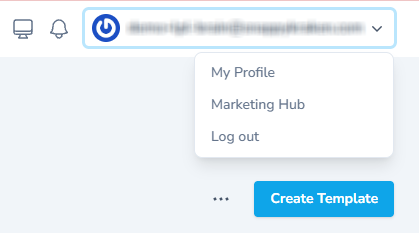
- Look for the product navigation control near the top-right. Open it to see which destinations are available to your account.
- Open Brain in a new tab using your organization’s Brain link, if provided. Your organization may use a specific sign-in or SSO path.
To return to Enterprise Hub, switch back to your original Hub tab if it is still open, or open Enterprise Hub directly. If you need help signing in, follow How do I log into the Enterprise Hub?.
If you can sign in but can’t find a way to switch, confirm your Brain access and the correct sign-in path with your enterprise administrator.
3) Know which tasks belong to Hub vs. Brain
Use Enterprise Hub when you want to:
- Monitor enterprise-wide activity at a glance on the Dashboard.
- Review advisor activity and content performance.
- Configure and review AUM Pipeline Reporting.
- Open user management and enterprise administration tools available to your role.
Use Brain when you want to:
- Manage campaign templates and schedule or delay their steps.
- Work with Auto-Launch programs.
- Configure settings such as custom enterprise signatures.
- Perform additional enterprise administration tasks available to your role.
Tip: If you’re following instructions from Support and a menu item isn’t visible, confirm whether the instructions apply to your role or ask your enterprise administrator to verify access.
What happens next
Once you understand which product you need, navigate to the appropriate area and follow the linked guide for your task.
If you’re missing a menu section, switching option, or expected access, use the troubleshooting steps below.
Troubleshooting
I don’t see a menu section someone else has
- Your role may not include access to that section.
- Your organization may not have that feature enabled. Review Enterprise Hub enablement requirements.
- If you believe you should have access, contact your internal administrator first, then Enterprise Support.
I can sign in, but I can’t access Brain or switch to it
- Confirm that your role includes Brain access.
- If your organization uses SSO, ask your administrator to confirm your assignment.
- Try your organization’s direct Brain link, if provided.
- If you still can’t access Brain, contact Enterprise Support with the details listed below.
I’m seeing older terms like Fleet or Vessel
Older documentation and URLs may still use the previous names. Fleet means Enterprise, Vessel means Advisor Workspace, Mass Launch means Auto-Launch, and Audience means Contact Group.
See August 2026: Updated Brain Terminologies for the terminology changes.
When to contact Support
Contact Enterprise Support if:
- You can sign in successfully, but a required menu section is missing.
- You expect access to Brain but can’t reach it.
- You’re unsure which role you have or what it should include.
Include:
- The email address you used to sign in
- Your enterprise or organization name
- Whether you use SSO
- What you expected to see and what you actually see, with screenshots if possible