
Enterprise Custom Signature
This feature allows enterprise administrators to create and apply a custom email signature to all advisors within a fleet or broker-dealer. When a custom signature is active, advisors cannot make changes to it from their dashboard. Shortcodes can be used to automatically insert each advisor’s personal information into the signature.
How to Set Up a Custom Signature
- As a fleet admin, go to the Custom Signatures area in the brain
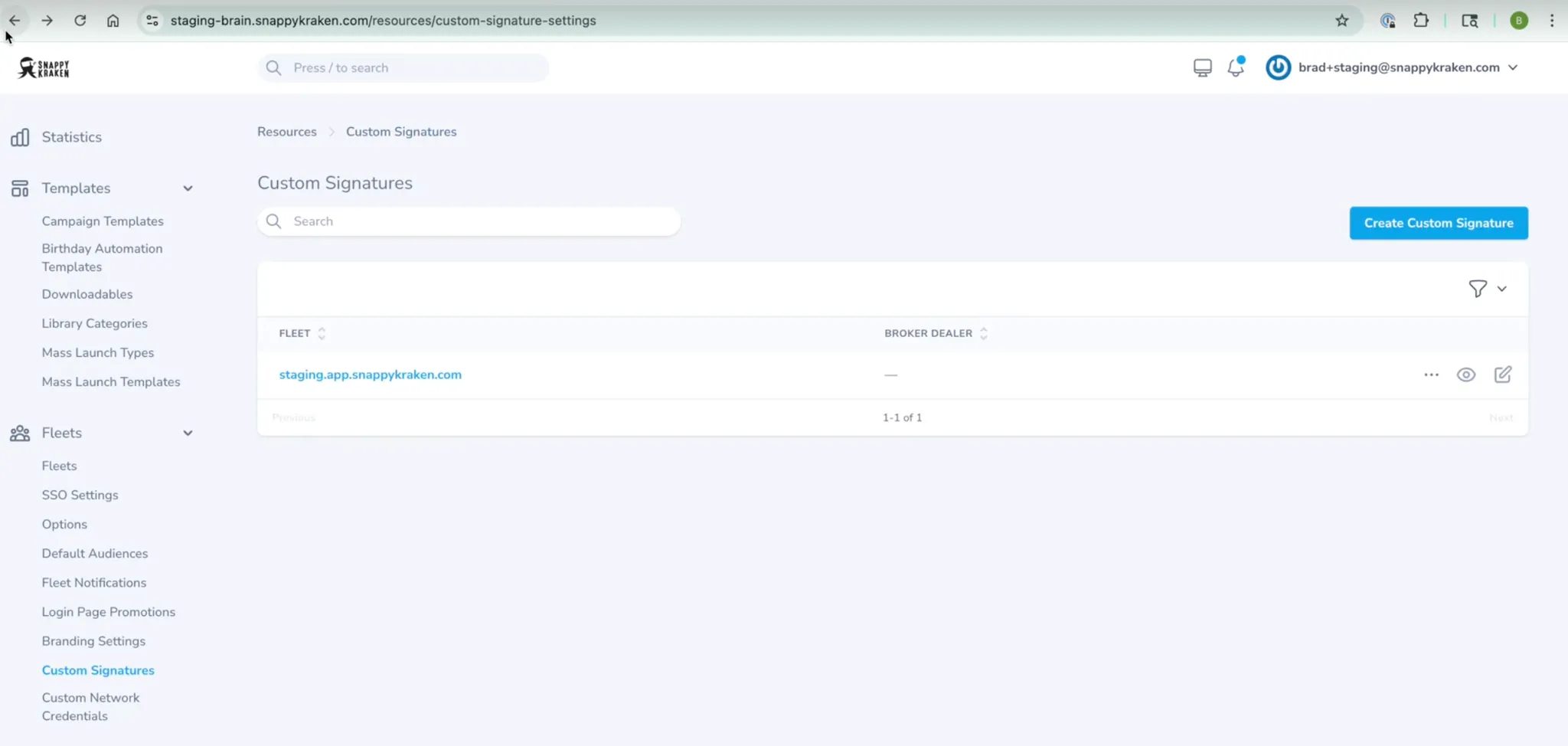
Step 2:
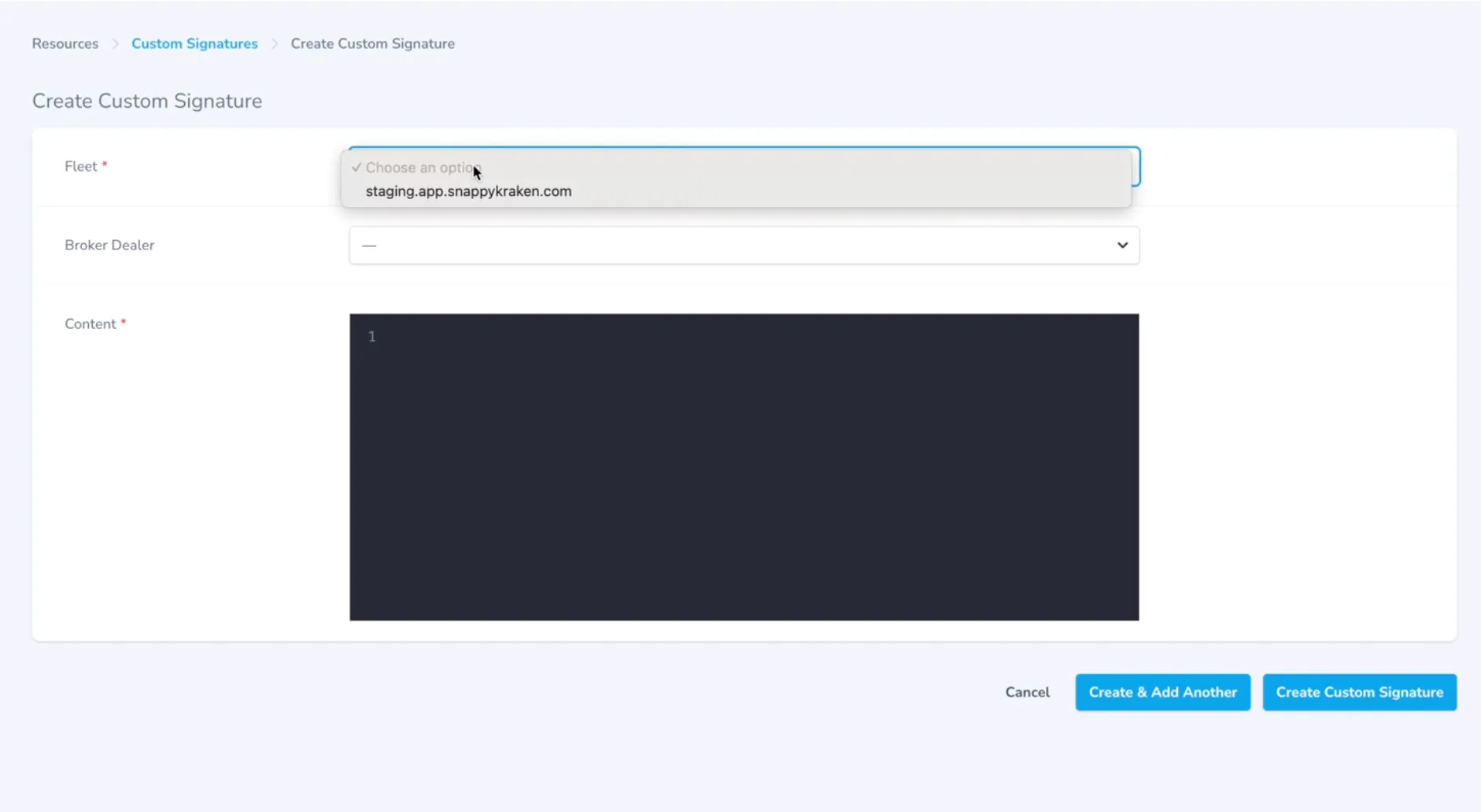
- Select the fleet it should apply to.
- Add the signature's content. It’s recommended to use relevant shortcodes so the signature pulls in each advisor’s information. Email signatures are used in Email Steps within templates. You can use any shortcode from the list, except for anything contact-related.
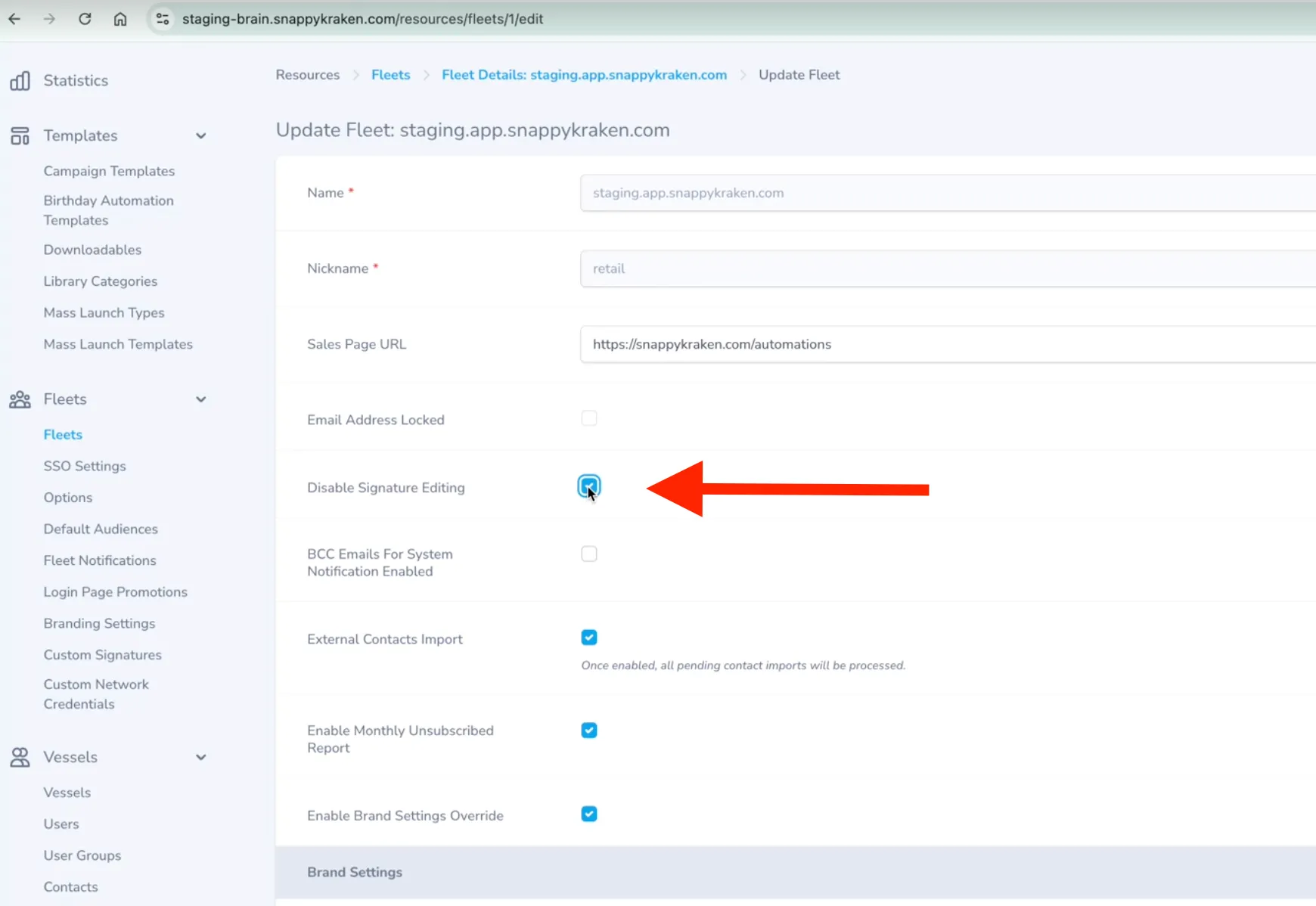
Make sure to enable the custom signature in your fleet settings:
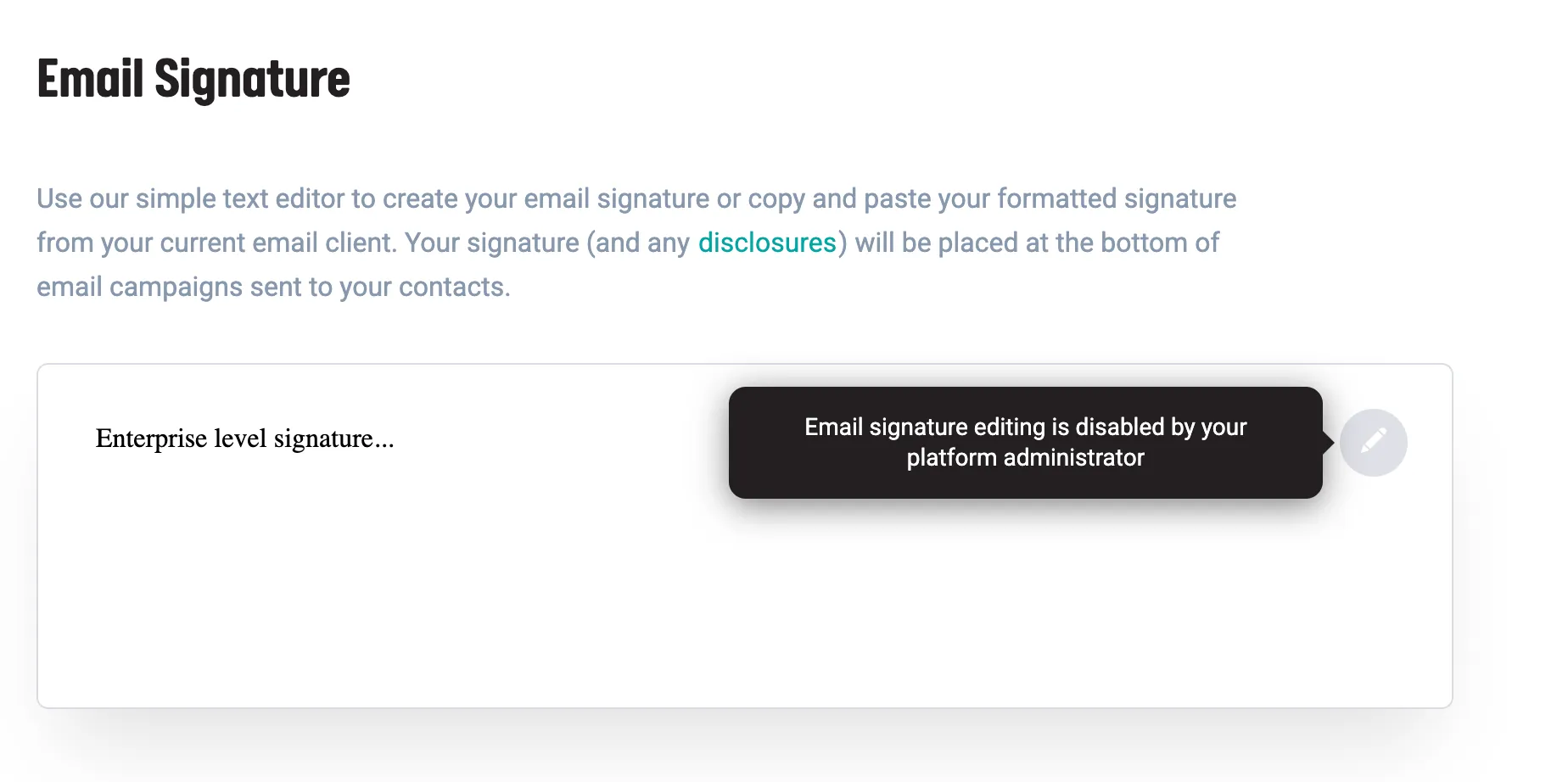
At the advisor level, the email signature shown under My Account > Personalization > Email Signature will always reflect the one assigned to them. If a custom signature is set at the enterprise level, it will be displayed here and cannot be edited by the advisor.
Tips for Creating a Good Signature
You can customize your email signature using both placeholders and basic HTML for styling. Placeholders pull in advisor-specific data automatically, while HTML helps you format text or add links.
Common HTML elements used in signatures include:
<p>Your paragraph text here</p>– separates content into blocks<br>– adds line breaks without spacing<strong>– makes text bold<a href="URL">Link Text</a>– creates a clickable link
Always start HTML elements with < and close them with >. If you're adding styling, be sure to test your signature before saving.
Here are some helpful guides: