
Overview
AUM Pipeline Reporting gives you a unified view of how contacts progress from new leads to clients across your advisor network. It aggregates advisor-level data so you can see:
- Contact Count by stage
- Investable Assets by stage
- Trends over your selected time period
Note: If a contact qualifies for multiple stages, they appear once in the highest applicable stage.
For the advisor view, share: What is AUM Pipeline on My Dashboard?
Walkthrough (Enterprise)
See how AUM Pipeline Reporting looks and functions in the enterprise dashboard:
How it Works
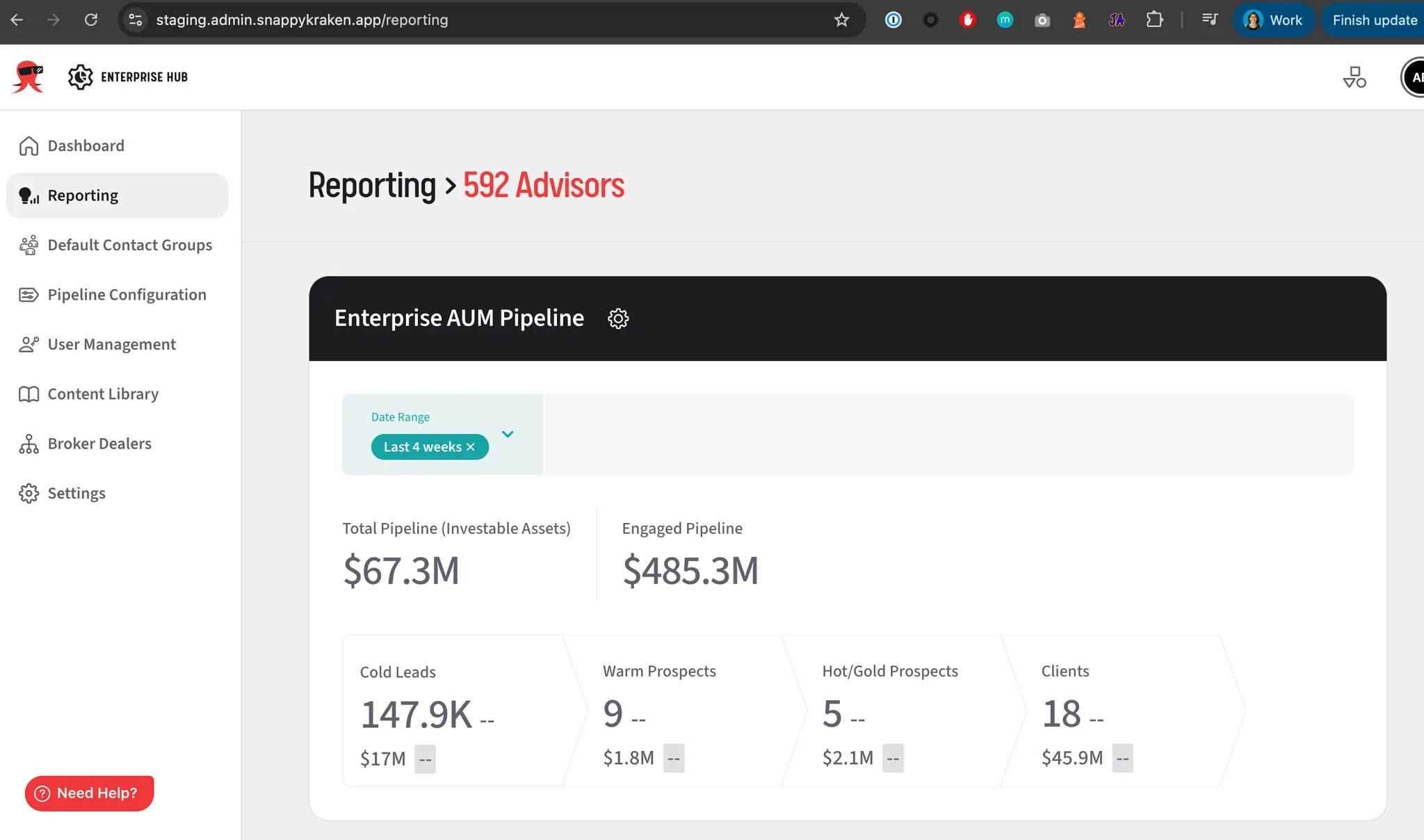
Contacts are automatically organized into pipeline stages (e.g., Cold Leads, Warm Prospects, Hot/Gold Prospects, Clients). Stages update as contact data changes, and your enterprise dashboard shows:
- Contacts and investable assets in each stage
- Net changes (deltas) for the selected period
- A total pipeline view across all active stages
How to Enable AUM Pipeline Reporting
Follow these steps to turn on AUM Pipeline Reporting. (Screens below are representative; your labels may vary.)
Step 1 — Prepare Default Contact Groups
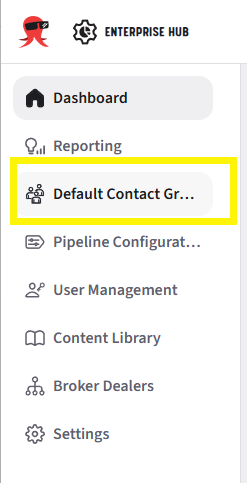
- Open your enterprise dashboard and go to Default Contact Groups.
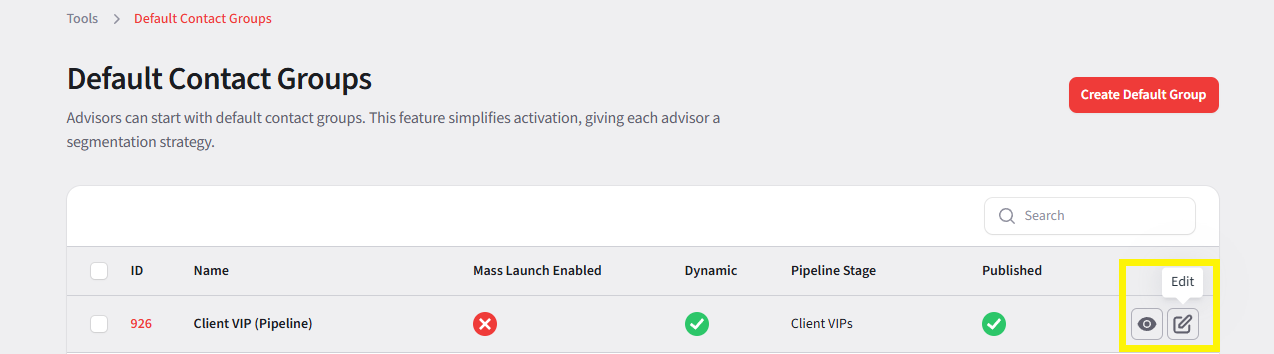
- Locate the groups used for pipeline reporting (marked as pipeline stages).
- For each group, click "Edit" to confirm or rename it.
- Click into the Filterarea to confirm the dynamic filters.
- You can use standard defaults (e.g., Cold Leads → Opportunity Score 0–29; Warm Prospects → 30–59; Hot/Gold Prospects → 60–100; Clients → client group linkage)

- You can use standard defaults (e.g., Cold Leads → Opportunity Score 0–29; Warm Prospects → 30–59; Hot/Gold Prospects → 60–100; Clients → client group linkage)
Step 2 — Configure Pipeline Stages
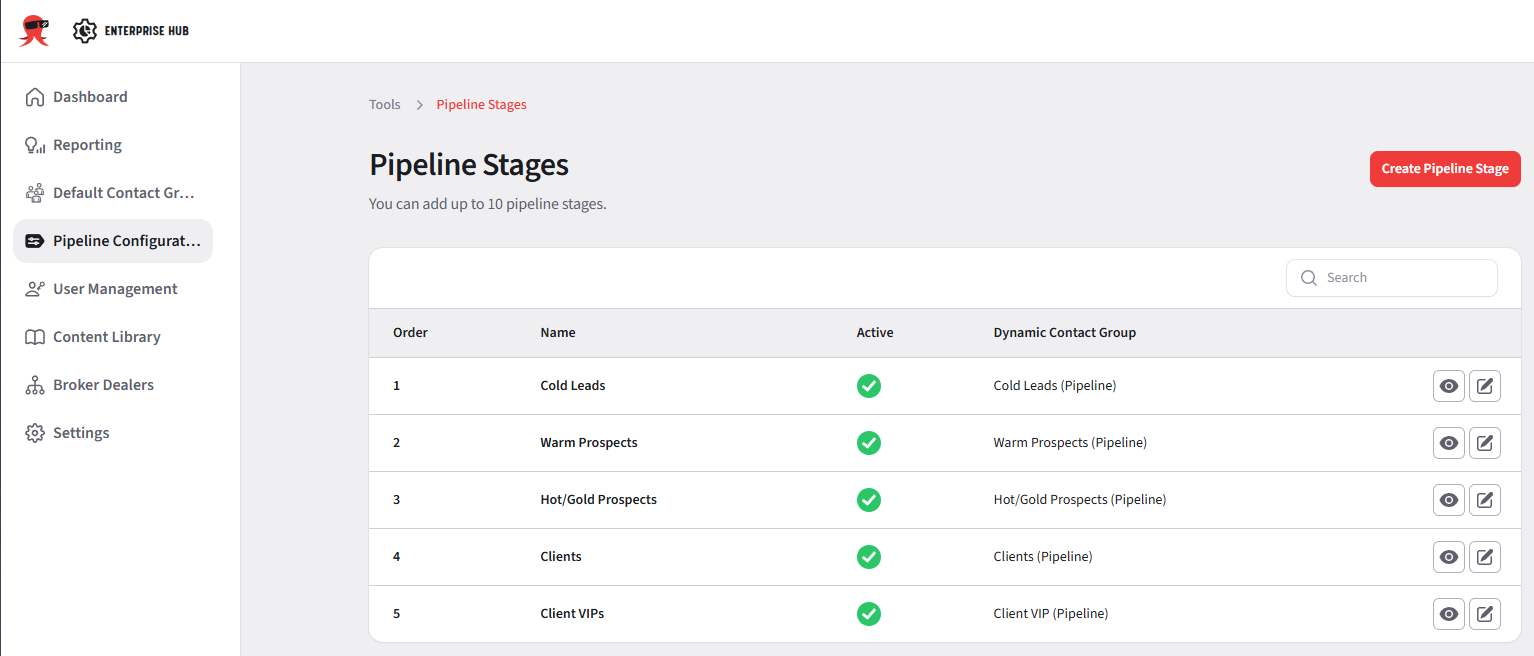
- Open Pipeline Configuration to review your list of stages.
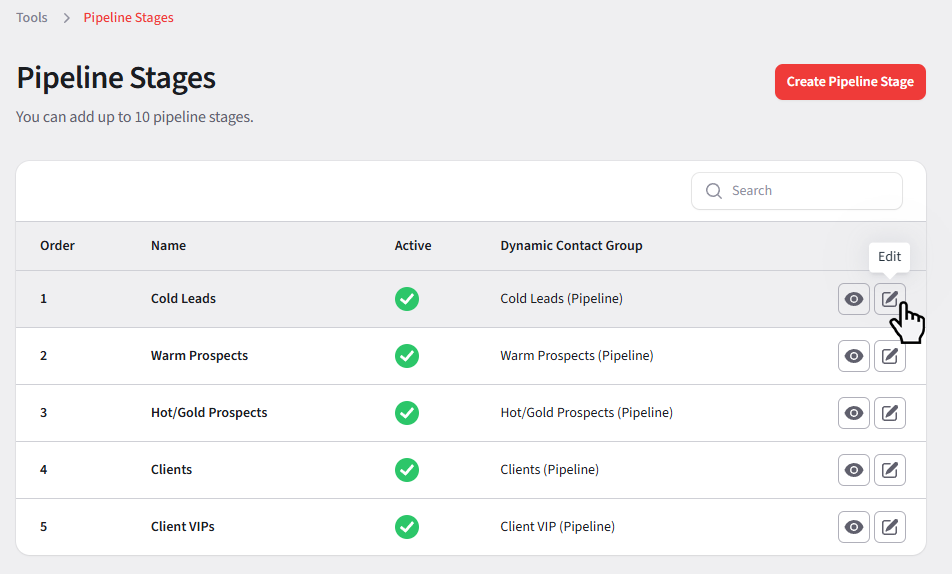
- Use the edit (pencil) control to rename a stage or toggle it on/off.
- Optionally add stages (up to ten total) to align with your sales process.
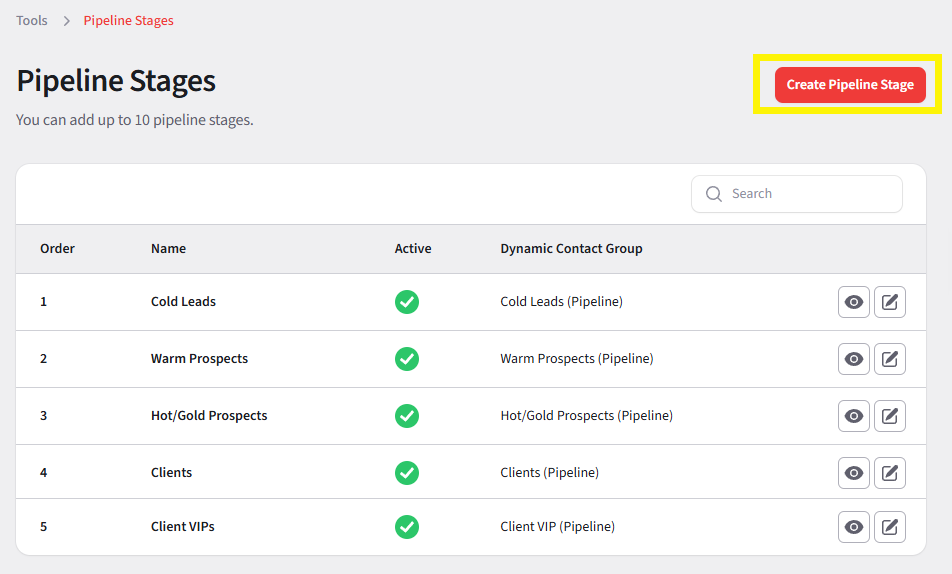
- Ensure stage names are clear and map to the groups you prepared in Step 1.
Accessing the Pipeline Reporting Widget
After the setup process completes:
Go to the Reporting page within your Enterprise Hub.
You’ll see the Pipeline Reporting widget displayed at the top of the page.
Setup Details
Each pipeline stage automatically generates a dynamic group. Here’s what you need to know about how they function:
Each stage in your pipeline automatically creates a matching contact group.
Administrators can rename stages after setup.
You can modify the group name or filters at the enterprise level. However, these changes will only apply to new advisors added after the update. Existing advisor vessels will retain the original configuration.
Default groups linked to a pipeline stage cannot be deleted.
FAQ
When will I start seeing data?
- After enabling, allow up to two full days for comparison data (deltas) to populate.
Can we rename pipeline stages?
- Yes. Use names that match your organization's sales terminology.
Can advisors change the structure?
- No. The enterprise-controlled structure ensures consistent reporting across your network.
How are asset values calculated?
- Investable assets are sourced from contact records and update automatically as data is added or enriched.