
What this article helps you do
Understand the core building blocks of the Enterprise Platform—what an Enterprise, User, and Advisor Workspace are—and know when to use Enterprise Hub, Brain, or Office Hub for common enterprise administration and oversight tasks.
Before you begin
This article uses current terminology, with prior names included only for context:
- Enterprise (formerly Fleet)
- Advisor Workspace (formerly Vessel)
- Auto-Launch (formerly Mass Launch)
- Contact Group (formerly Audience)
This update changes labels only. Features and workflows still work the same way. See August 2026: Updated Brain Terminologies for more details.
Note: Enterprise features and sections vary based on your roles and permissions.
How it works
Key concepts (what lives where)
Enterprise (formerly Fleet)
A group of advisor accounts managed together under one organization, such as a financial firm or broker-dealer, using a dedicated Snappy Kraken platform. Each Enterprise has its own settings and features, which may include partner-specific branding, single sign-on (SSO), compliance settings, and a shared content library. Enterprise settings apply to all advisors within that Enterprise.User
The person who signs in. A User belongs to one Enterprise and has at least one role. A User is distinct from an Advisor Workspace—some admin users may have no Advisor Workspace.Advisor Workspace (formerly Vessel)
An individual advisor account that contains campaigns, contacts, and reporting. It’s tied to the advisor’s subscription and belongs to exactly one User.Broker Dealer (BD)
A compliance organization that advisors can be assigned to. An Enterprise may have several Broker Dealers. BD settings drive compliance review.Roles (permissions, not account types)
Roles determine what a User can access and do. One User may hold multiple roles.- Advisor role is tied to the Advisor Workspace.
- Admin roles are assigned manually.
Removing an admin role removes access without deleting advisor data.
Enterprise Hub vs Brain vs Office Hub (what each is for)
Enterprise Hub
The enterprise-facing dashboard used for monitoring and oversight. It supports visibility into advisor counts, subscriptions, integrations, onboarding/setup, reporting, default Contact Groups, and pipeline configuration. Learn more in What is the Enterprise Hub?
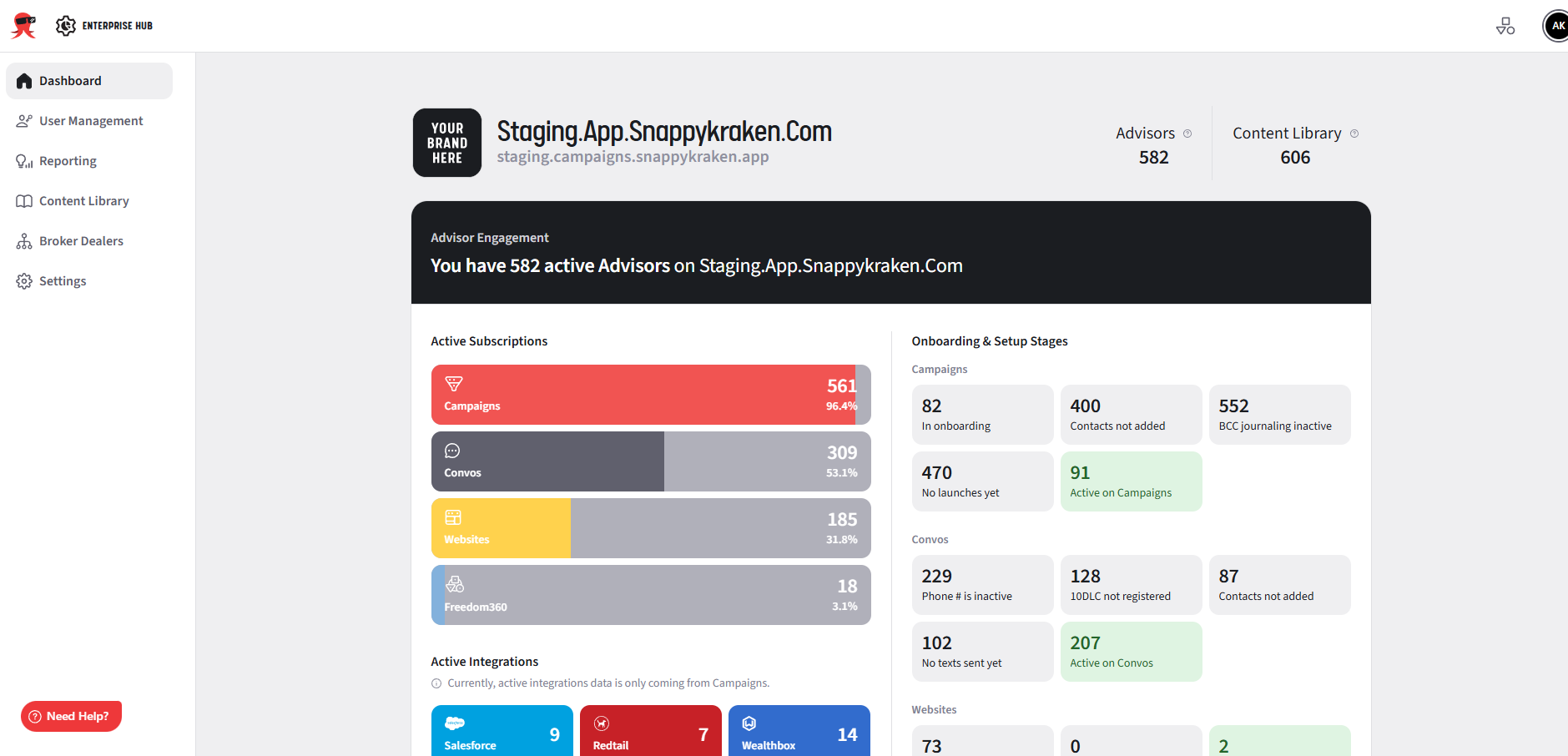 Enterprise Hub links to Brain for user/content/BD/settings management and does not store separate data.
Brain
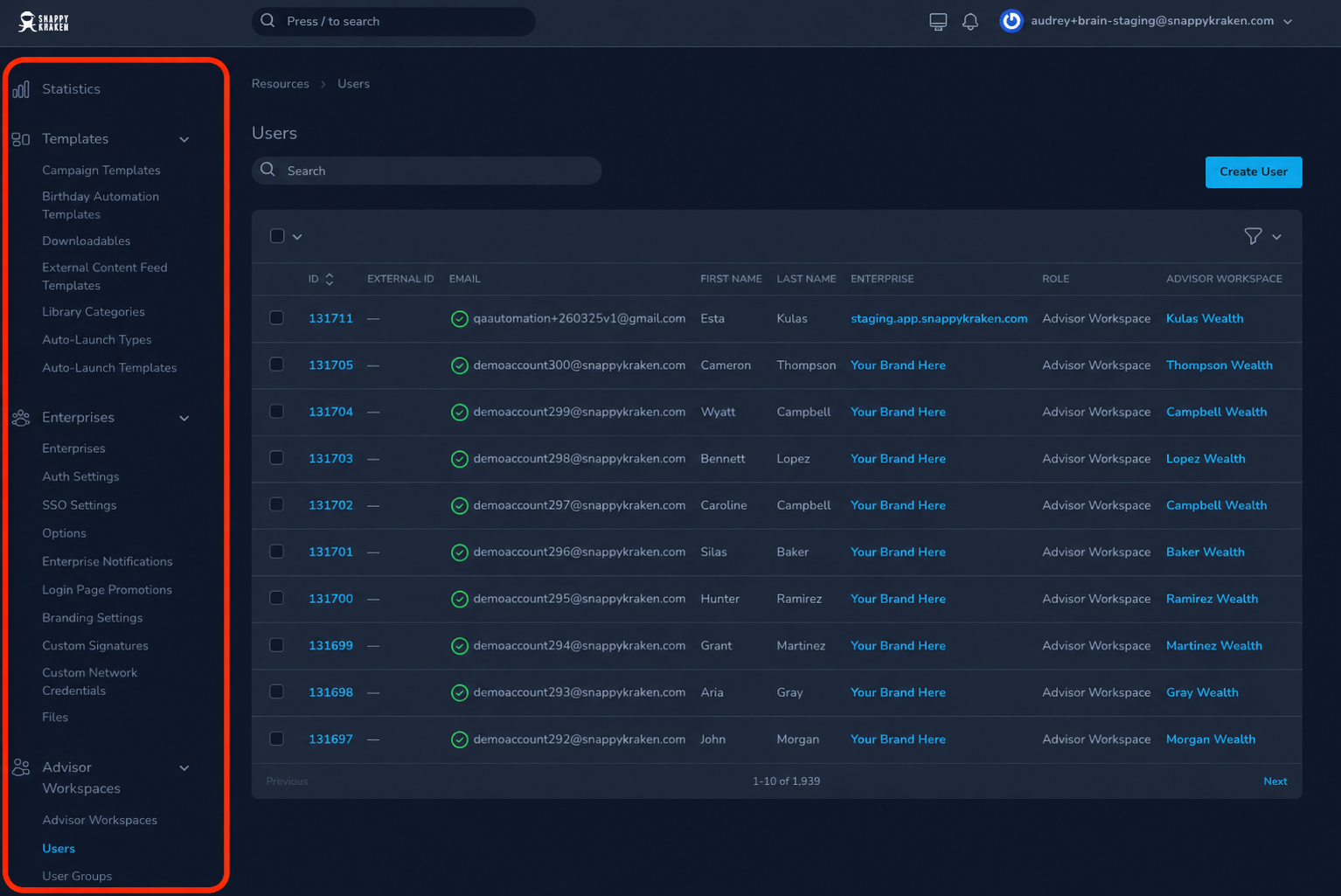
The deeper administrative configuration area. Brain is where admins manage:
- Users and roles
- Advisor Workspaces
- Templates and Auto-Launch
- Enterprise settings
- Files
- Broker Dealers
For an introduction to its content tools, see Brain Glossary & Key Terminologies.
Office Hub
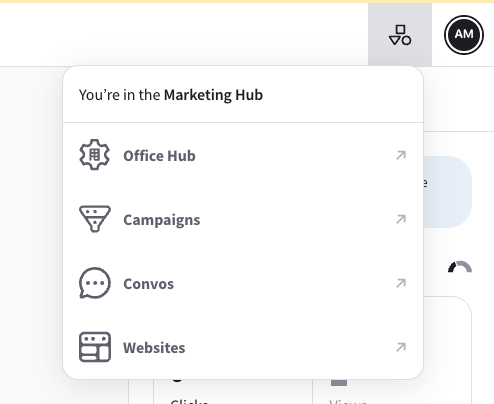
A dashboard for Advisor Marketing Administrators to manage assigned advisors. Office Hub is enabled separately per Enterprise. See What is Office Hub? How do I set it up? for more information.
Access and enablement
- Enterprise Hub access requires:
- The appropriate administrative access, and
- Enterprise Hub to be enabled for your Enterprise.
- Enterprise Hub is enabled at the Enterprise level and is typically available for new Enterprises. For organization-level availability, see How do we enable the Enterprise Hub?
- If you believe Enterprise Hub should be available but you don’t see it, please contact Enterprise Support for assistance.
How roles affect what you see
Enterprise Hub sections vary by role. Common role patterns include:
- Enterprise Platform Admins: manage Enterprise configuration, users, and roles.
- Support Admins: manage users and Advisor Workspaces.
- Content roles: manage templates (and related content configuration).
- Marketing Admins: manage assigned Advisor Workspaces (often via Office Hub where applicable).
How to do it
Identify what you’re trying to do:
- Monitor enterprise health and key metrics → Start in Enterprise Hub. See How do I log into the Enterprise Hub?
- Manage users/roles, Advisor Workspaces, templates, Auto-Launch, files, Broker Dealers, or Enterprise settings → Go to Brain (often via Enterprise Hub links).
- Manage assigned advisors as a Marketing Admin → Use Office Hub (if enabled for your Enterprise). See Office Hub Access for Marketing Administrators.
Confirm you have the right access:
- If you don’t see Enterprise Hub, confirm you have the appropriate administrative access and that Enterprise Hub is enabled for your Enterprise. If you’re unsure, please contact Enterprise Support for assistance.
Use Enterprise Hub for oversight:
- Review advisor counts and subscription information
- Check integrations and onboarding/setup status
- Review reporting
- Validate defaults like Contact Groups and pipeline configuration
For an overview of the available sections, see What sections are in the Enterprise Hub menu and where do they go?
Use Brain for configuration changes:
- Add/update Users and assign/remove roles.
- Create/manage Advisor Workspaces (or help Support Admin workflows)
- Configure templates and Auto-Launch
- Manage Enterprise settings, files, Broker Dealers, and compliance-related configuration
What happens next
- If you used Enterprise Hub, you’ll generally proceed by drilling into a specific area (reporting, integrations, onboarding) or following links into Brain for configuration work.
- If you updated settings in Brain, changes take effect according to your Enterprise configuration and may impact all advisors in the Enterprise (especially Enterprise-level settings and compliance/Broker Dealer configuration).
For assistance with navigating from Enterprise Hub to Brain, see Navigating the Enterprise Hub and Brain.
Troubleshooting
“I don’t see Enterprise Hub.”
- Your role may not include access to that section.
- Your organization may not have that feature enabled. Review Enterprise Hub enablement requirements.
- If you believe you should have access, contact your internal administrator first, then Enterprise Support.
- Enterprise Hub sections can also vary by role—verify your assigned roles.
“I can sign in but don’t see an Advisor Workspace.”
- Your User may be an admin-only user with no Advisor Workspace. This can be expected for some admin roles.
“Removing an admin role deleted advisor data.”
- Removing an admin role should remove access only; advisor data should remain. If data appears missing, validate the User’s roles and the Advisor Workspace association, then contact Enterprise Support.
“Compliance review behavior isn’t what I expect.”
- Confirm which Broker Dealer the advisor is assigned to and review the Broker Dealer settings that drive compliance review.
When to contact Support
Contact Enterprise Support if:
- You believe you should have Enterprise Hub access (or specific sections) but don’t.
- You need help confirming whether Enterprise Hub is enabled for your Enterprise.
- Users, roles, or Advisor Workspaces appear incorrect or inaccessible.
- Broker-Dealer settings or compliance review behavior seems misconfigured.
Include:
- The email address you used to sign in
- Your enterprise or organization name
- Whether you use SSO
- What you expected to see and what you actually see, with screenshots if possible