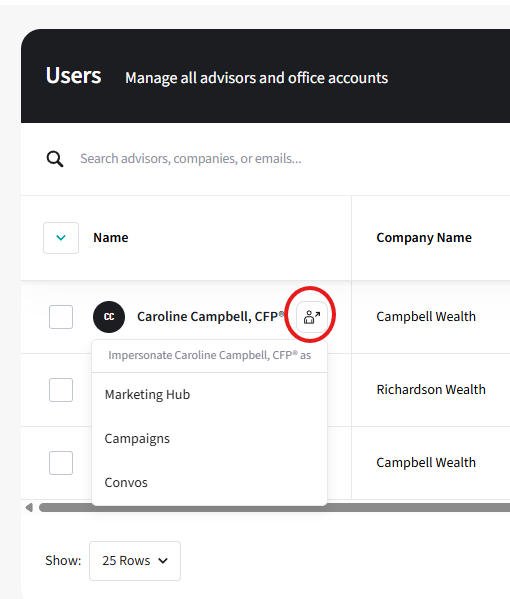
Open the Users list
The Users tab lets you view the advisors you manage as a Marketing Administrator.
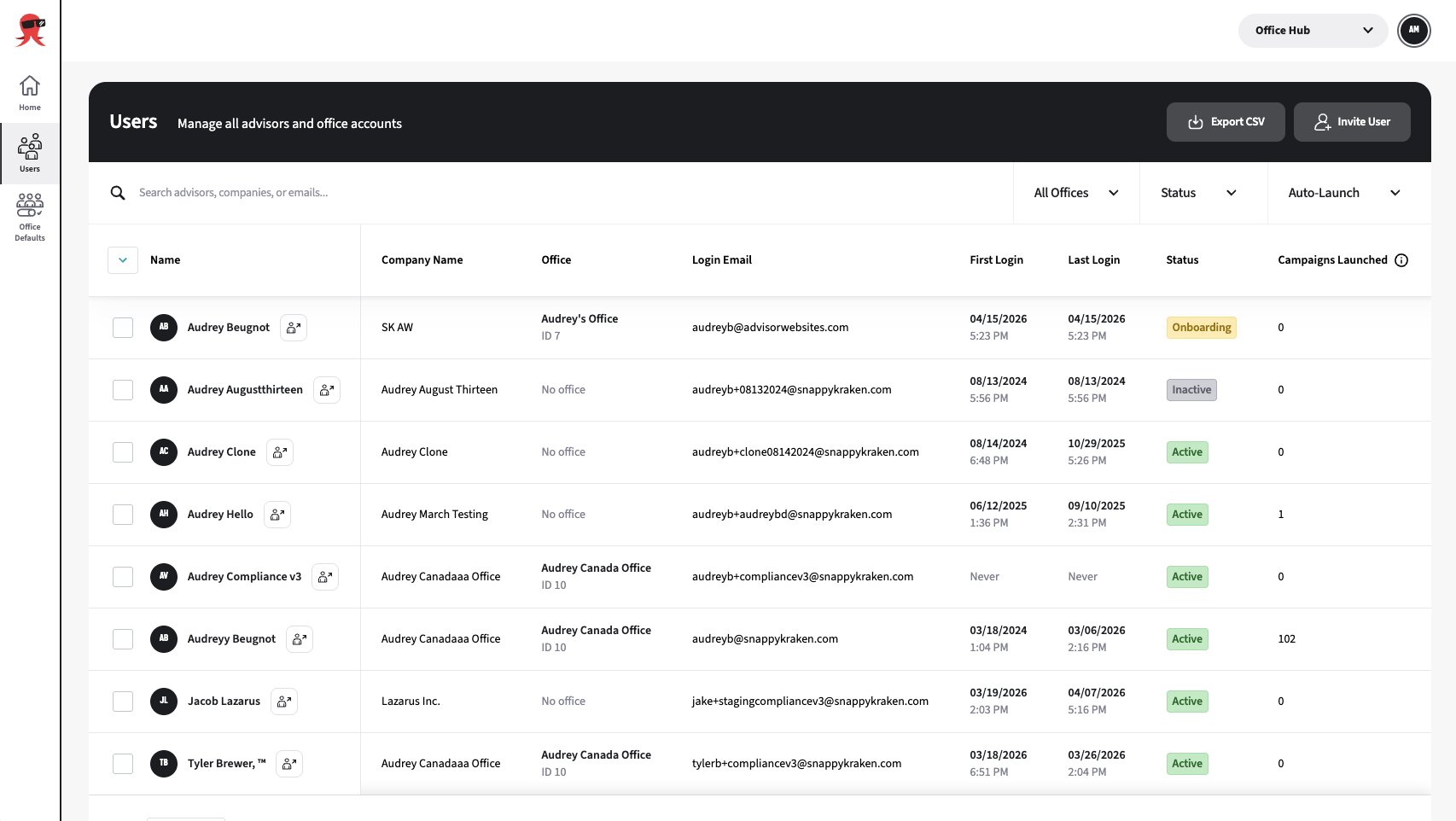
- Click Users in the left-hand menu.
- Review the advisors you manage.
- Use the filters or search field to find an advisor.
- You can search by advisor name, email address, or company.
The list includes advisors with no office assigned. These advisors show No office in the Office column.
Enterprise Support Administrators can access all advisors and office accounts on their Enterprise platform.
Enterprise Support Administrators can access all advisors and office accounts on their Enterprise platform.
Filter and search
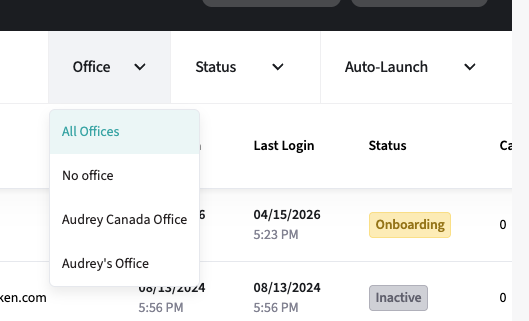
You can filter advisors by:
An office where you have managed advisors
No office
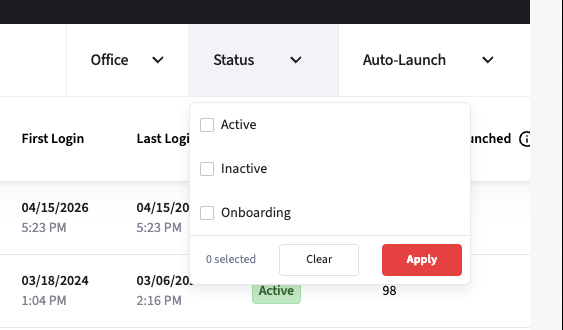
Campaigns Onboarding status:
- Active: Advisors who have an active subscription and have completed the Campaigns onboarding wizard.
- Inactive: Advisors who has no active Campaigns subscription.
- Onboarding: Every advisor who is neither Active nor Inactive: still partway through the Campaigns onboarding wizard, or with no onboarding status recorded at all.
Auto-Launch type
- The Auto-Launch Types column shows the number of Auto-Launch types enabled for an advisor. Hover over the count to see the types of Auto-Launch the advisor has enabled.
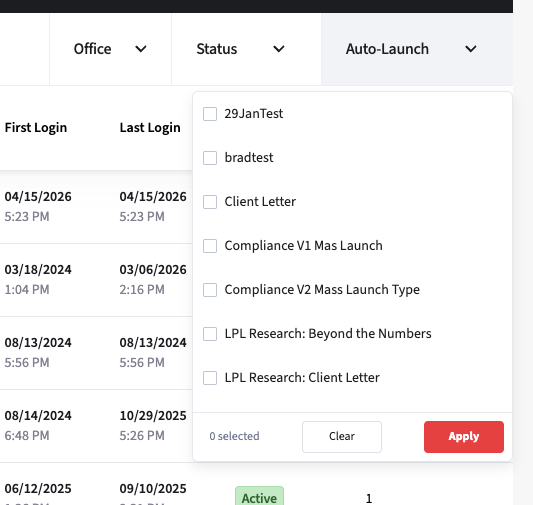
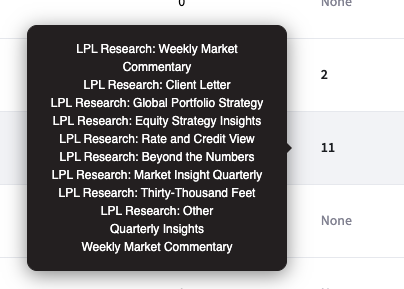
- The Auto-Launch Types column shows the number of Auto-Launch types enabled for an advisor. Hover over the count to see the types of Auto-Launch the advisor has enabled.
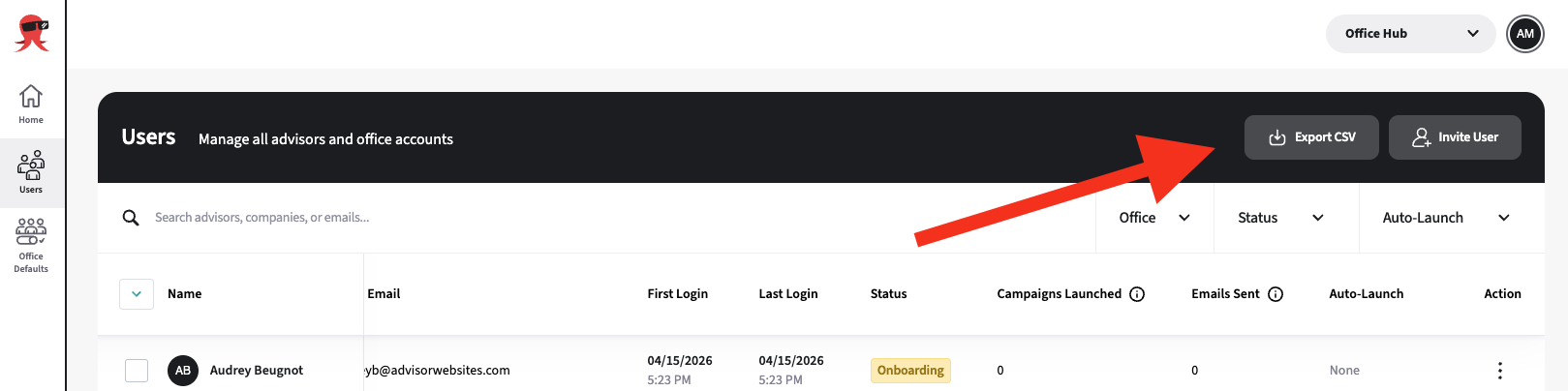
Export the current list
Select Export CSV to export the current advisor list. The export reflects any active filters.
Open an advisor’s details
Click an advisor’s row to open the advisor detail page. The actions available to you depend on your role and permissions. Find out more in this article.
Impersonating the Advisor Account
You can also access an advisor account for the Users tab.
From a row, select the Impersonate icon to impersonate that advisor.