
Overview
The advisor detail page provides a detailed view of the advisor’s account. The actions available to you depend on your role and permissions.
Open the advisor detail page
Select an advisor’s row in the Users list or a tile on the Home dashboard to open the advisor detail page.
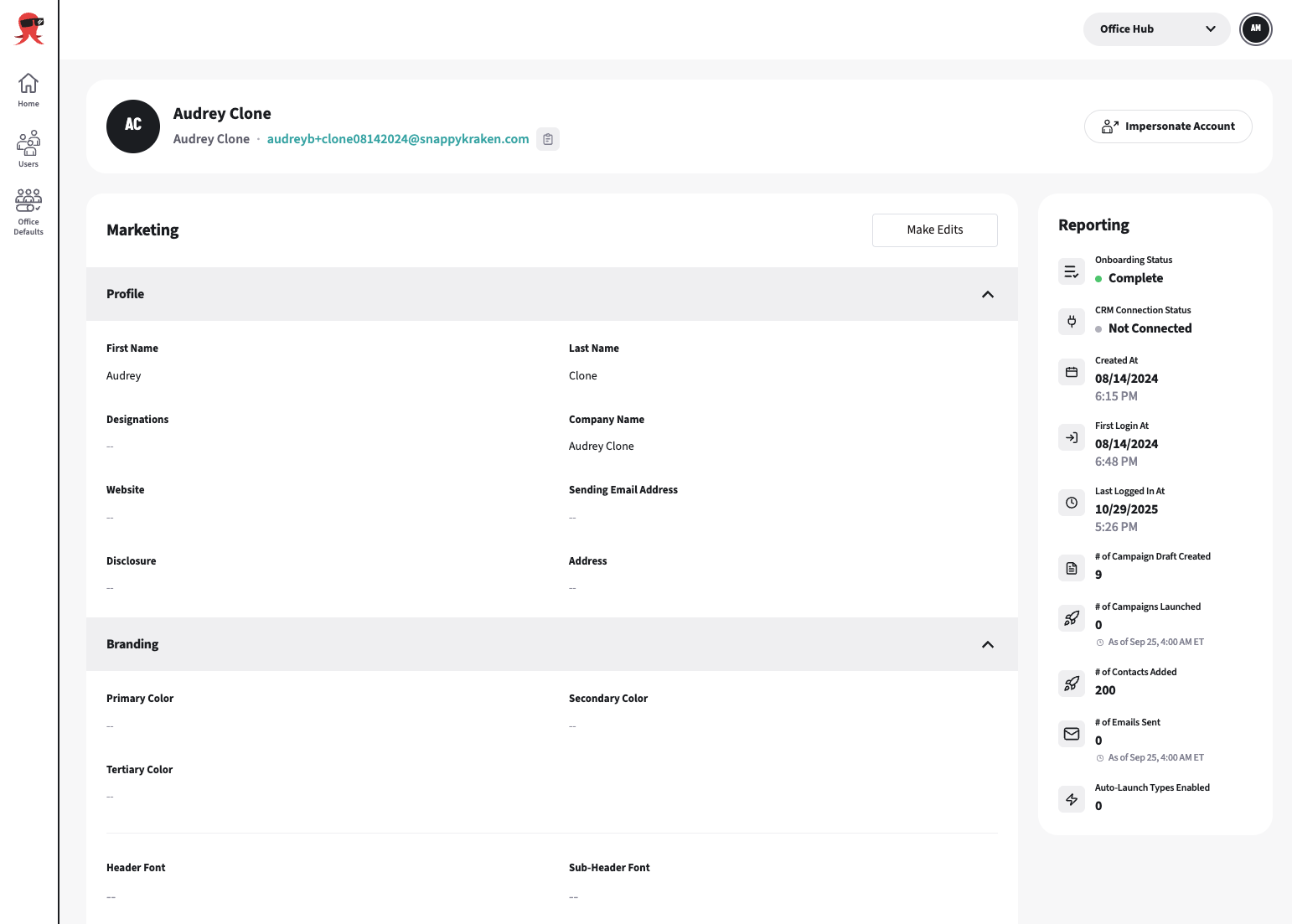
The header shows the advisor’s avatar, full name, firm name, login email, and an Impersonate Account button when available.
Reviewing the Marketing Information
The detail page has one editable Marketing page consisting of Profile and Marketing sections. The page includes:
Profile: first name, last name, designations, company name, website, sending email address, disclosure, and address
Office Hub does not currently allow you to edit an advisor’s login email. The login email shown in the header is different from the sending email address in the Marketing panel.Branding: logos, fonts, and colors
You can click each sections arrow to collapse them.
Editing the Marketing Information
Select Make Edits.
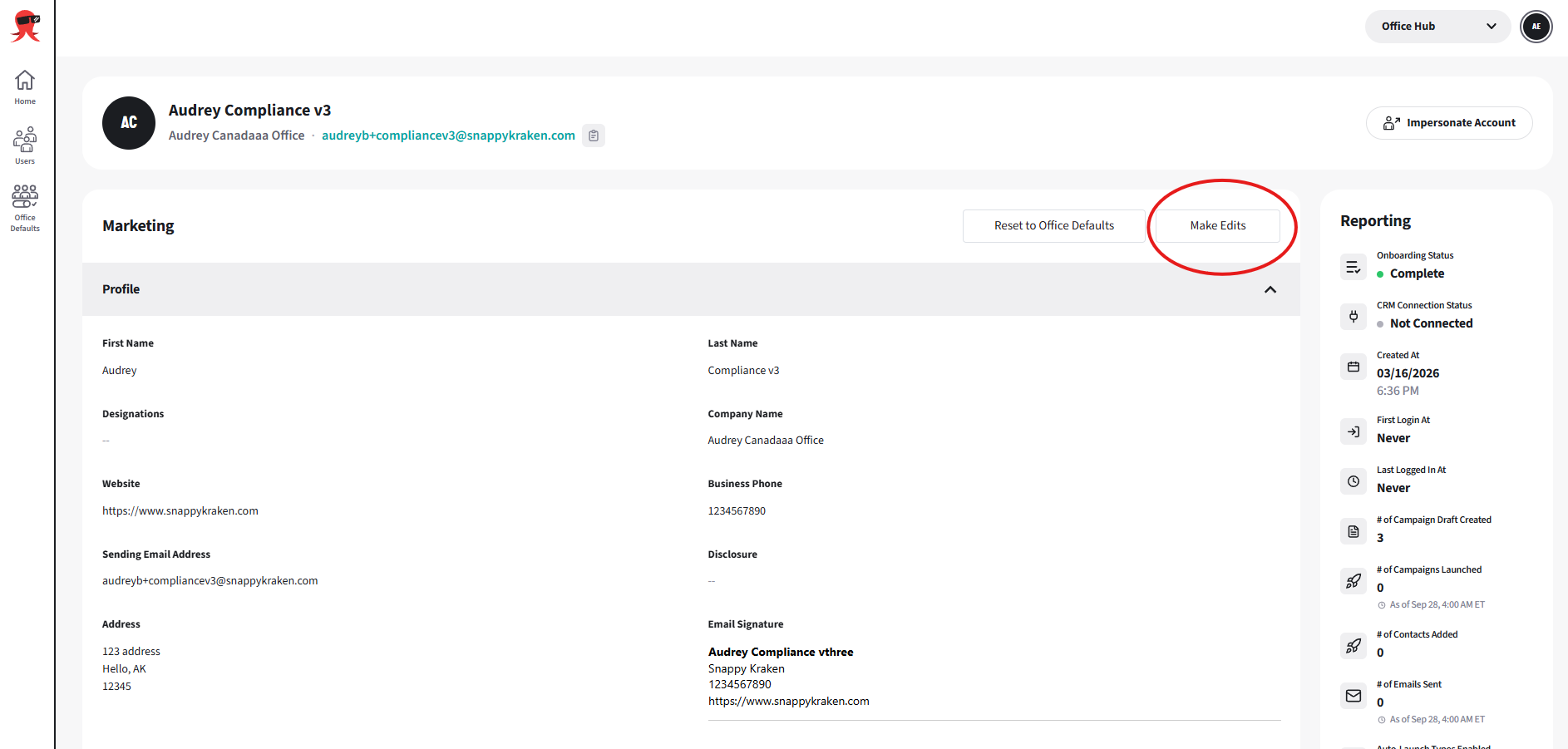
Update the profile or branding fields.
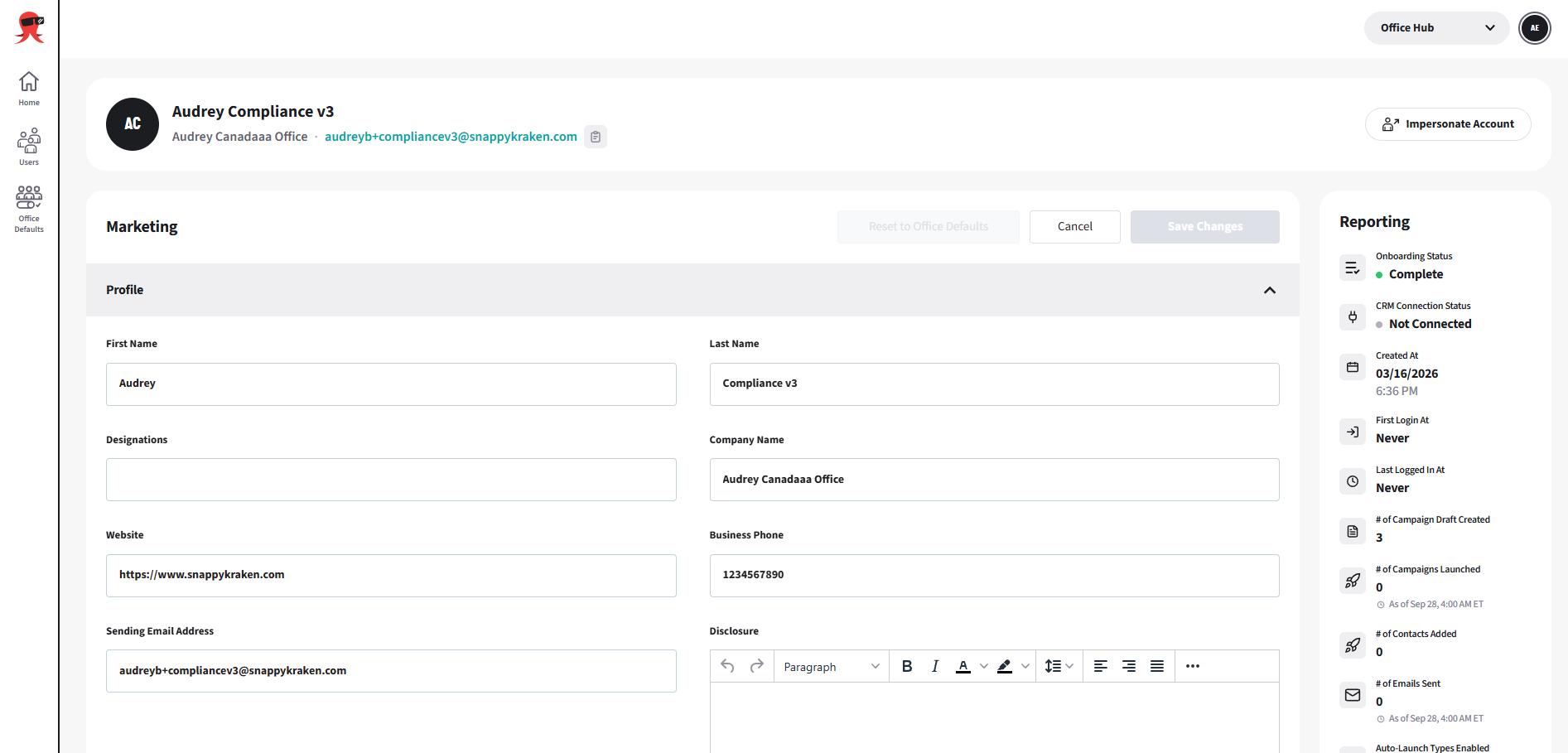
Select Save Changes or Cancel.

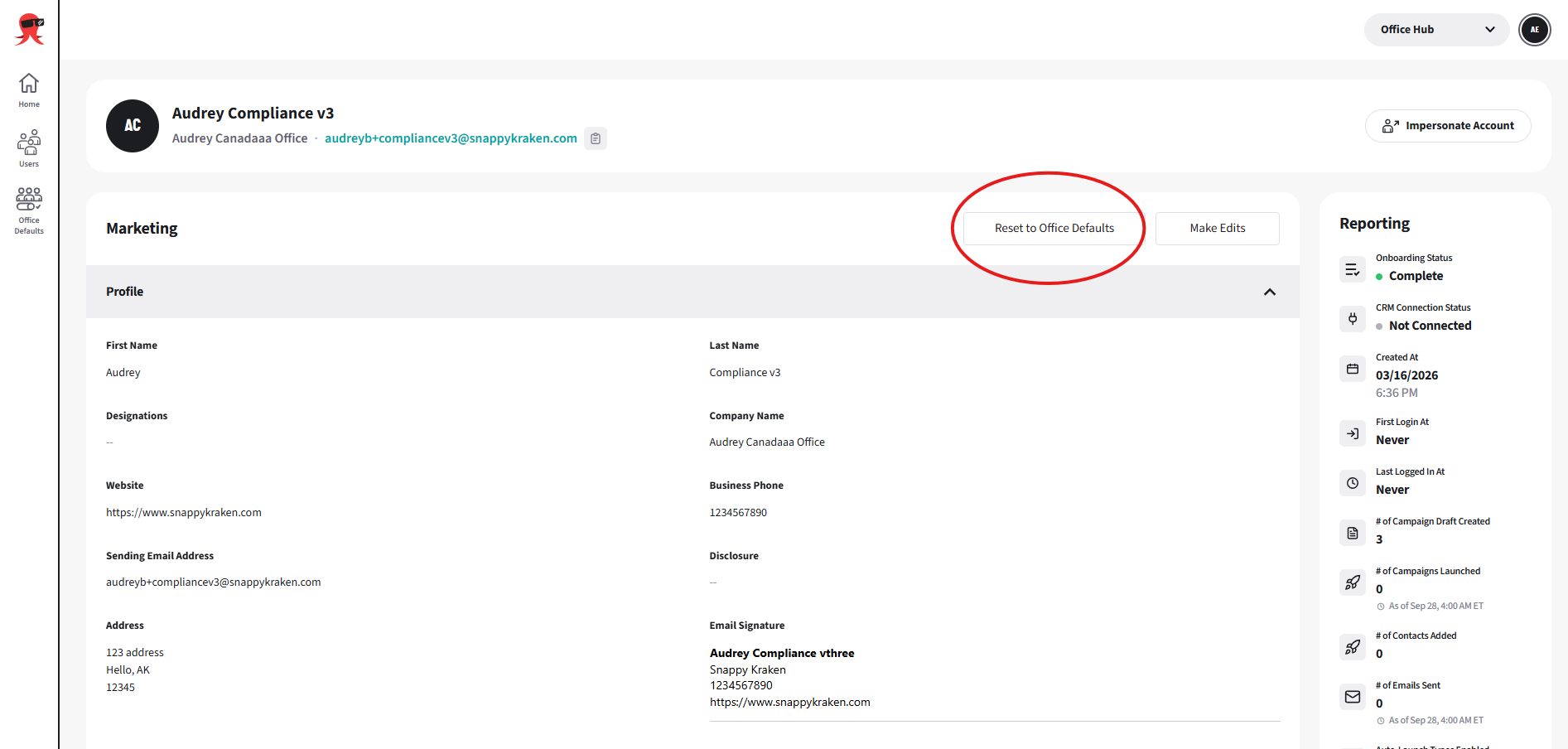
You can also select Reset to Office Defaults to replace the advisor’s applicable fields with the office’s current defaults.
Reviewing Reporting Information
The Reporting panel can be found to the right of the Marketing Information section and contains relevant Campaigns statistics, including:
Campaigns Onboarding Status
Membership Inactive: An advisor is a registered user but has no active Snappy Kraken subscription.
Professional Details: The advisor is adding their professional details.
Logos: The advisor is adding a logo.
Social Networks: The advisor is connecting their social media accounts.
Contacts: The advisor is adding their contacts.
Email Setup, SMTP Setup, DNS Setup, Verifying Email: The advisor is setting up their sending email address.
Profile Approval: Onboarding has been completed and has been submitted to the advisor’s compliance team for approval.
Convos: If applicable, the advisor is setting up their Convos account.
Complete: Onboarding is complete.
Some stages are optional, so the advisor may not have completed every stage but they have acknowledged and gone through them.
CRM connection status: Shows whether a CRM is connected and, if so, which CRM.
Account dates: Shows the account creation, first login, and last login dates. The page displays Never when a date is not available.
Campaign drafts: Shows the number of Campaign drafts created.
Campaigns launched: Shows the number of Campaigns launched. This data refreshes daily and includes an As of date.
Emails sent: Shows the number of Emails sent. This data refreshes daily and includes an As of date.
Contacts added: Shows the number of Contacts added.
Auto-Launch types: Shows the Auto-Launch types enabled for the advisor.
What happens when a change is made to the Advisor Details?
When an admin updates an advisor’s profile in Office Hub, the advisor receives an email if applicable notification rules allow it.
If the advisor is in a profile compliance workflow, changes to compliance-relevant fields—such as name, address, website, sending email, disclosure, or designations—may resubmit the profile for compliance review.
Depending on your enterprise’s version of the Snappy Kraken compliance engine, the system may:
- Resubmit the changes automatically and notifies the advisor via email that a marketing admin has made an update
- Notify the advisor to download the PDF and send their profile to their compliance officer