Overview
Office Hub is an area of the Enterprise platform that helps authorized administrators manage advisors who belong to an office. Depending on your role, you can use Office Hub to:
- Review office activity and advisor activation status
- View and edit the advisors you manage
- Invite an existing advisor to an office
- Export your advisor list
- Maintain shared office branding and profile defaults, if you are an Office Administrator
- Apply selected office defaults to advisors
Your available offices, advisors, and actions depend on your role, your Office Hub access, and the offices you manage.
Who can use Office Hub?
- Advisor Marketing Administratorcan manage the advisors assigned to them. They can access Office Defaults only for offices where they are explicitly named an Office Administrator.
- Having Advisor Marketing Administrator role, or being invited to an office does not automatically make an Advisor Marketing Administrator an Office Administrator.
- Enterprise Support Administrators can view and manage offices and advisors across their Snappy Kraken platform.
Setting up offices and assigning advisors
Before You Begin
- Make sure you have access to the Brain and an Enterprise Platform Administrator role.
- Make sure Office Hub is enabled on your platform.
If you don’t meet either requirement, contact your Account Manager.
Part 1: Create an Office
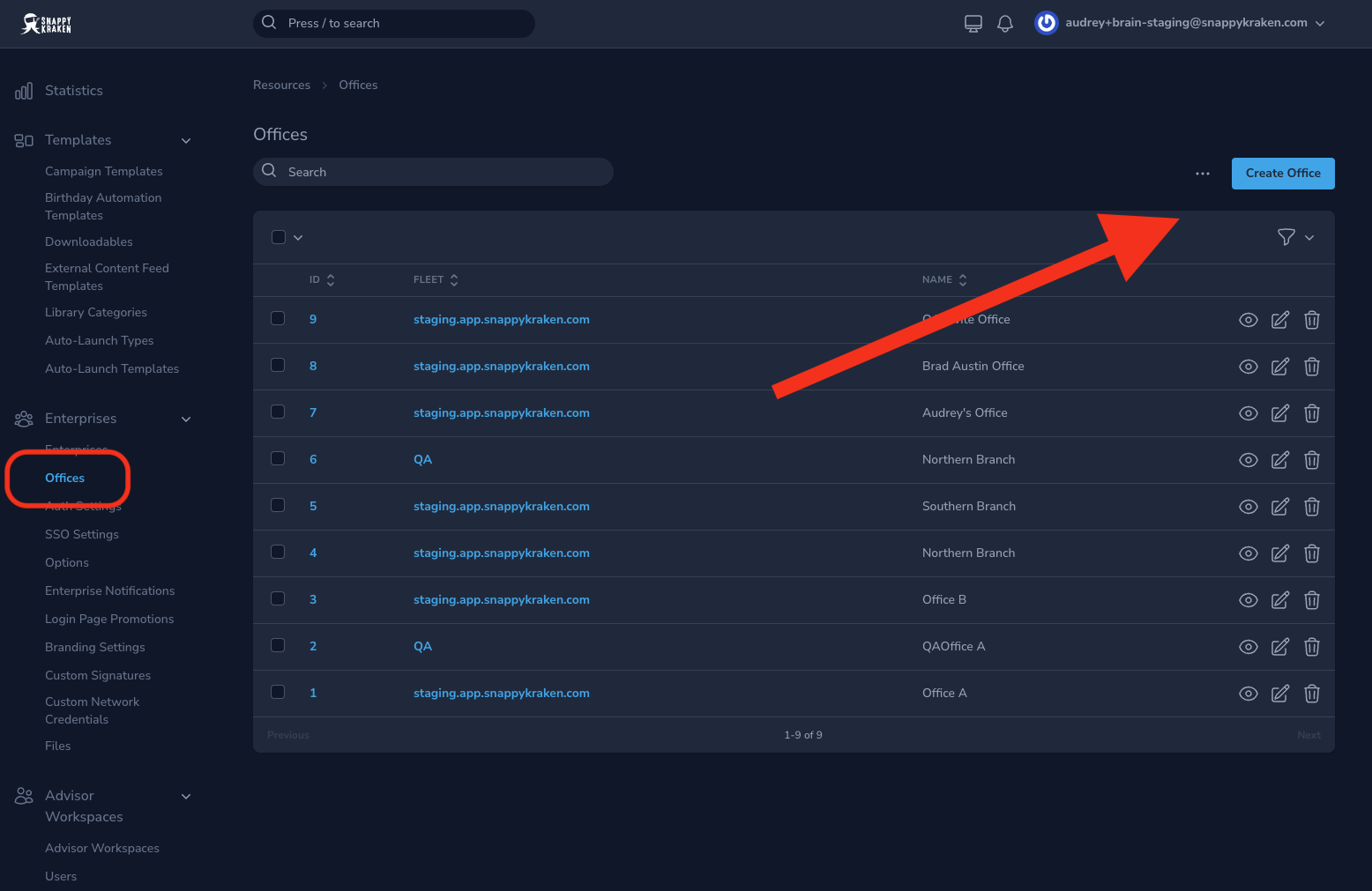
In the Brain, open Offices, then select Create Office.
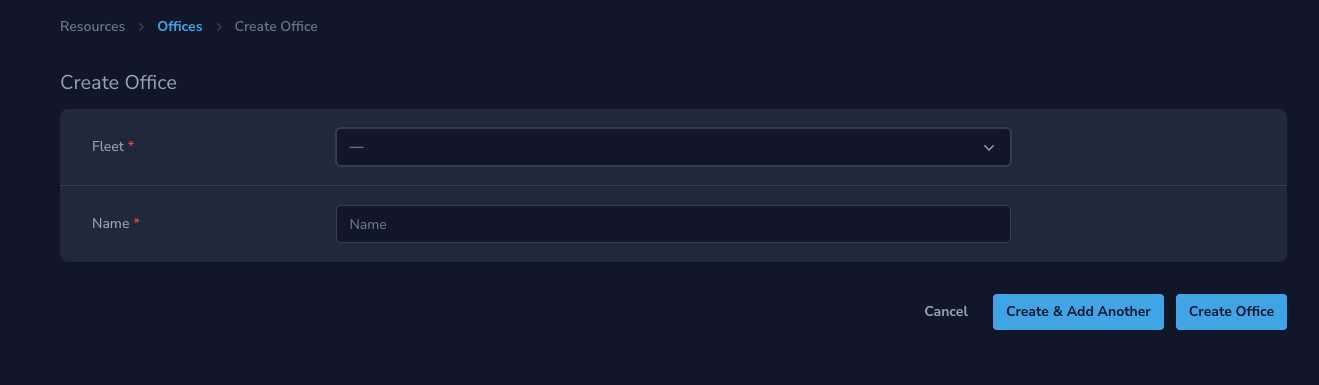
Confirm your Enterprise platform is correctly selected in the Fleet field, select the Enterprise platform for the office.
Enter an office Name. The name must be unique within the selected platform.
Select Create Office.
Part 2: Add Office Members (Advisors)
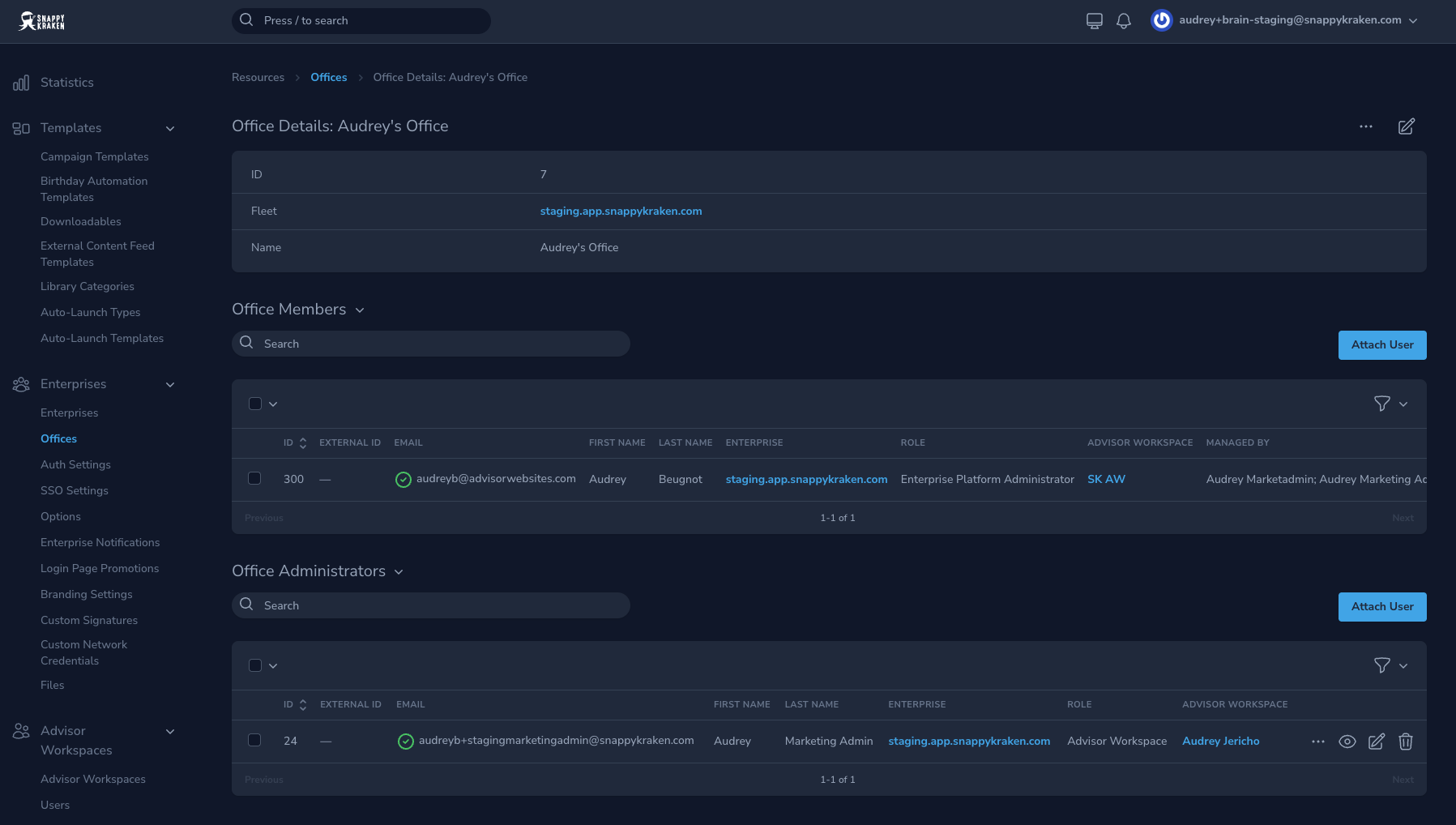
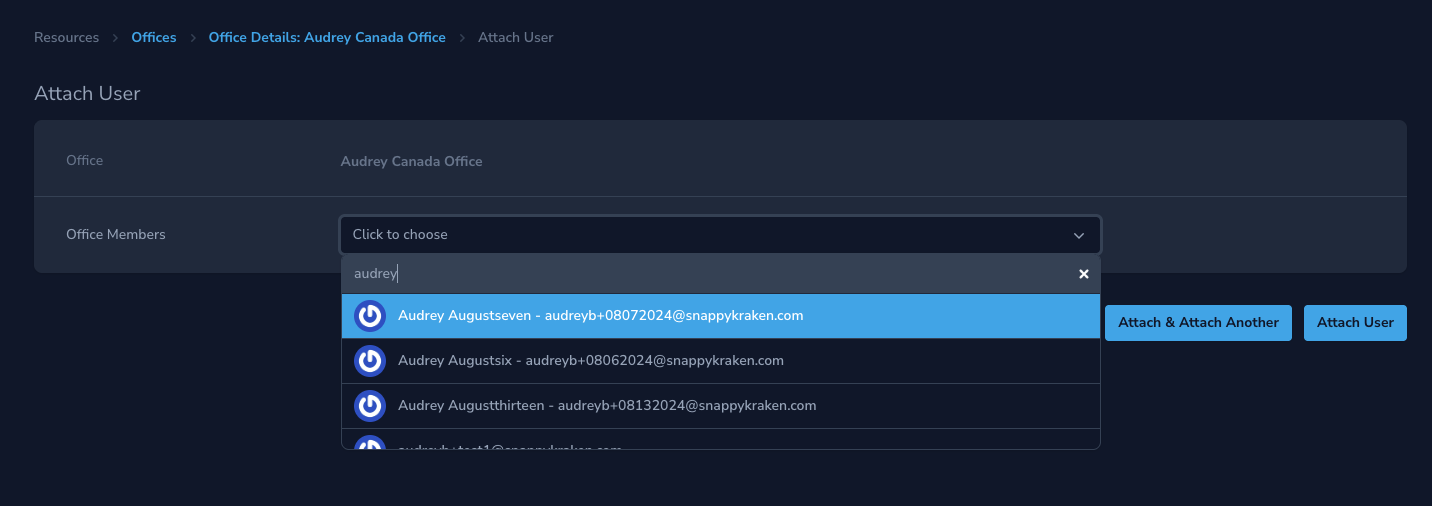
In the Office Members panel, select Attach.
Search for the advisor by name or email address.
Select Attach User to add the advisor to the office.
Assign Office Administrators
Office Members are advisors who belong to the office. An Advisor Marketing Administrator does not receive Office Administrator access automatically. You must add them to the office’s Office Administrators panel.
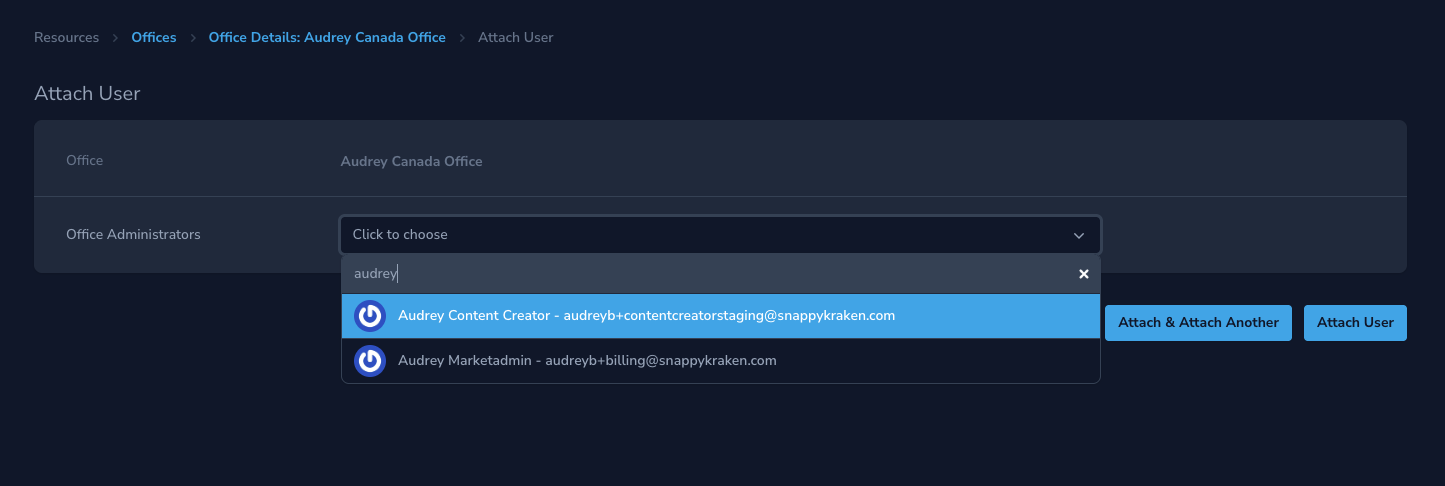
In the Office Administrators panel, select Attach.
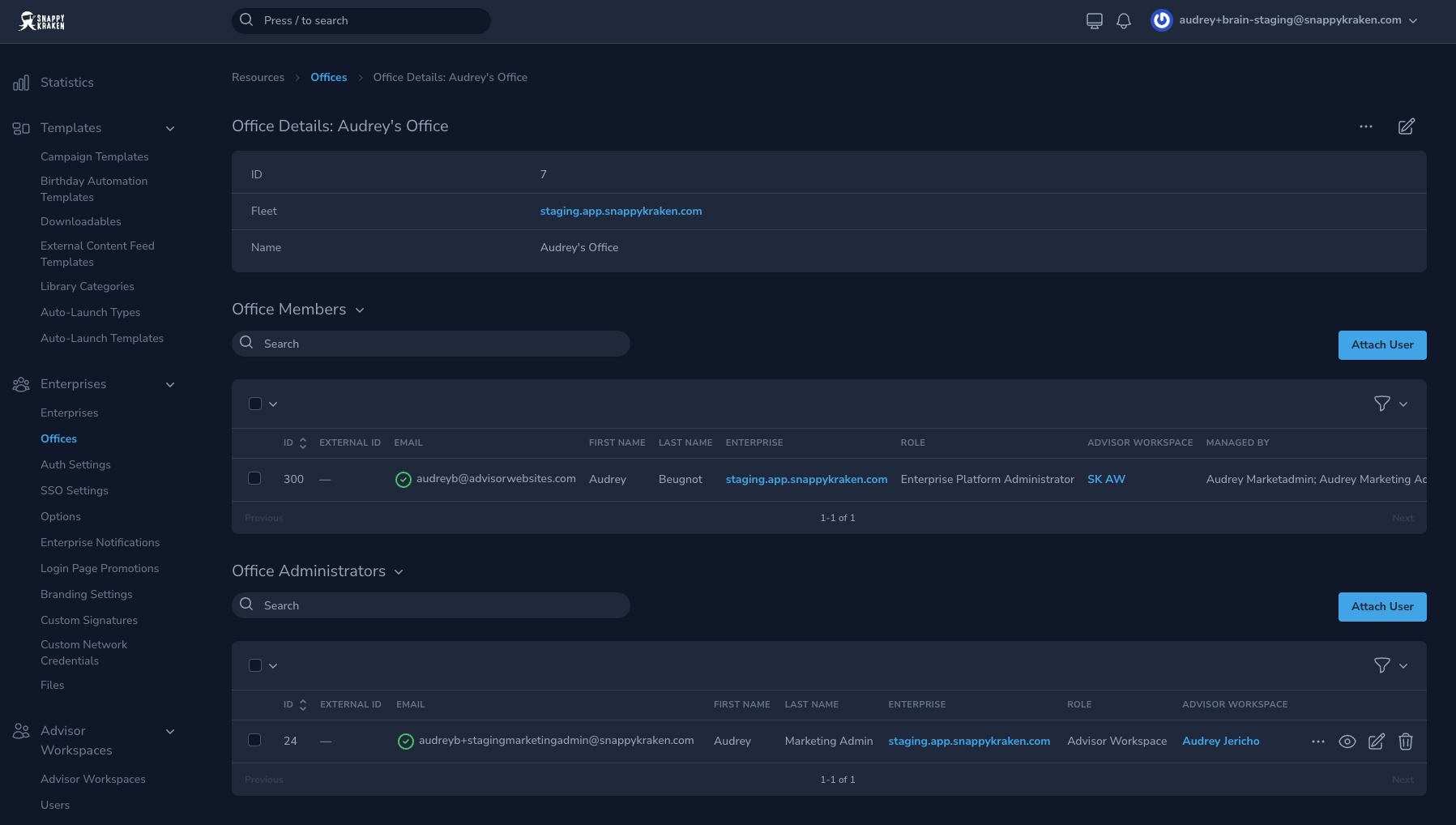
Search for the Advisor Marketing Administrator you want to assign.
Select Attach User.
To assign another Office Administrator, select Attach & Attach Another.