
An Advisor Marketing Administrator helps manage marketing for one or more advisors. They sign in with their own account and access assigned Advisor Workspaces through impersonation—working in an advisor’s workspace on their behalf.
This guide explains how to add a Marketing Admin, choose the right setup, and manage access when your team changes.
Before you get started
Make sure you have:
- Access to Snappy Kraken’s User Management Portal, also called Brain, as an authorized Enterprise Platform Administrator.
- The Marketing Admin’s account email address.
- The names and email addresses of the advisors they’ll support.
You’ll also need to decide whether the Marketing Admin only needs access to assigned advisors’ workspaces or needs their own Advisor Workspace. If your Enterprise uses Office Hub, check whether they’ll need separate Office Administrator access.
Note: Role names and menu labels may vary slightly depending on your account configuration.
What can a Marketing Admin do?
An Advisor Marketing Administrator can access the Advisor Workspaces assigned to them. One Marketing Admin can support multiple advisors, and multiple Marketing Admins can support the same advisor.
The role does not automatically include:
- A separate Advisor Workspace.
- An Advisor Workspace subscription.
- Office Administrator permissions.
Option 1: Access assigned advisors’ workspaces only
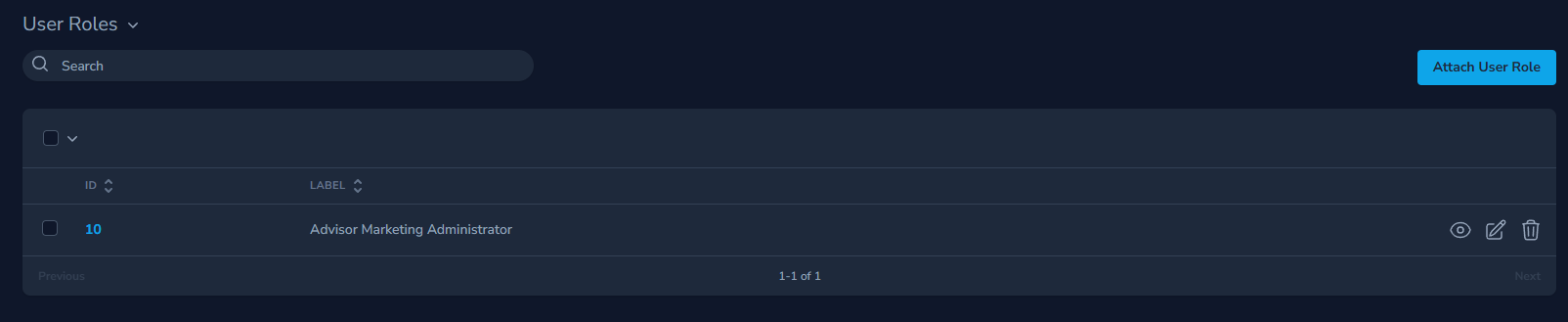
This setup works well for a marketing assistant or team member who creates campaigns, edits content, or updates marketing information on an advisor’s behalf but doesn’t need a separate workspace.
The Marketing Admin signs in with their own credentials, selects an assigned advisor, and impersonates that advisor. The advisor’s subscriptions and product access determine which features are available.
For this setup, the user needs:
- The Advisor Marketing Administrator role.
- A Marketing Administrator subscription.
Option 2: Access assigned advisors and use a separate workspace
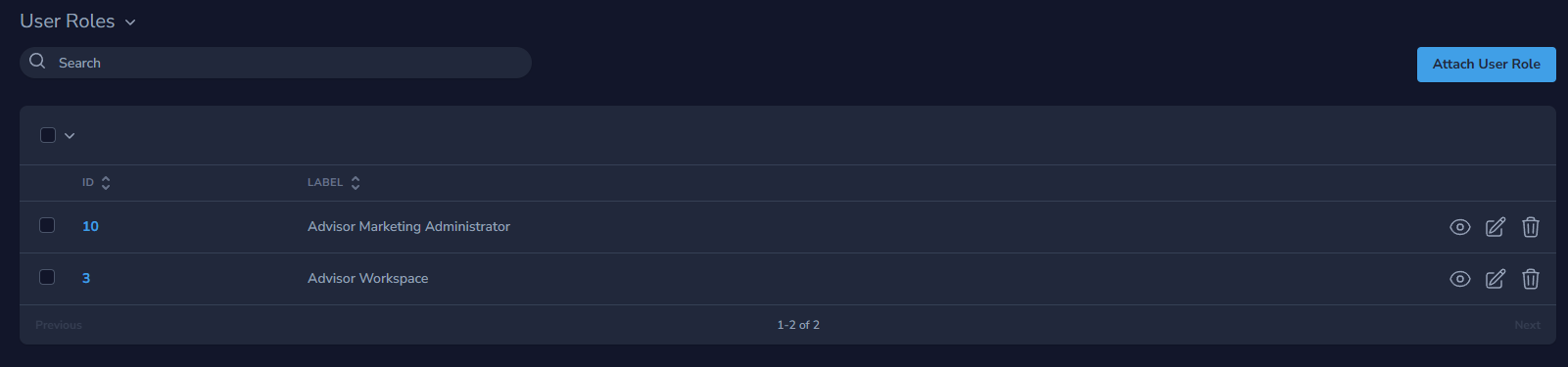
Choose this setup when the team member also needs to work from their own workspace—for example, to customize campaigns and share them with managed advisors.
In addition to the Advisor Marketing Administrator role, the user needs:
- The Advisor Workspace role.
- An active subscription for the products they’ll use in their own workspace.
Adding the Marketing Admin role alone doesn’t create a separate workspace or provide access to its campaigns dashboard.
Need to add a subscription? Contact your account manager for help with either setup.
How to add a Marketing Admin
Step 1: Find or create the user
- Sign in to Brain as an authorized Enterprise Platform Administrator.
- Select User from the left-hand menu.
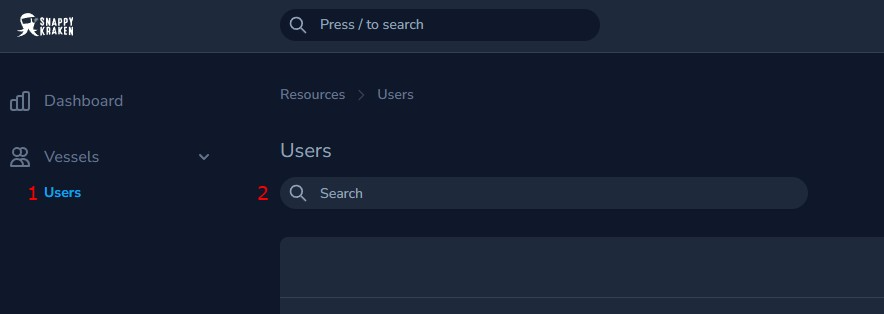
- If the user already has an account, search for them and select their row or the eye icon to open their account.

If the user doesn’t have an account yet:
- Click Create User.
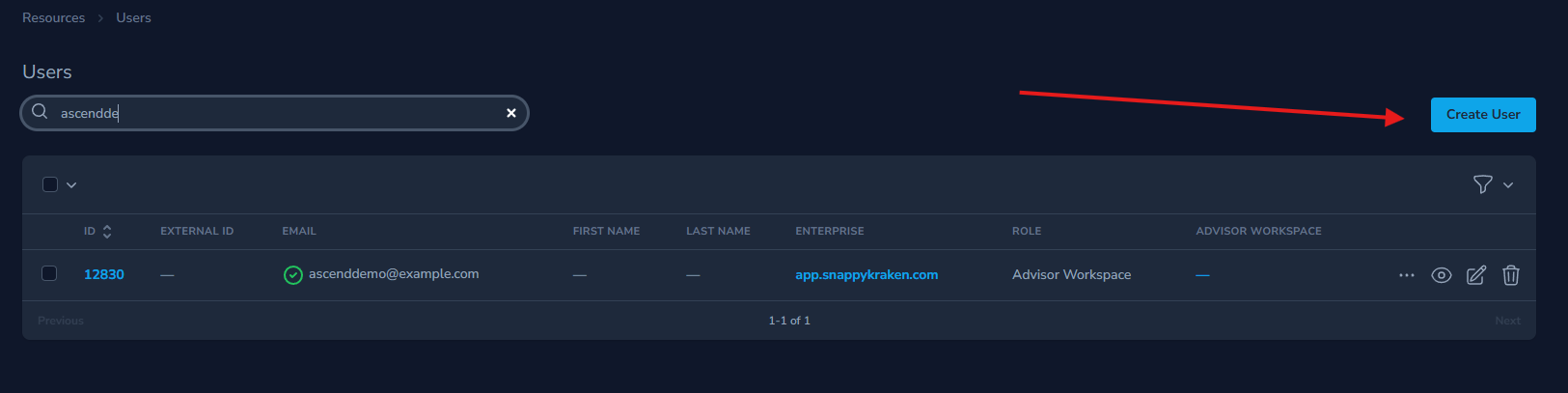
- Enter the required information, including their name and email address. You can set a temporary password that they can reset after signing in.
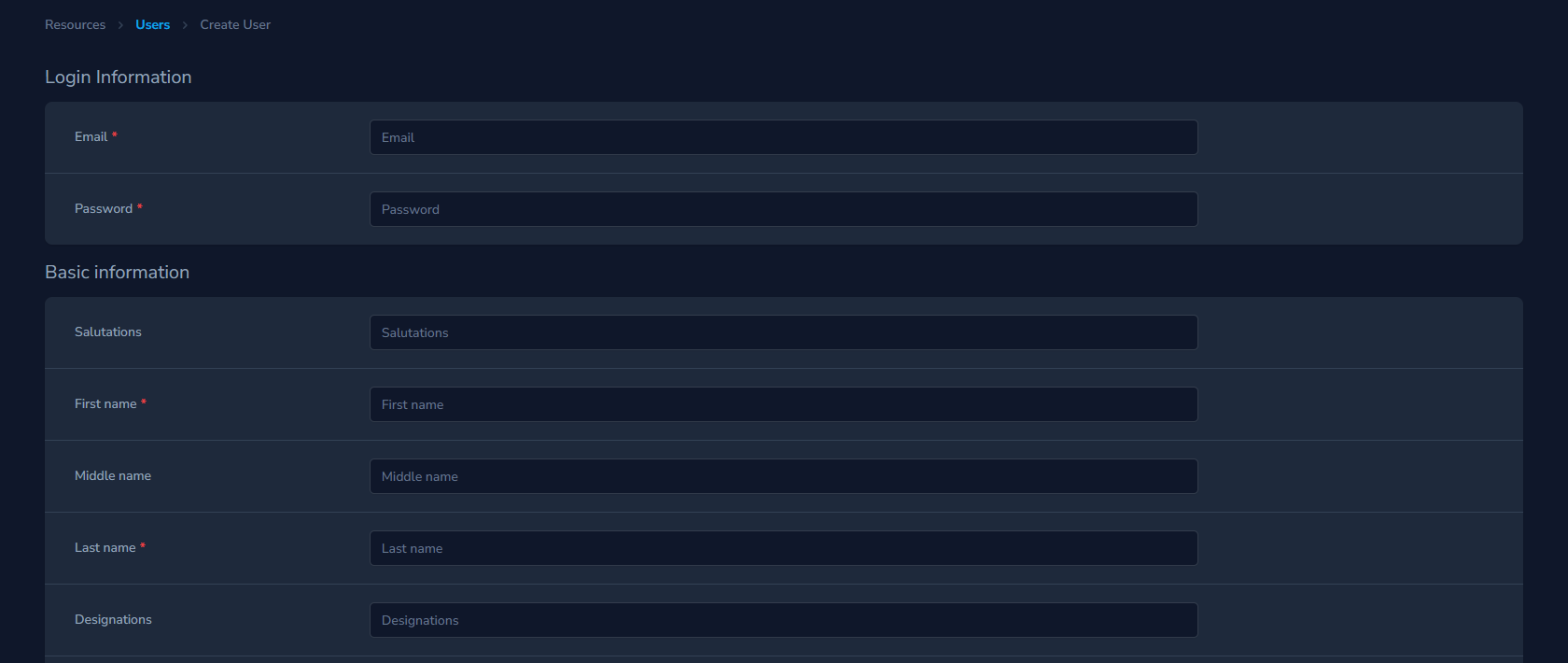
- Click Create User to save, then open their account.

Step 2: Add the Marketing Admin role
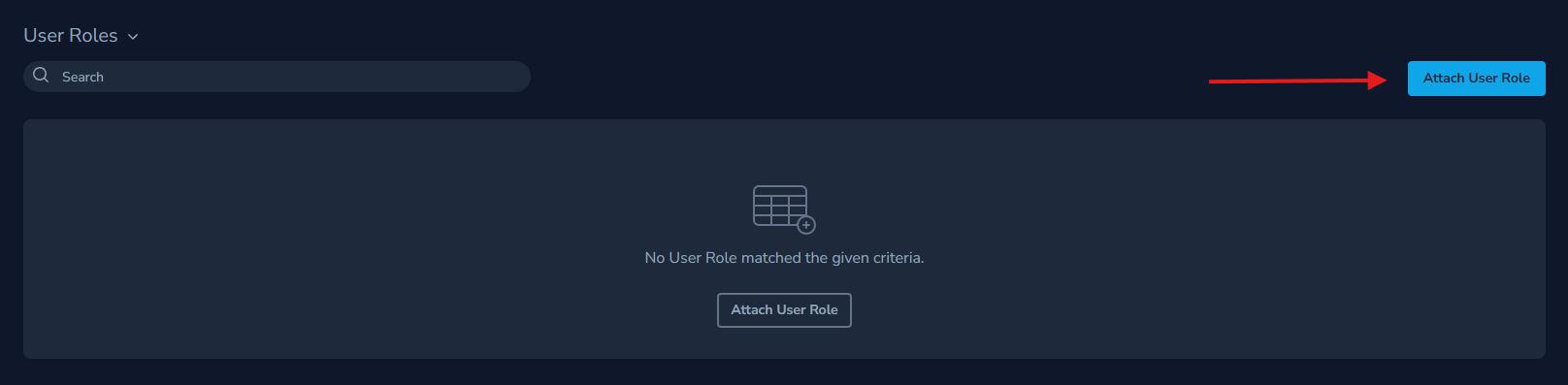
- In the user’s account, scroll to User Role.
- Click Attach User Role.
- Select Advisor Marketing Administrator from the role dropdown.
- Click Attach User Role to save.
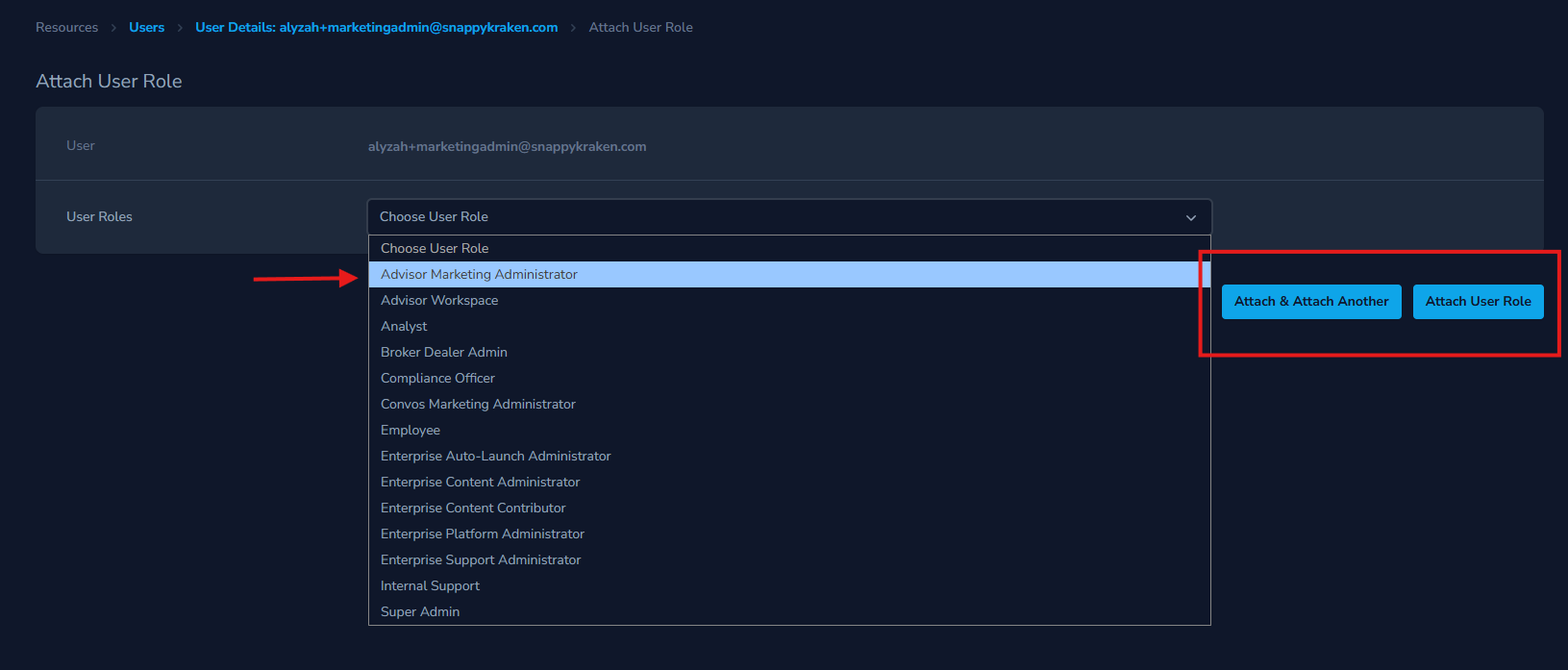
If the person also needs their own workspace, repeat the same steps to add the Advisor Workspace role and confirm the required product subscription with your account manager.
Step 3: Assign the advisors they’ll support
- In the user’s account, scroll to Users managed by Marketing Admin.
- Click Attach User.
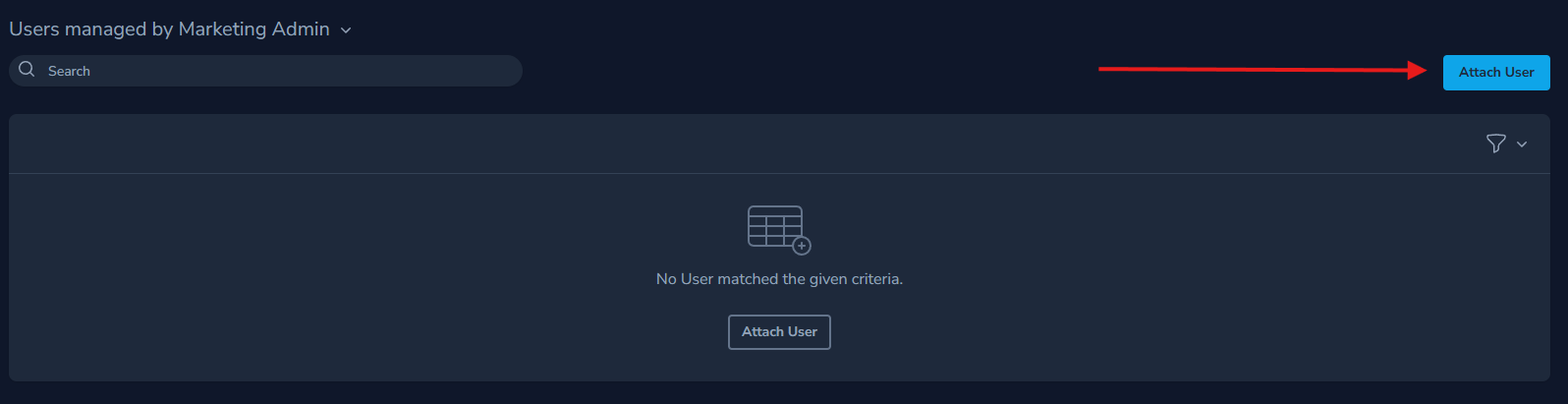
- Search for the advisor’s email address and select the advisor.
- Click Attach User to save. To add more advisors, select Attach and Attach Another.
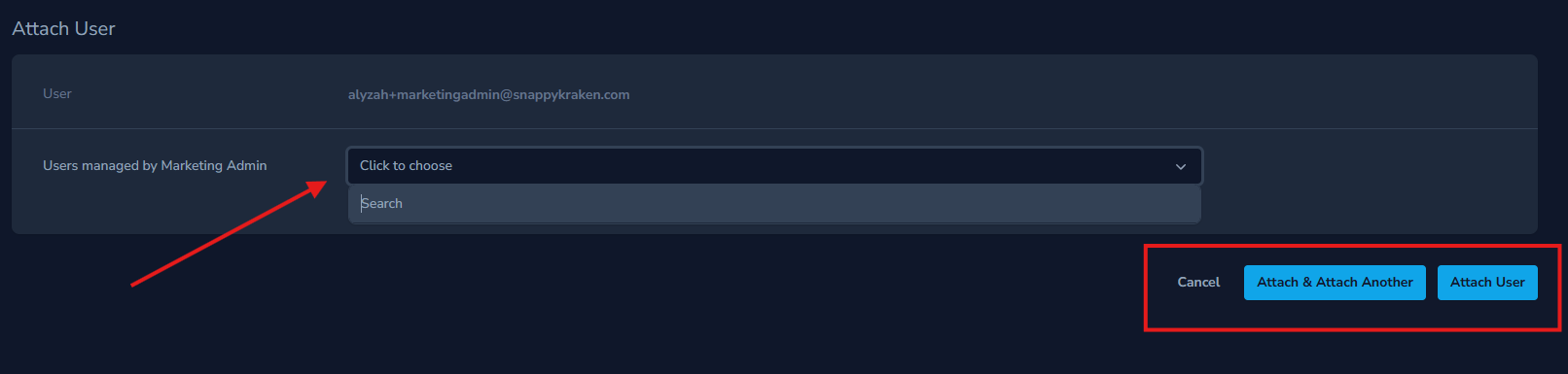
All assigned advisors must belong to the same Enterprise as the Marketing Admin. Only assign the advisors the person needs to support.
Can multiple team members support the same advisor?
Yes. Add each team member as a Marketing Admin using their own account, then assign the same advisor to each person. The advisor remains the owner of the Advisor Workspace.
How to remove Marketing Admin access
The change you need depends on whether the person should stop supporting one advisor or should no longer have Marketing Admin access at all.
If the person should stop supporting one advisor
- Sign in to Brain and go to User.
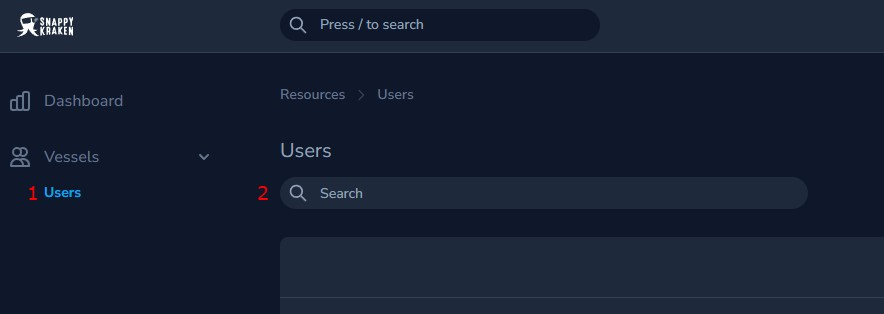
- Search for the Marketing Admin, then select their name or the eye icon to open their account.

- Review their advisor assignments in Users managed by Marketing Admin.
- If they still support other advisors, click the trash icon beside the advisor they no longer manage to remove access to that workspace only.
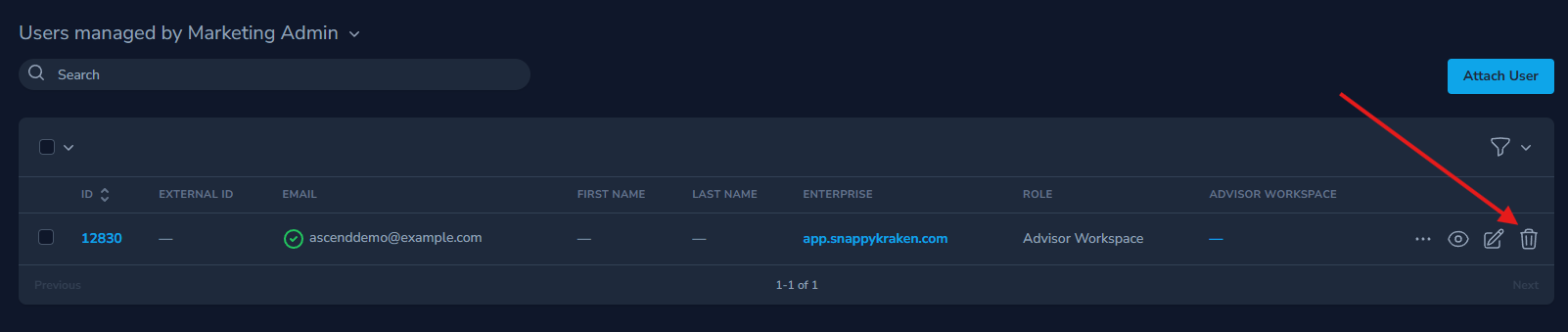
- If another team member will take over, add them as a Marketing Admin and assign the advisors they’ll support.
If the person leaves or no longer needs the Marketing Admin role
- Sign in to Brain and go to User.
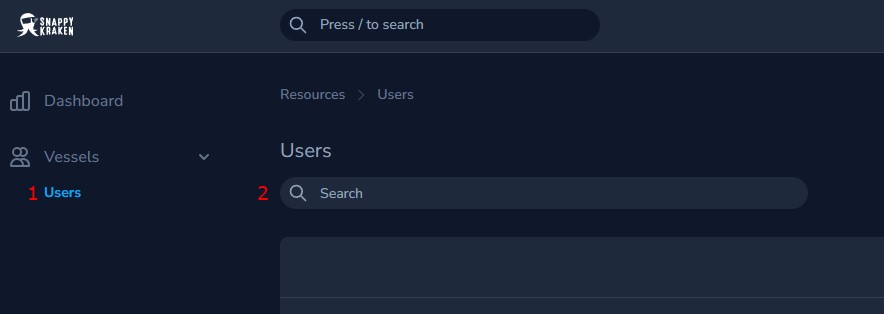
- Search for the Marketing Admin, then select their name or the eye icon to open their account.

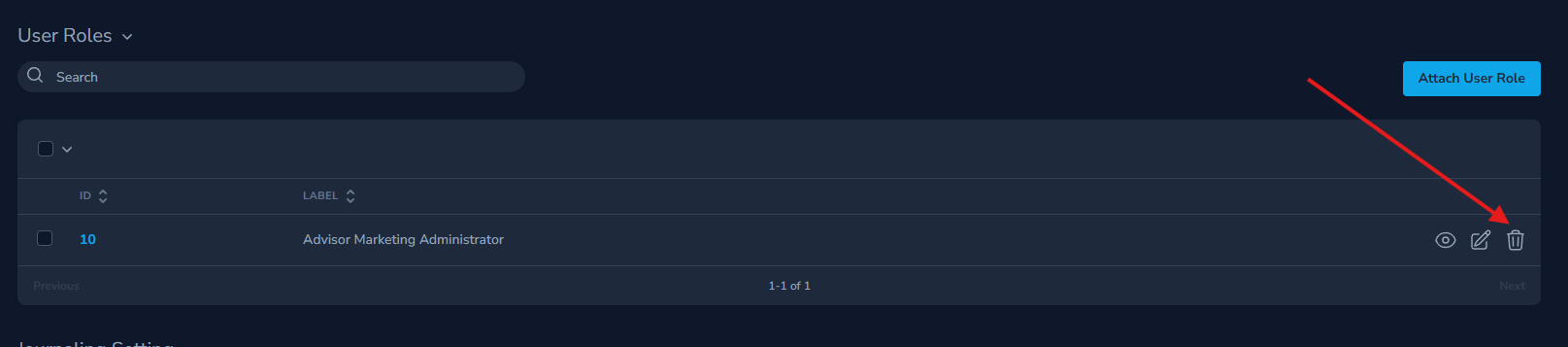
- Scroll to User Role.
- Click the trash icon next to the Advisor Marketing Administrator role to remove it.
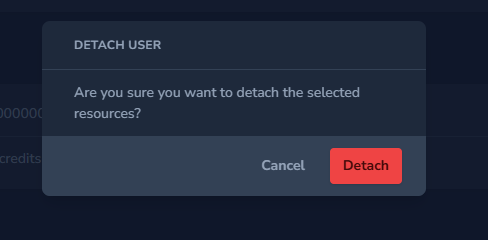
- Select Detach on the pop-up that appears to confirm the changes.
- Send the user’s email address to your account manager so they can review the subscriptions and any separate Advisor Workspace access.
- If another team member will take over, add them as a Marketing Admin and assign the advisors they’ll support.
Important Notes
- Do not remove the Advisor Workspace role. If the departing person has their own workspace, work with your account manager on the appropriate access and continuity steps.
- If your Enterprise uses Office Hub, also make sure any Office Administrator role assigned to the departing person is removed. Office Hub permissions are separate from Marketing Admin access.
- Removing a Marketing Admin role or advisor assignment should remove access only—not the advisor’s campaigns, contacts, reporting, or subscription. Don’t delete the advisor’s account to remove another person’s access.
What happens after setup?
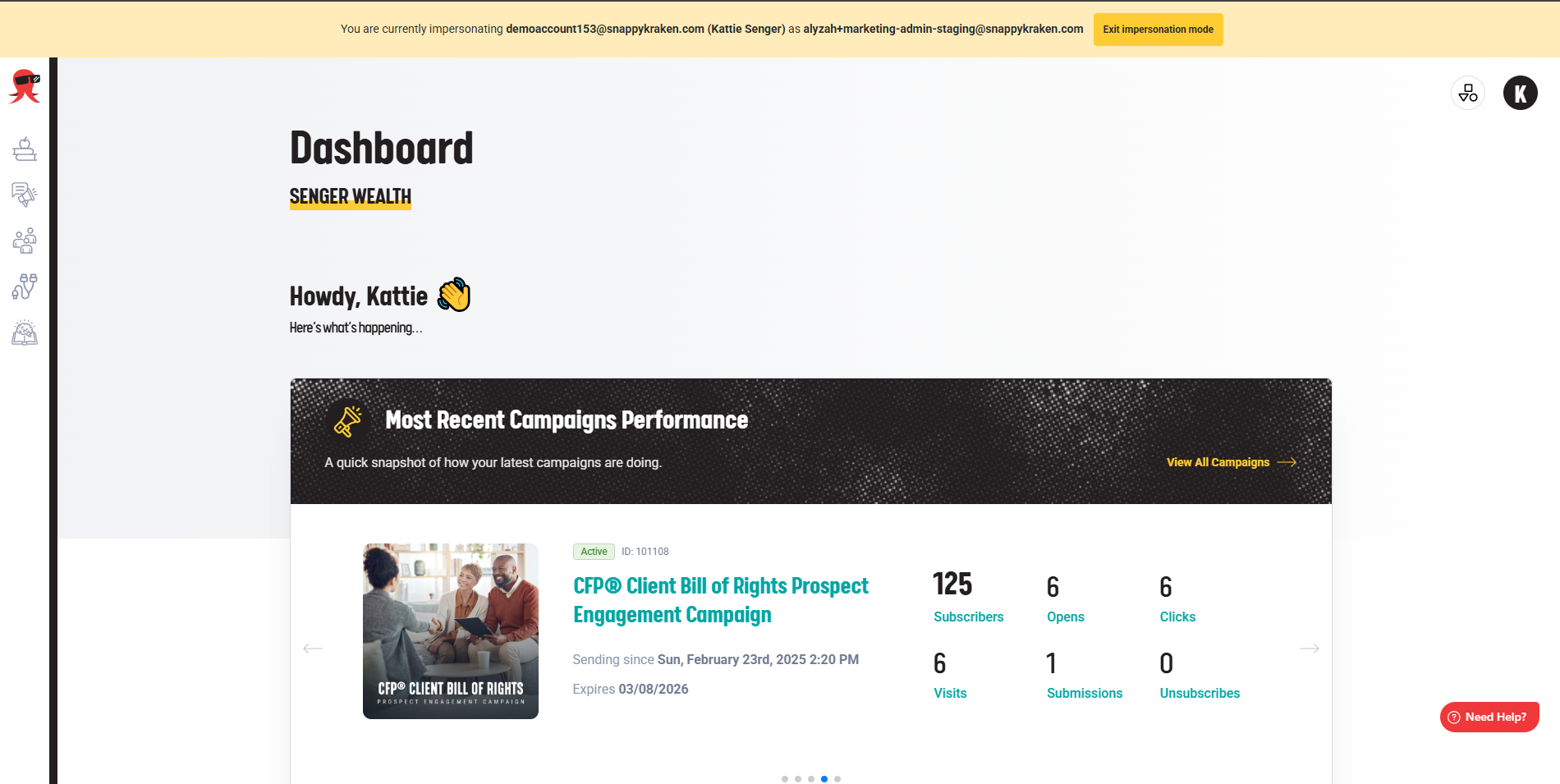
The Marketing Admin signs in with their own credentials and can access the advisors and products allowed by their roles, assignments, and subscriptions.
After a role change, they may need to sign out and sign back in for their menus and access to refresh.
Troubleshooting
I can’t find an advisor
Check that:
- The Marketing Admin and advisor belong to the same Enterprise.
- The advisor has the Advisor Workspace role.
- The Marketing Admin is assigned to that advisor or has the appropriate Office Hub assignment.
- The advisor’s role doesn’t protect them from impersonation.
I can sign in, but I can’t impersonate an advisor
Check that:
- You have the Advisor Marketing Administrator role.
- The advisor is assigned to you.
- The advisor has the Advisor Workspace role and an active subscription for the product you’re trying to access.
- You’ve selected the correct product and Enterprise.
I can impersonate an advisor, but I can’t customize or share campaigns from my own workspace
You may have an impersonation-only setup. To work from your own workspace, you’ll need the Advisor Workspace role and the required product subscription. Contact your account manager to confirm the setup, enable any required features, and arrange the appropriate subscriptions.
I can’t see Office Hub or Office Defaults
Office Hub must be enabled for your Enterprise, and you must have access to it. To manage an office’s defaults, you also need to be assigned as an Office Administrator for that office.
Being a Marketing Admin or belonging to an office doesn’t automatically give you Office Administrator access.
Advisor data appears to be missing after an access change
Removing an admin role or advisor assignment should only remove access. Check the advisor’s workspace association and subscription, then contact Support if the data still appears to be missing. Don’t delete or recreate the advisor’s account while troubleshooting.
Still need help?
Contact Support if:
- You can’t add a required role or Advisor Workspace association.
- An advisor or Marketing Admin is in the wrong Enterprise.
- You need help with an impersonation restriction or an error that persists after checking roles and assignments.
- Office Hub needs to be enabled or an access issue remains unresolved.
- A departing employee has their own Advisor Workspace and you need help planning continued access or ownership.
Include your Enterprise name, affected account email addresses, user roles, advisor name, and the exact error message. Screenshots are helpful, too!