
What this article helps you do
This article explains how to:
- Sign in to Enterprise Hub and Brain
- Verify your email address when required
- Reset your password
- Sign in when your organization uses Single Sign-On (SSO)
- Switch between Enterprise Hub and Brain
- Troubleshoot access if you can sign in but do not see Enterprise Hub
Before you begin
Make sure you are signing in with the email address associated with your organization and Enterprise Hub access.
Enterprise Hub access depends on both your user role and the enterprise (aka fleet) your account belongs to.
If your organization uses Single Sign-On (SSO), you will need to sign in using your organization's identity provider. Your organization may also control password resets and product access.
Keep in mind that access to Enterprise Hub and Brain depends on your role, permissions, and your organization's configuration. You may not see every product or navigation option shown in this article.
Sign in to Enterprise Hub
- Go to admin.snappykraken.app .
- Sign in using the email address associated with your account and follow the prompts to continue.
- If your organization uses SSO, you may be redirected to your organization's identity provider to complete the sign-in process.
- After signing in, Enterprise Hub will display the navigation and features available for your role.
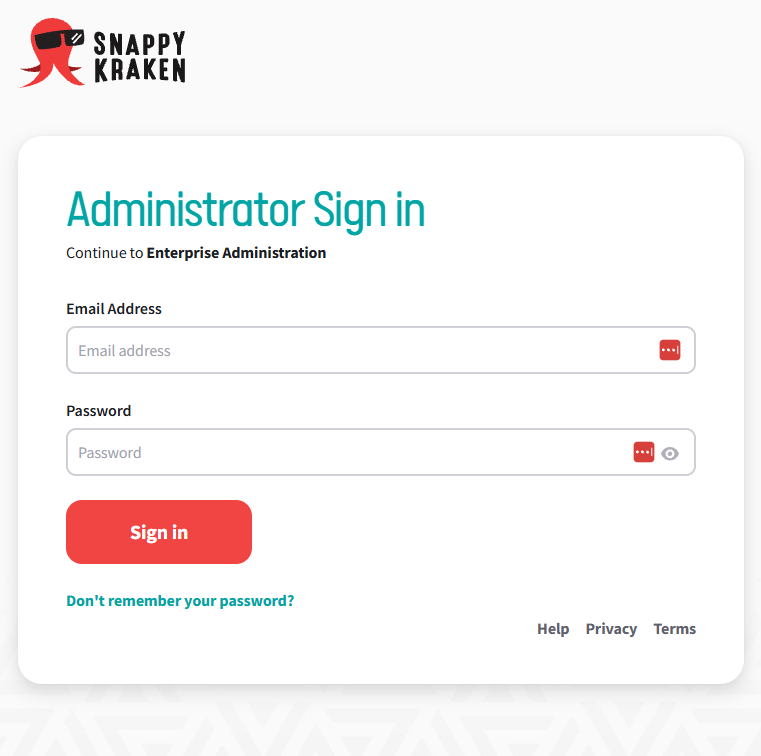
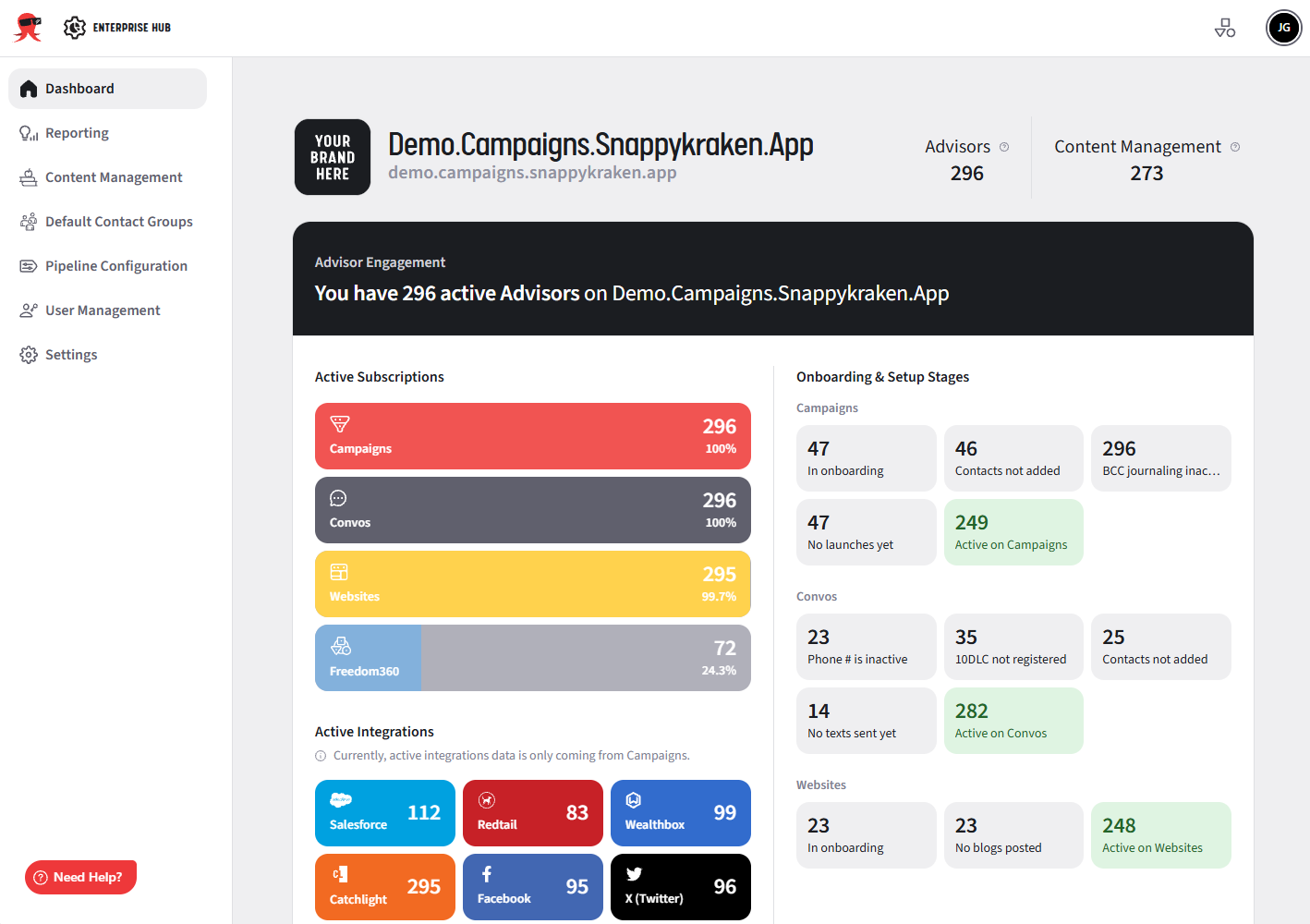
For more information about the available sections after signing in, see What sections are in the Enterprise Hub menu and where do they go?
Sign in to Brain
Depending on your organization's configuration, you may sign in to Brain directly or access it after signing in to Enterprise Hub.
- From the Enterprise Hub, click User Management.
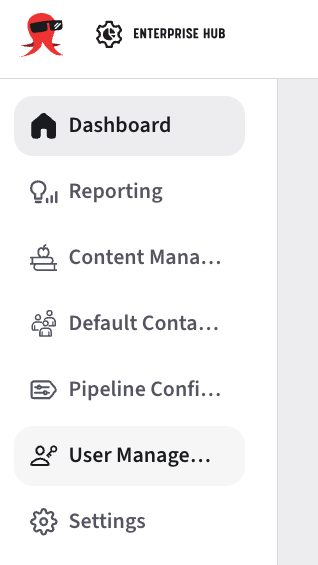
Once signed in, the areas available in Brain will depend on your role and permissions.
Verify your email address
When signing in for the first time, or when otherwise prompted to verify your account:
- Check your email for a verification message.
- Open the message and follow the verification instructions.
- Return to the sign-in page and sign in again.
If you do not receive the verification email, confirm that you are using the correct email address and check your spam or junk folder.
Reset your password
If your account uses an email address and password rather than SSO:
- From the sign-in screen, select Forgot password.
- Enter the email address associated with your account.
- Check your email for the password-reset message.
- Follow the instructions in the email to create a new password.
- Return to the sign-in page and sign in with your new password.
If your organization uses SSO, your password may be managed by your organization rather than Snappy Kraken. Contact your organization's IT team or administrator if you need help resetting your SSO password.
Switch between Enterprise Hub and Brain
If your account has access to multiple products, you can switch between them without signing out.
- While signed in, locate the product navigation control near the top-right of the page.
- Open the dropdown to view the products available to your account.
- Select the product you want to open.
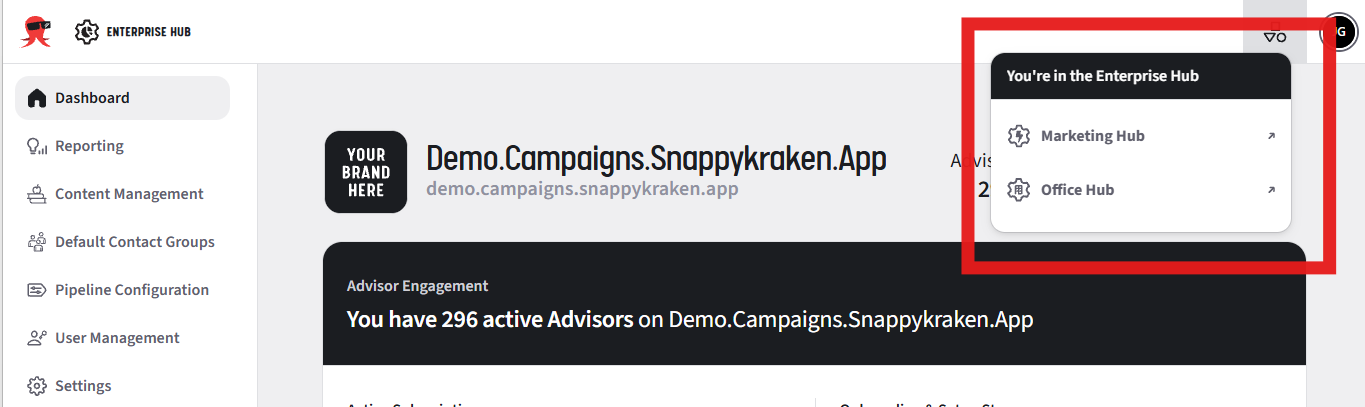
Product Navigation Control in the Enterprise Hub
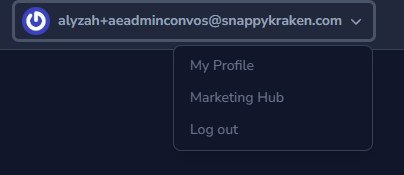
Product Navigation Control in the Brain
The products shown in this menu depend on your permissions and your organization's configuration. If Enterprise Hub or Brain does not appear, your account may not have access to that product or it may not be enabled for your organization.
Troubleshooting
I can sign in, but I don't see Enterprise Hub
Successfully signing in does not necessarily mean your account has access to Enterprise Hub. Enterprise Hub access depends on your organization's configuration and your assigned role and permissions.
Try the following checks:
- Confirm you're using the correct account.
Make sure you're signing in with the email address associated with your organization's Enterprise Hub access. - Check the product switcher.
Open the product navigation control and check whether Enterprise Hub appears as an available product. - Confirm Enterprise Hub is enabled for your organization.
Enterprise Hub must be enabled for your fleet before users can access it. For more information, see How do we enable the Enterprise Hub? - Confirm your role includes Enterprise Hub access.
Enterprise Hub access is role- and permission-dependent. Roles that can have access include:- Enterprise Platform Administrator
- Enterprise Support Administrator
- Content Creator
- Auto aunch Administrator
- If you use SSO, confirm your SSO assignment.
Make sure you can successfully sign in through your organization's identity provider and that your account has been assigned to the appropriate group or application.
For a general overview of Enterprise Hub and its access requirements, see What is the Enterprise Hub?
I can access Brain but can't switch to Enterprise Hub
If you can access Brain but Enterprise Hub does not appear in the product navigation dropdown, this typically indicates an access, role, or organization configuration issue rather than a problem with your username or password.
Confirm your Enterprise Hub access with your organization's administrator. If your access appears to be configured correctly but Enterprise Hub is still unavailable, contact Support.
When to contact Support
Contact Support if:
- You can successfully sign in but Enterprise Hub is still unavailable after completing the troubleshooting steps above.
- You suspect Enterprise Hub has not been enabled for your fleet.
- You believe your account has the wrong role or permissions.
- Your SSO sign-in works, but your available products do not match the access you expect.
When contacting Support, please include:
- The email address you use to sign in
- Your organization or fleet name, if known
- Whether your organization uses SSO
- A screenshot of what you see after signing in
- A screenshot of the product navigation dropdown, if available
Providing this information will help Support determine whether the issue is related to your account, role, SSO configuration, or Enterprise Hub enablement.