
What this article helps you do
Update a user's profile in the Brain, manage roles and email verification, and check account and subscription status for your Enterprise.
Before you begin
- You must be an Enterprise Platform Administrator or Enterprise Support Administrator to edit user details.
- Have the user's account email ready and confirm that the user belongs to the correct Enterprise.
- Subscription details are view-only in the Brain. Contact your account manager or Snappy Kraken Support for subscription changes.
How it works
User information is managed from the Users tab in the Brain. A user record includes profile and login details, verification status, roles, user groups, onboarding status, and—when applicable—advisors managed by a Marketing Admin.
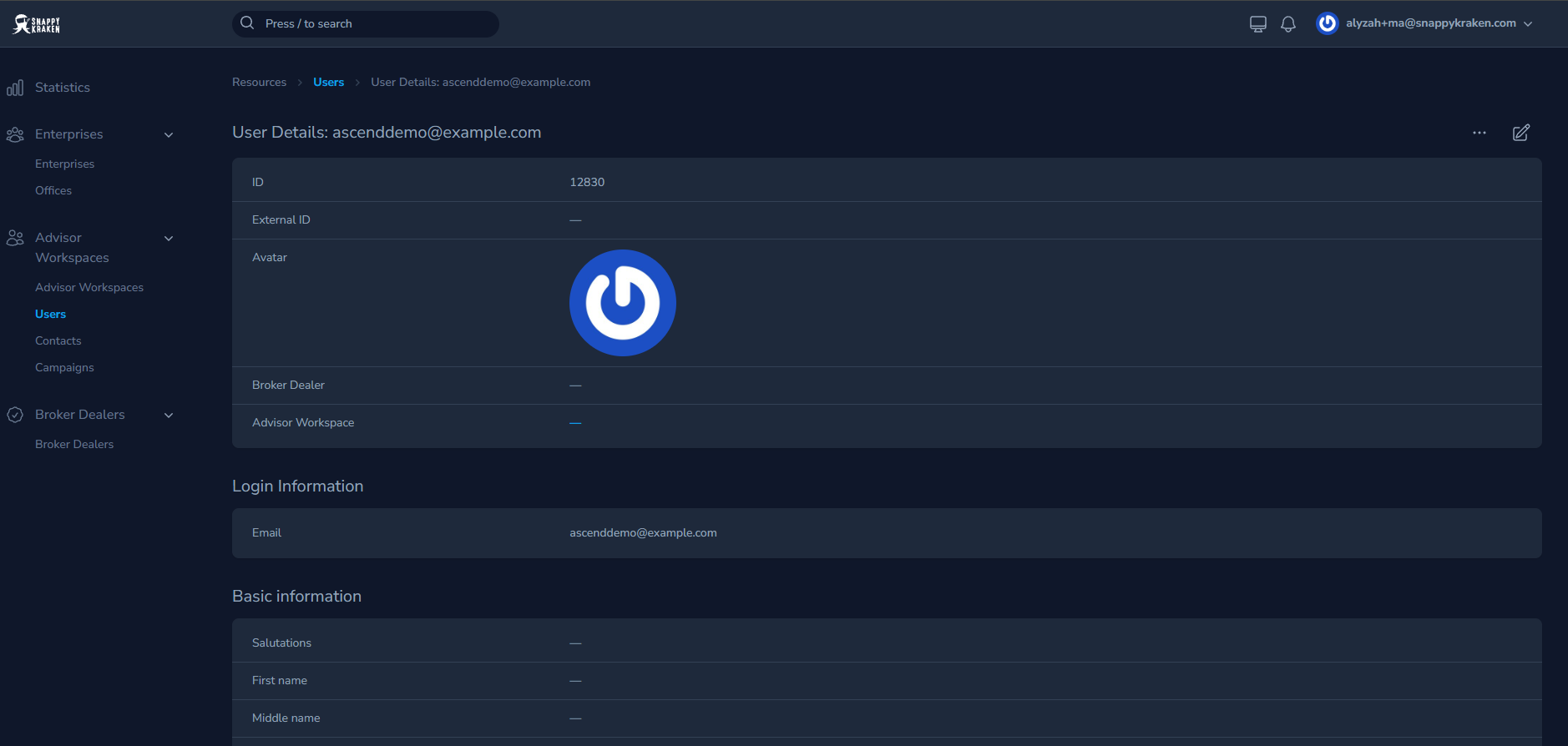
Most profile changes take effect right away. Role and access changes can take up to a minute to appear. Subscription information may refresh at the user's next sign-in or within 24 hours.
How to update a user's profile
- In the Brain, select "Users" under the Advisor tab.
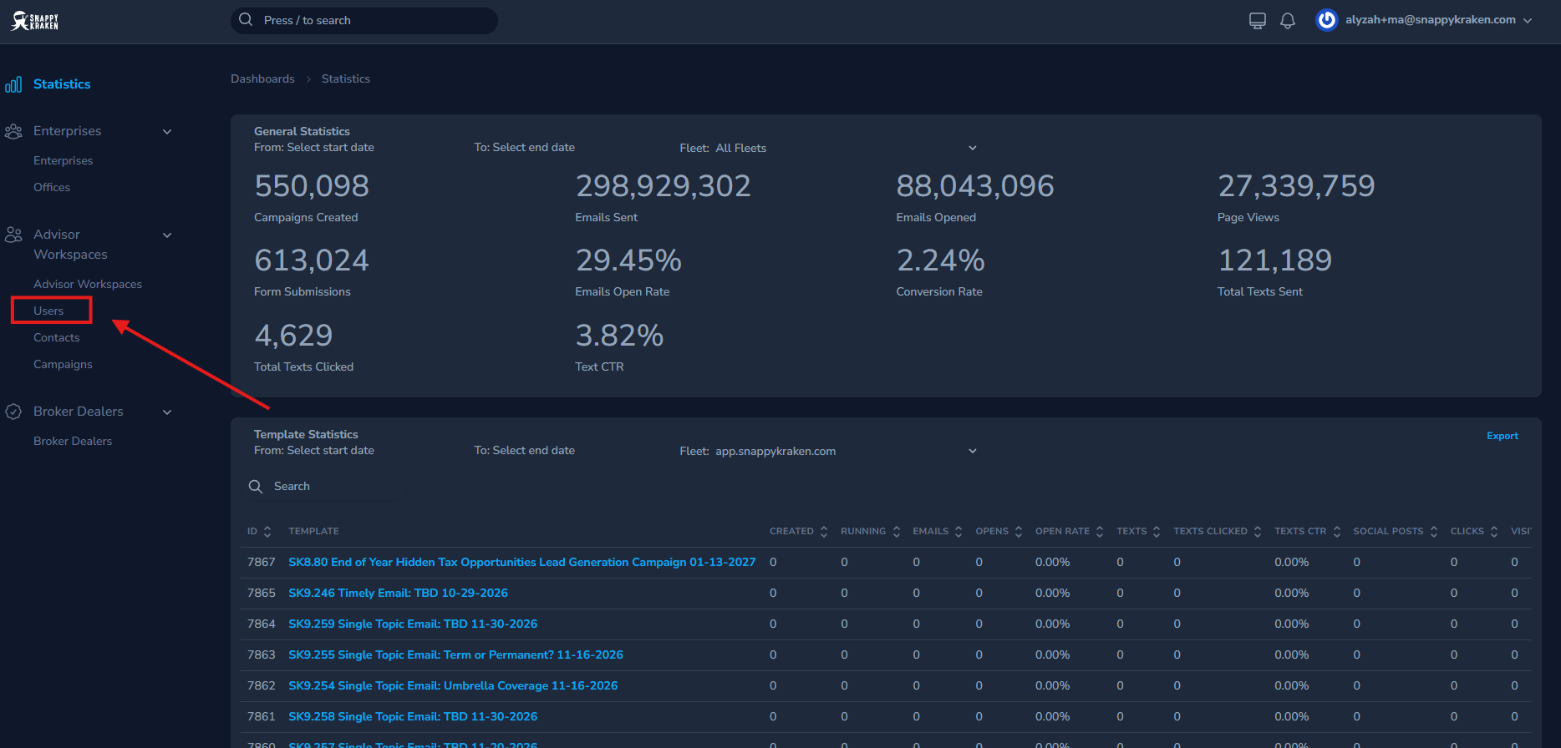
- Find the user by their account email, then select the row or the eye icon to open the record.

- Select the pencil icon to edit profile fields. To manage roles or relationships, use the panels at the bottom of the record.
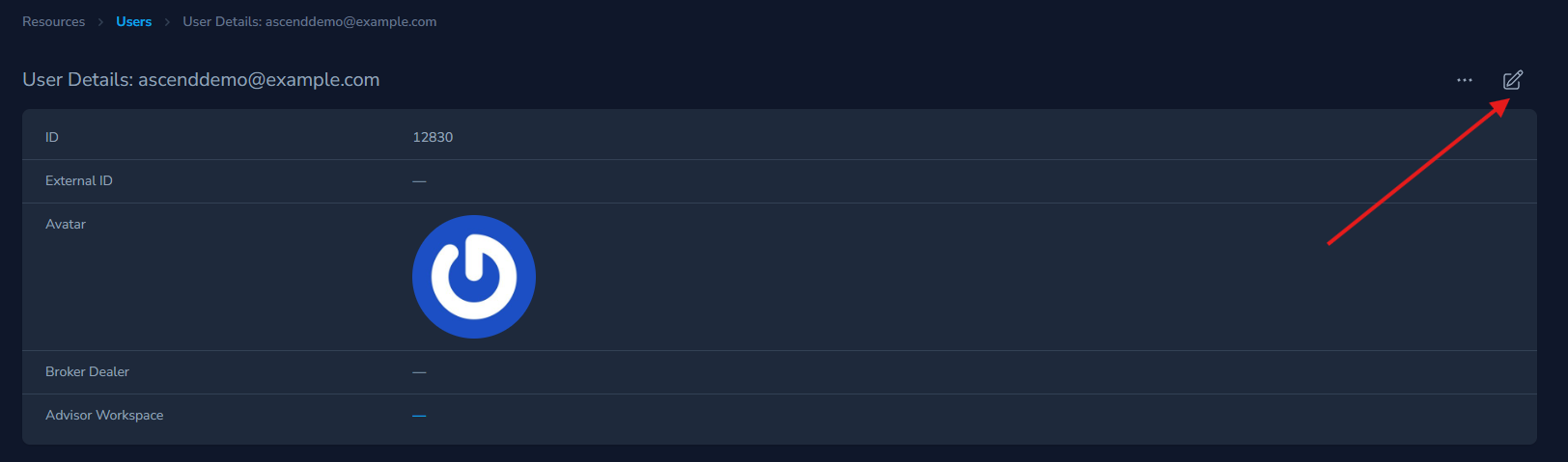
Depending on your Enterprise setup, administrators can edit:
- Login email* and password.
- Name, salutation, designations, and time zone.
- Broker Dealer*
- Onboarding Status*
- Office, when Office Hub is enabled.
- User Roles and User Groups*.
- The advisors linked under Users managed by Marketing Admin, for Marketing Admin accounts.
Enterprise Support Administrators can also manage Office Hub access for Marketing Admins when the Enterprise uses selected access.
How to add or remove a user role
Assign only the roles a person needs. Role combinations affect what the user can access.
- In the user's record, scroll to the User Roles panel and select "Attach User Role".
- Select the role the user needs.
- To remove a role, select the trash icon beside that role. The example below shows the Advisor Marketing Administrator role.
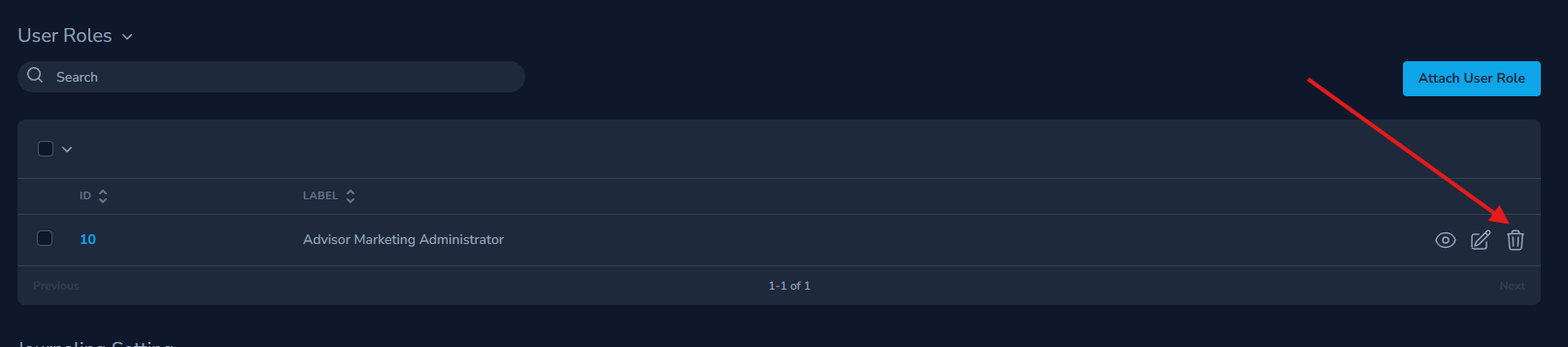
4. Select "Detach" in the confirmation message.
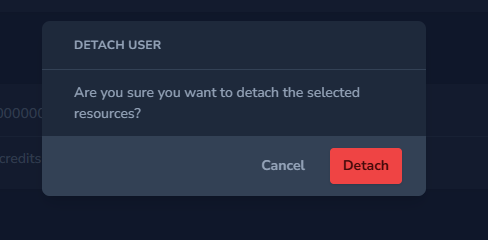
To link or unlink advisors for a Marketing Admin, see Marketing Administrators: setup, access, and common use cases.
How to manage email verification
Verification actions are available only while a user is unverified:
- Send Verification Email sends a new verification message to the user's login email.
- Verify Email Manually marks the email as verified. If automatic subscriptions are enabled for the Enterprise, the subscription starts when the email is verified.
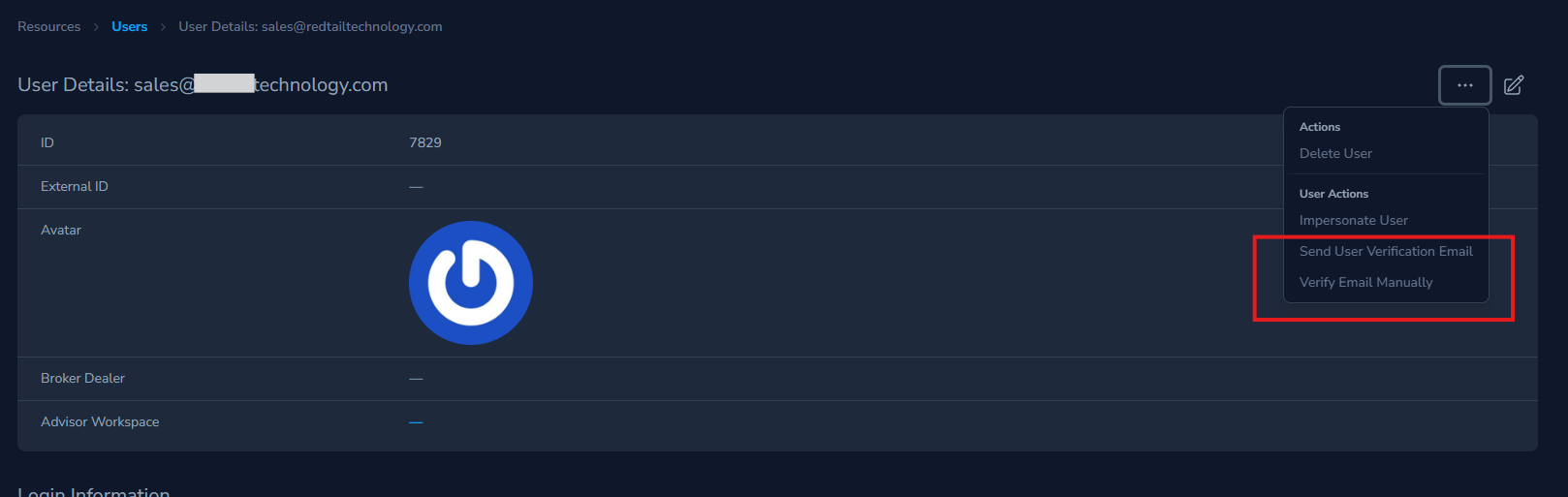
Users created in the Brain or through SSO are already verified. Changing a login email in the Brain does not send a new verification email. Changing an advisor's email in the Office Hub resets verification, so the user must verify the new email address.
How to check account status and subscriptions
- Open the user's record from Users.
- Review Subscription Status to see whether the user has an active subscription for Campaigns, Convos, or Websites.
Subscription details are view-only in the Brain. If the status appears incorrect, contact your account manager or Snappy Kraken Support.
Troubleshooting
| Problem | What to check |
|---|---|
| The user cannot sign in | Confirm that you have the correct Enterprise and account email, and check whether the email is verified. Contact Support for SSO or multi-factor authentication issues. |
| The user cannot access Campaigns, Convos, or Websites | Check the user's roles and Subscription Status. Contact your account manager or Support if the subscription should be active. |
| A role or access change is not visible | Refresh the page and allow up to a minute for the change to appear. |
| The user changed their email in the Office Hub and cannot sign in | Ask the user to complete verification using the message sent to the new email address. |
When to contact Snappy Kraken Support
Contact Support for subscription or billing changes, changing a user's Enterprise, Enterprise settings such as email locking or Office Hub access mode, SSO setup or sign-in issues, multi-factor authentication resets, and Snappy AI credits.
When you contact Support, include the Enterprise name, the user's account email and role, what the user was trying to do, and the exact error message or a screenshot.