
What this article helps you do
Offboard an advisor, Advisor Marketing Administrator, or Enterprise administrator without deleting their user record or losing their data. Understand which actions stop subscriptions and billing, which remove access, and when to involve Snappy Kraken Support.
Before you begin
- Confirm the person’s name, sign-in email, and Enterprise.
- Review all assigned roles, any subscriptions, and whether the person has their own Advisor Workspace.
- If they are an Advisor Marketing Administrator, check which advisors they manage and whether they run an office.
- If your Enterprise uses SSO, coordinate with the team that manages your identity provider.
- Enterprise Platform Administrators and Enterprise Support Administrators can manage user roles in Brain, subject to their role-assignment permissions. Snappy Kraken Support handles subscriptions and billing. Contact Support if you cannot remove a particular role.
How it works
Choose the right offboarding approach
| Situation | Required approach |
|---|---|
| An advisor stops paying but stays on the platform | Ask Support to cancel the subscription. The advisor can return later; their data is retained. |
| An advisor leaves the Enterprise | Ask your account manager to cancel the subscription. Snappy Kraken may reach out to the advisor individually to continue subscription as part of a different platform or enterprise. |
| An Advisor Marketing Administrator leaves | Remove their roles, coordinate with Support to stop billing and any subscription for their own Workspace, and reassign advisor and office responsibilities. |
| An Enterprise Administrator leaves | Remove their roles and coordinate with Support to stop billing, including any subscription for their own Workspace. |
Subscription cancellation and role removal do different things
| Effect | Cancel a subscription | Remove roles |
|---|---|---|
| Billing | Ends billing for the canceled subscription | Does not cancel a subscription or stop billing |
| Active campaigns | Stops active campaigns immediately | Does not stop campaigns |
| CRM syncs | Turns them off | Does not change them |
| Campaigns, contacts, and reporting data | Retained | Retained |
| Sign-in | Can remain possible | Blocked when no roles remain. If the user still has Advisor Workspace, they can sign in to their own Workspace. |
Cancelling an advisor’s subscription is not the same as fully blocking sign-in. Likewise, removing an administrator role is not the same as cancelling billing.
How to do it
Step 1: Review the user before making changes
- Open User Management in Enterprise Hub, which opens Brain, or go directly to Users in Brain.
- Open the correct user record.
- Review User Roles, Subscription Status, and Chargebee Products.
- For a Marketing Administrator, review Users managed by Marketing Admin and any office responsibilities.
- Decide whether you need subscription cancellation, role removal, or both.
Step 2: Offboard User
Contact your account manager or support to arrange cancellation of the advisor’s subscription and removal of any associated roles. Include:
- User ID and Email Address
- Products or subscriptions that need to end.
- Roles that need to be removed.
- For marketing admin removals, include the new marketing admin that will manage the advisor, if applicable
Subscription cancellation can leave sign-in available. If the offboarding goal also requires blocking sign-in, coordinate with your Enterprise administrator and Support to review the user’s remaining roles. For SSO users, also complete Step 5 below.
Important Notes:
Offboarding Marketing Admins
Campaigns already shared with advisors remain in those advisors’ Workspaces. Campaigns in the departing Marketing Administrator’s own Workspace, including unshared campaigns, stay there; they are not automatically moved to the replacement.
Complete SSO offboarding, if applicable
For Enterprises using SSO, ensure you also have your Enterprise’s identity-provider administrator remove the person’s access in the identity provider.
Do not treat identity-provider removal as a substitute for confirming billing cancellation.
What happens next
- Subscription cancellation stops active campaigns immediately and turns off CRM syncs.
- Removing roles does not stop campaigns or billing by itself.
- User data and history remain available; offboarding does not require deletion.
- Advisors drop out of Enterprise Hub advisor lists and counts once Campaigns, Convos, and Websites are all inactive. Activity recorded while they were active remains in historical reporting.
Troubleshooting
I created a user by mistake. What should I do?
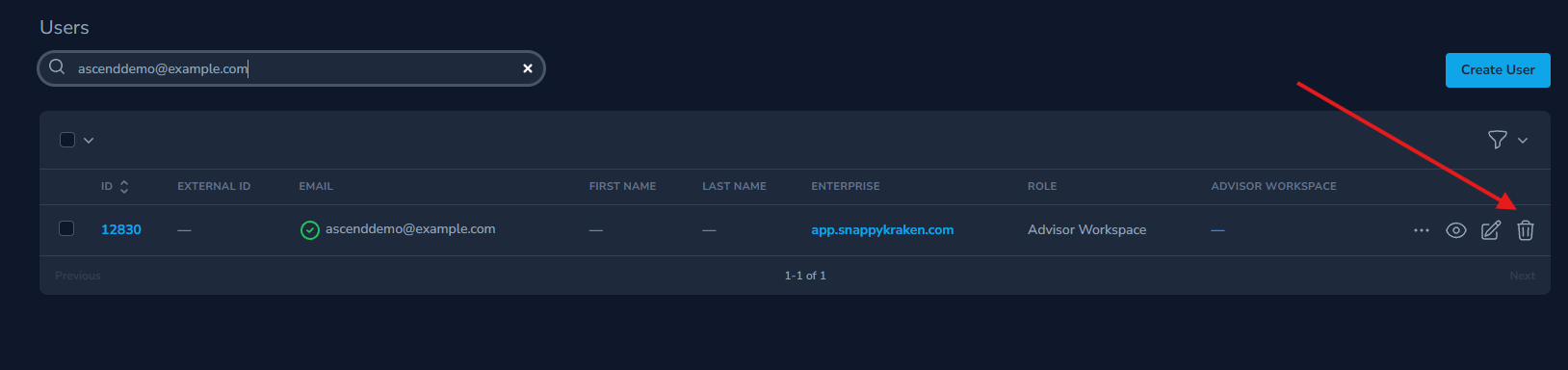
Since the user is not associated to any subscription, you can click the trash icon to delete them.
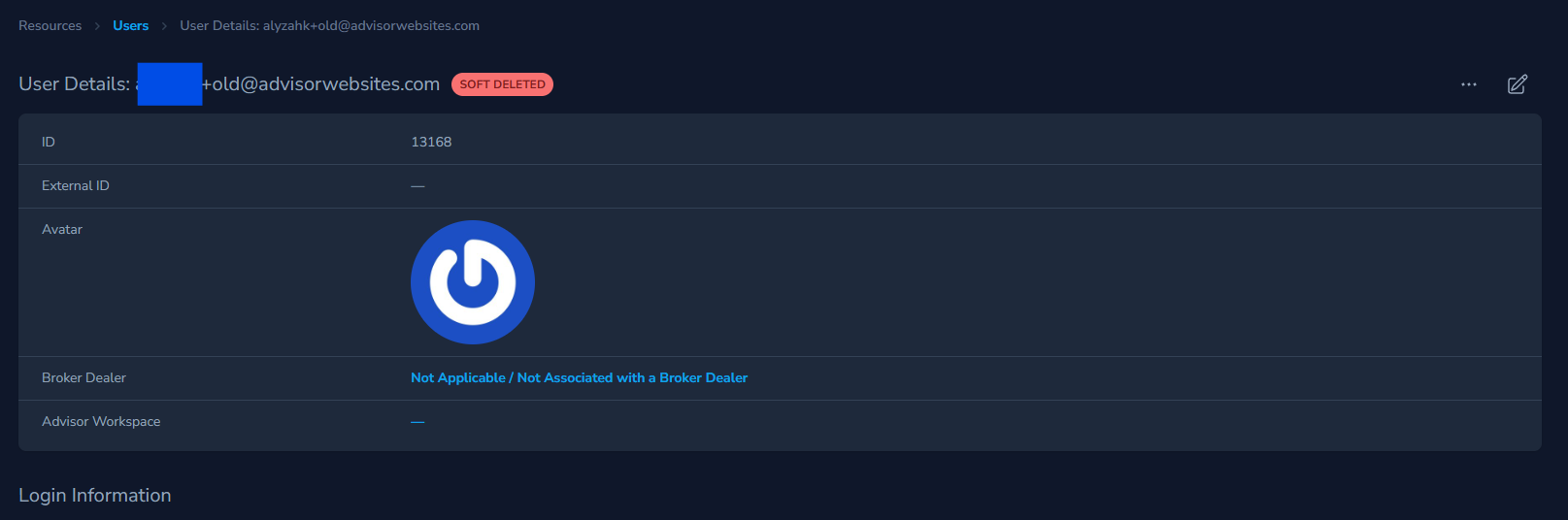
This will mark the user as soft deleted which means that they have been removed from the product experience, but their record is retained and subscriptions are not automatically cancelled.
Billing continued after I removed the user’s roles
Role removal does not stop billing. Contact Support to confirm cancellation of the applicable subscriptions and other user billing.
The user can still sign in after cancellation
This can be expected. Subscription cancellation does not necessarily block sign-in. Review remaining roles with your Enterprise administrator or Support, and coordinate identity-provider removal for SSO users.
The user can still access their own Workspace after an administrator role was removed
Check whether they still hold Advisor Workspace or another role. Sign-in is blocked only when no roles remain.
Campaigns are still running after role removal
Removing roles does not stop campaigns. Ask Support to confirm the required subscription cancellations.
The advisor still appears in Enterprise Hub
Check whether Campaigns, Convos, or Websites are still active. The advisor leaves active lists and counts only when all three are inactive; historical reporting remains.
A replacement Marketing Administrator cannot manage the office
Confirm they were attached under Office Administrators. Running an office and being linked to advisors are separate responsibilities; neither is reassigned automatically during offboarding.
Old advisor links returned when the Marketing Administrator role was restored
The advisor links were retained. Review Users managed by Marketing Admin and detach relationships that are no longer appropriate.
When to contact Support
Contact Support when:
- You need subscriptions cancelled, or billing stopped.
- You cannot remove a role or are unsure which access should remain.
- You need sign-in fully blocked, but the user still has access.
- An advisor wants to transfer to another Enterprise.
- Billing, campaigns, or access do not match the completed offboarding actions.
Provide the Enterprise name, user’s sign-in email, requested outcome, affected products, and the actions already taken. Do not include passwords.