
What this article helps you do
Use this guide to choose the right Enterprise role for a person’s responsibilities.
You’ll learn how to:
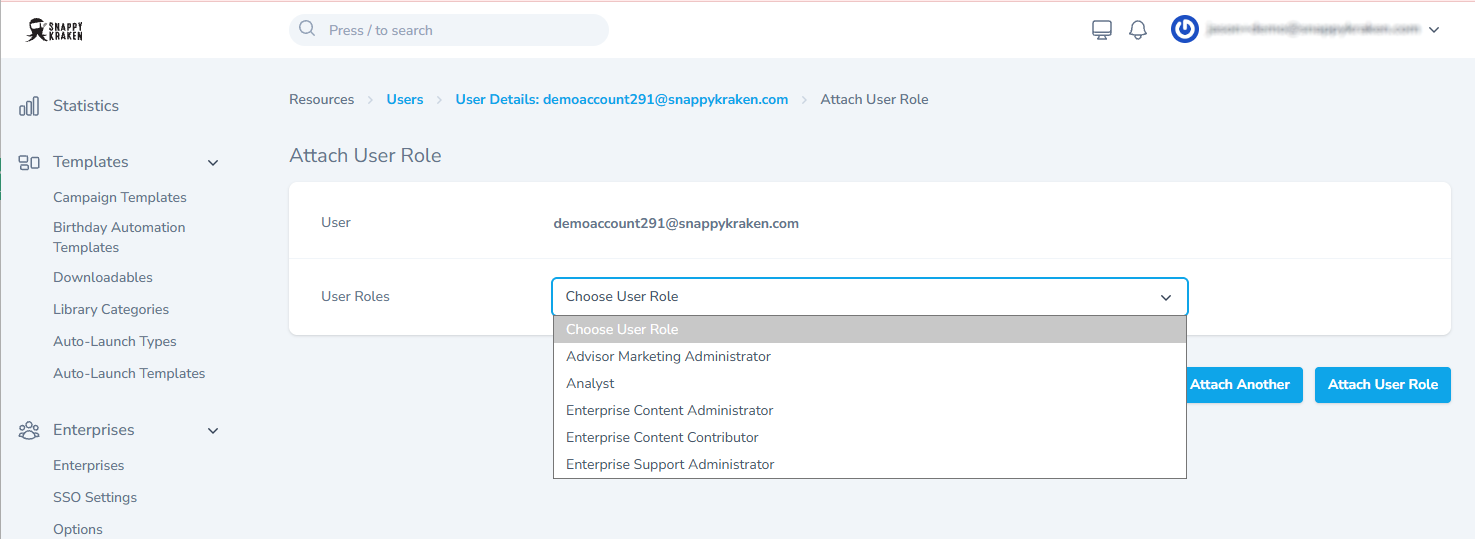
- Compare what each role can access and manage
- Match common responsibilities to the appropriate role
- Avoid granting more access than someone needs
- Recognize when multiple roles may be appropriate
For a definition of the available user roles and permissions, click here.
Before you begin
- Roles define permissions, not account types. A person may have more than one role when their responsibilities require it.
- Access is scoped to the user’s Enterprise. Enterprise administrators do not automatically see or manage other Enterprises.
- Role changes may take up to one minute to appear. If the available menus do not change, sign out and sign back in before troubleshooting further.
- Use the least-privilege approach: start with the role that provides the required access, then add another role only when there is a clear need.
How it works
Enterprise roles at a glance
| Role | Best suited for | Primary access or responsibility |
|---|---|---|
| Enterprise Platform Administrator | The main Enterprise administrator | Enterprise configuration, users, Advisor Workspaces, content, Auto-Launch, settings, and broad administration |
| Enterprise Support Administrator | Enterprise help desk and support teams | User and Advisor Workspace support, troubleshooting, reporting, and permitted impersonation |
| Enterprise Content Administrator | Teams that own the content library | Creating, managing, publishing, and maintaining templates and related content |
| Enterprise Content Contributor | Content assistants who prepare work for review | Drafting and preparing templates without publishing or expiration authority |
| Enterprise Auto-Launch Administrator | Teams that run Auto-Launch | Creating, managing, launching, and canceling Auto-Launch campaigns |
| Advisor Marketing Administrator | Marketing assistants supporting specific advisors | Working in the assigned advisors’ workspaces and, when enabled, using Office Hub capabilities |
| Convos Marketing Administrator | Teammates who send messages for an advisor | Using Convos inside the advisor’s workspace |
| Advisor Workspace | An advisor using their own account | Using subscribed advisor products, including Campaigns, Marketing Hub, Convos, and Websites |
A role may provide access to one product or workspace while another role provides additional access. “No” access for a role does not prevent access granted through another role.
Product access overview
| Role | Enterprise Hub | Brain | Office Hub | Advisor products |
|---|---|---|---|---|
| Enterprise Platform Administrator | Yes | Yes | No | Through impersonation |
| Enterprise Support Administrator | Limited sections | Yes | When enabled | Through impersonation |
| Enterprise Content Administrator | Limited sections | Yes | No | No |
| Enterprise Content Contributor | Limited sections | Yes | No | No |
| Enterprise Auto-Launch Administrator | Limited sections | Yes | No | No |
| Advisor Marketing Administrator | No | View-only until Office Hub is enabled | When enabled | Assigned advisors through impersonation; own workspace only if also an Advisor Workspace user |
| Convos Marketing Administrator | No | No | No | Convos only in the advisor’s account |
| Advisor Workspace | No | No | No | Based on subscription |
How to do it
Step 1: Identify the person’s responsibilities
Start with what the person needs to accomplish, not the title they hold. Ask whether they need to:
- Configure the Enterprise or manage users and groups
- Support advisors through troubleshooting or permitted impersonation
- Create, manage, or publish templates and content
- Launch Auto-Launch campaigns across advisors
- Perform marketing work inside specific advisors’ workspaces
- Use Office Hub for an office or group of advisors
- Send texts in Convos on an advisor’s behalf
- Use Campaigns, Marketing Hub, Convos, or Websites in their own advisor workspace
Step 2: Select the closest role
Enterprise Platform Administrator
Choose this role for the primary administrator responsible for configuring and managing the Enterprise.
Can typically:
- Use the available Enterprise Hub sections, including configuration, reporting, user management, and related administration areas
- Create, edit, delete, and restore users and Advisor Workspaces
- Manage templates and Auto-Launch workflows
- Edit Enterprise settings such as branding, login-page promotions, notifications, SSO, and files
- Impersonate users in the Enterprise where permitted
Important limitations:
- Some administrator roles or settings may be restricted to Snappy Kraken or to specific administrators.
- This role does not provide Office Hub access.
Enterprise Support Administrator
Choose this role for an Enterprise help desk or support team that needs to assist users and troubleshoot issues.
Can typically:
- Use Enterprise Hub dashboard, reporting, and user-management areas
- Create, edit, delete, and restore users and Advisor Workspaces
- View or edit campaigns and contacts where permitted
- Use Office Hub when it is enabled for the Enterprise
- Impersonate supported roles for troubleshooting
Important limitations:
- This role does not manage templates and content libraries.
- This role does not change Enterprise settings.
- Some roles cannot be impersonated.
Enterprise Content Administrator
Choose this role for the team that owns the Enterprise content library.
Can typically:
- Create, edit, publish, expire, lock, duplicate, and delete templates
- Manage downloadables, categories, Auto-Launch types, and related files
- Submit templates for pre-approval
- View unpublished templates
Important limitations:
- This role does not provide access to users, Advisor Workspaces, contacts, or campaigns.
- This role does not change Enterprise settings or assign roles.
Enterprise Content Contributor
Choose this role for a content assistant who prepares templates for review but should not publish them.
Can typically:
- Create, edit, duplicate, and lock templates
- Submit templates for pre-approval
- View unpublished templates
Important limitations:
- Publishing and expiration scheduling require the appropriate administrator role.
- This role does not provide Enterprise file access, role assignment, or impersonation.
Enterprise Auto-Launch Administrator
Choose this role for a person whose primary responsibility is running Auto-Launch campaigns.
Can typically:
- Create and edit Auto-Launch templates
- Launch, cancel, and duplicate Auto-Launch campaigns
- Create, edit, and delete Auto-Launch types
- View campaign templates, downloadables, campaigns, and statistics
Important limitations:
- This role does not provide general access to regular campaign templates or Enterprise user management.
- This role does not provide role assignment or impersonation.
Advisor Marketing Administrator
Choose this role for a marketing assistant who works on behalf of specific advisors.
Access depends on whether the person also has the Advisor Workspace role:
- Marketing Administrator only: works inside assigned advisors’ workspaces through permitted impersonation, but does not have a separate workspace of their own.
- Marketing Administrator plus Advisor Workspace: also has their own workspace, which may be required to customize and share campaigns with managed advisors.
Important limitations:
- Access is limited to the advisors assigned to the person.
- This role does not provide Enterprise Hub access or permission to manage Enterprise templates, users, or settings.
- Office Hub capabilities require Office Hub to be enabled.
Convos Marketing Administrator
Choose this role for a teammate who only needs to send texts in Convos on an advisor’s behalf.
Can:
- Use Convos inside the advisor’s workspace
Important limitations:
- This role does not provide Enterprise Hub, Brain, or Office Hub access.
- The advisor invites this role from Convos; it is not assigned by an Enterprise administrator.
Advisor Workspace
Choose this role for an advisor who needs to use their own workspace.
Can:
- Use Campaigns, Marketing Hub, Convos, and Websites based on the Enterprise’s or user’s subscription
Important limitations:
- This role does not provide Enterprise Hub, Brain, or Office Hub access.
Step 3: Match common scenarios to roles
| What the Enterprise needs | Recommended role or roles |
|---|---|
| One or two people configure the Enterprise, manage users, and control broad administration | Enterprise Platform Administrator |
| A help desk resets passwords, restores users, and troubleshoots by impersonating advisors | Enterprise Support Administrator |
| A home-office team builds and publishes templates | Enterprise Content Administrator |
| A content assistant drafts templates while another person approves and publishes them | Enterprise Content Contributor plus Enterprise Content Administrator |
| A team runs Auto-Launch campaigns across many advisors without broad content-management responsibilities | Enterprise Auto-Launch Administrator |
| Assistants run marketing for specific advisors inside those advisors’ workspaces | Advisor Marketing Administrator linked to the appropriate advisors |
| Assistants customize campaigns and share them with many advisors | Advisor Marketing Administrator plus Advisor Workspace, with the required product subscription |
| An office manager uses Office Hub to manage office defaults, pushes, or invitations | Advisor Marketing Administrator, when Office Hub is enabled |
| A teammate only sends texts in Convos on an advisor’s behalf | Convos Marketing Administrator |
| A person has several distinct responsibilities | Combine only the roles required for those responsibilities |
Step 4: Avoid common role-selection mistakes
- Do not give broad administrator access to someone who only supports specific advisors. Use Advisor Marketing Administrator and assign only the appropriate advisors.
- Do not expect Enterprise Support Administrators to share campaigns through Office Hub. Sharing and customization workflows are intended for the appropriate Advisor Marketing Administrator setup.
- Do not add roles “just in case.” Unnecessary roles can create confusing access, unwanted notifications, or harder-to-diagnose behavior.
- Do not assume role access is additive in every situation. Some roles intentionally limit access to specific areas, so confirm the resulting access after assignment.
Step 5: Verify access after assigning a role
After the role is assigned:
- Wait up to one minute for the change to appear.
- Ask the user to sign out and sign back in if the menus do not update.
- Confirm that the user can access the expected surfaces, such as Enterprise Hub, Brain, Office Hub, or an advisor workspace.
- Confirm that the user can perform the intended task without receiving broader access than necessary.
- If the role is scoped to specific advisors, verify that the correct advisors are assigned.
What happens next
Role access should reflect the person’s actual responsibilities. If the person’s responsibilities change, review their roles again and remove access they no longer need.
For enterprise teams, document which roles are assigned to which responsibilities so that future administrators can review access consistently.
Troubleshooting
The user’s menus did not change after a role was assigned
Wait about one minute, then ask the user to sign out and sign back in. If the expected access still does not appear, confirm that the role was assigned to the correct user and Enterprise.
An Advisor Marketing Administrator cannot see Office Hub
Confirm that Office Hub is enabled for the Enterprise and that the user has the appropriate Advisor Marketing Administrator setup.
A Content Contributor cannot publish a template
This is expected. Content Contributors can prepare and submit content for review, but publishing requires the appropriate content-administrator permissions.
A user cannot access another Enterprise
Enterprise access is scoped. Confirm that the user belongs to the correct Enterprise and has been assigned the appropriate role there.
A user has more access than expected
Review every role assigned to the user. Remove roles that are not required, then sign out and sign back in to refresh the user’s access.
When to contact Support
Contact Support or your Enterprise administrator when:
- A role does not behave as described after you verify the user, Enterprise, and assigned roles.
- You need confirmation about a role that is not listed in this guide.
- Office Hub or another expected feature is unavailable after the appropriate role and feature settings are confirmed.
- You need clarification about which administrator can assign a particular role.