
Access to an advisor workspace depends on your role. Advisors sign in to their own workspace. Authorized administrators use their own login to access an advisor’s workspace through impersonation - working in the advisor’s account on their behalf.
This article explains which access method to use, what you should see after signing in, and what to check if access is unavailable.
Before you begin
Make sure you have:
- Your own Snappy Kraken login and your organization’s sign-in link.
- The name or email address of the advisor you need to impersonate, if applicable.
- The appropriate role and access to that advisor.
Use your own credentials when impersonating an advisor. You do not need the advisor’s password to impersonate their account.
What you should expect to see
- The advisor’s view of the product you selected (not your own).
- Available actions match what the advisor can do in that product.
Access an advisor workspace as an administrator (Impersonation)
Your administrator role determines which advisors you can impersonate.
- Advisor Marketing Administrator: Can impersonate advisors assigned to them. Having the role alone does not provide access to every advisor in the enterprise. Some existing articles and screens refer to this role as Marketing Admin.
- Enterprise Platform Administrator: Can impersonate all advisors within their own enterprise. An individual managed-advisor assignment is not required.
- Enterprise Support Administrator: Can impersonate all advisors within their own enterprise for support. An individual managed-advisor assignment is not required. Restrictions apply when the target account also holds certain administrative roles.
Sign in to your own workspace as an advisor
- Open the Snappy Kraken sign-in page provided by your organization.
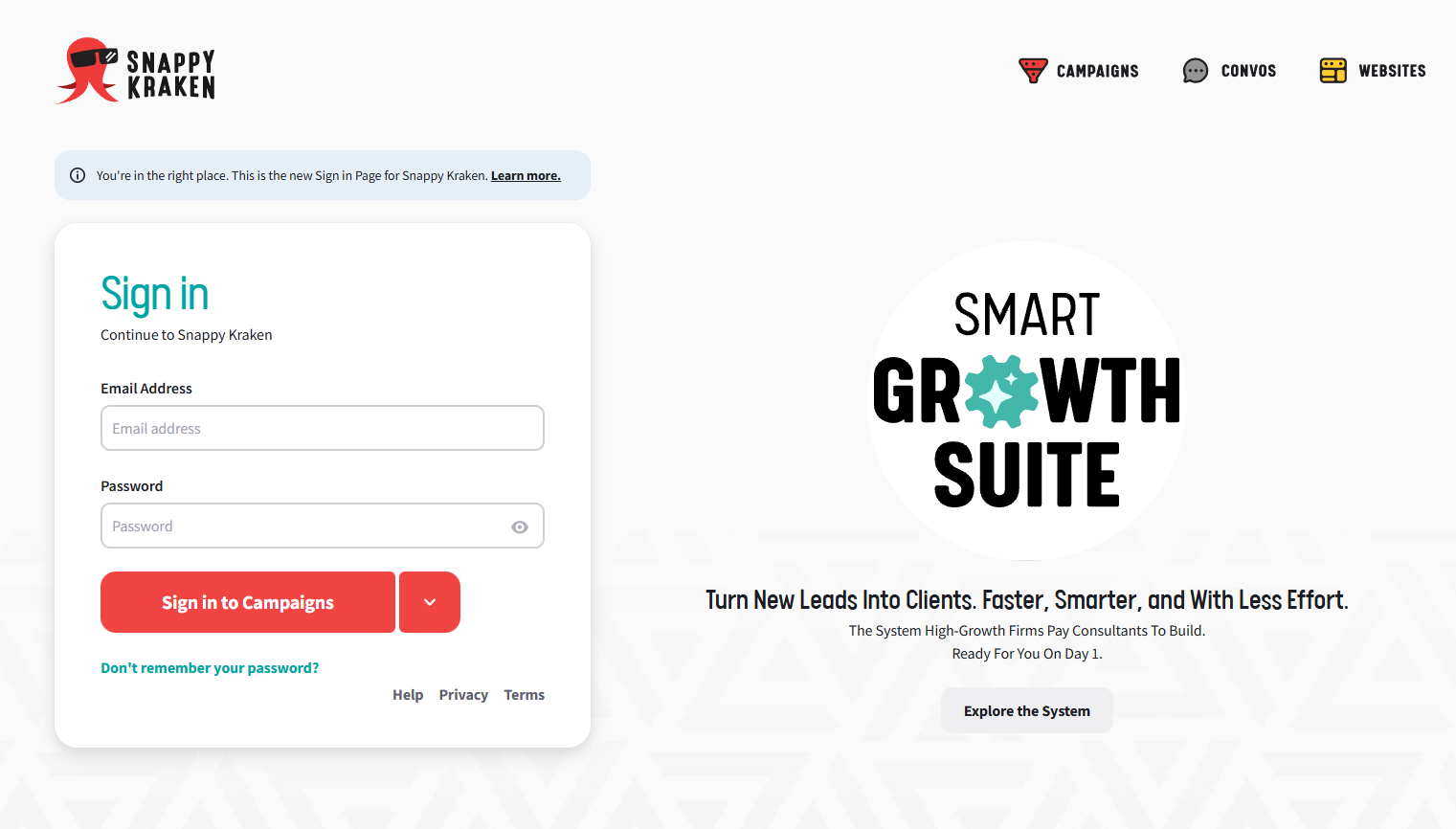
- Sign in with the email address associated with your account. If your organization uses single sign-on (SSO), follow its sign-in process.
- Search for the advisor by name or email address.
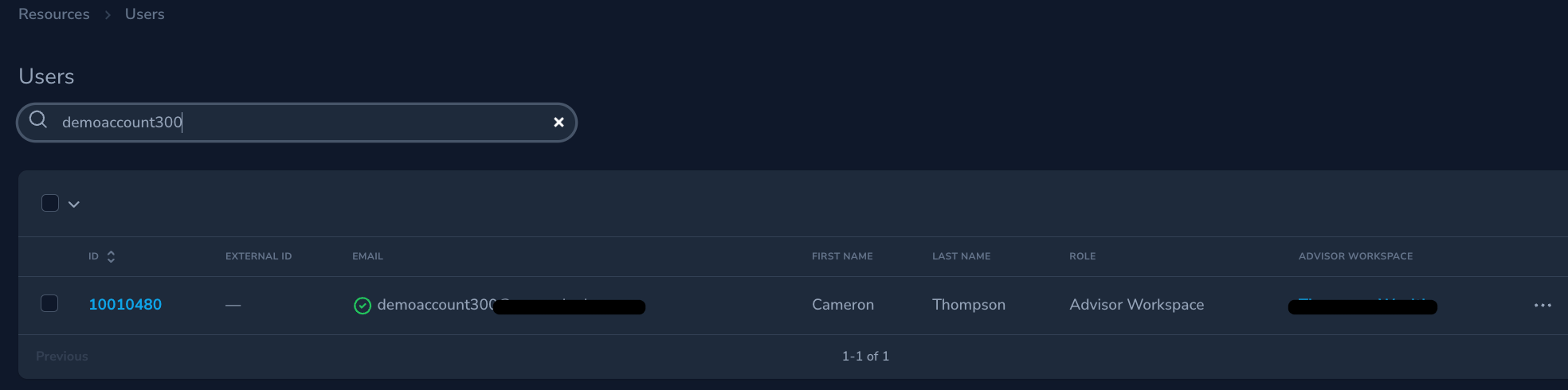
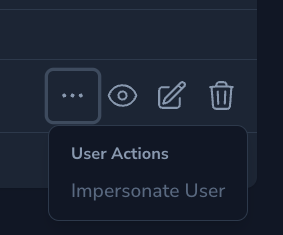
- Click the ellipsis (…) beside the advisor.
- Select Impersonate User.
- Choose from the available products.
- Click Run Action.
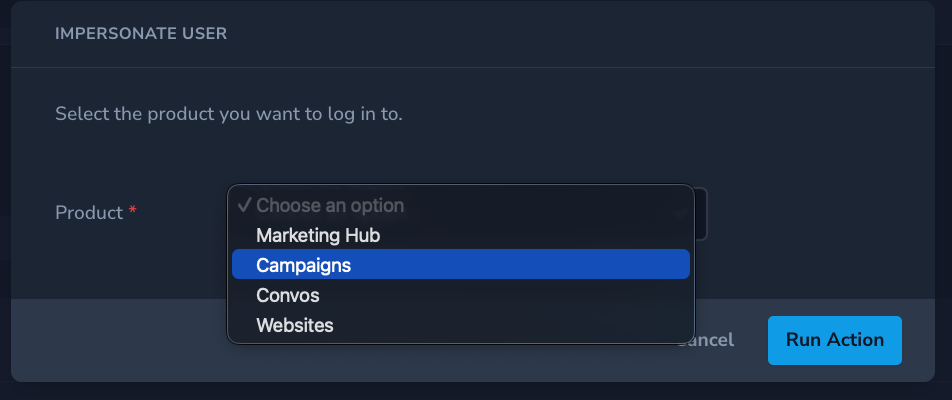
The advisor’s workspace opens in a new browser tab. You can now complete authorized tasks on their behalf.
Click Exit Impersonation Mode at the top of the screen when you finish. Exit before moving on to another advisor’s work.

Enterprise Hub Access
For Enterprise Platform Administrators, you may be redirected to the Enterprise Hub instead.
To impersonate, click "User Management" on the left sidebar. This will open the user search page, similar to the previous steps:
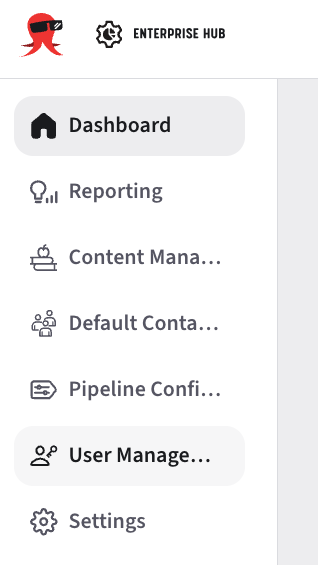
Your available navigation depends on your role and the features enabled for your enterprise. Not every administrative role has access to user management or impersonation.
Troubleshooting
I’m a Marketing Admin but I can’t find the advisor to impersonate
- Confirm you’re using the correct search criteria (advisor name/email).
- Confirm you have the Marketing Admin role for the relevant product.
I can log in, but I can’t access the advisor workspace I need
- If you’re impersonating, confirm you selected the correct product.
- Confirm the advisor has access to that product.
I’m an Enterprise admin but I can’t see Enterprise Hub
- Enterprise Hub may not be enabled for your organization (fleet), or your role may not include access.
- If you use SSO, confirm your SSO group/assignment includes Enterprise Hub access.
When to contact Support
Contact Support if:
- You can sign in but still can’t access the correct workspace or role-based view.
- You’re an Enterprise admin and Enterprise Hub is missing after confirming your role.
- You’re a Marketing Admin and impersonation options don’t appear.
When contacting Support please include:
- The email you used to sign in
- The advisor/workspace you’re trying to access (if relevant)
- Whether you use SSO
- Screenshots of what you see after signing in (if possible)