
Use Office Hub to check domain health, then coordinate the right follow-up with the advisor. This guide is for Marketing Administrators and Enterprise Support Administrators with Office Hub access.
First, identify the problem
Ask whether the advisor is seeing:
- Bounces or delivery failures: Messages are not reaching the receiving server successfully.
- Spam placement: Recipients find messages in their spam folder.
- Fewer opens or clicks: Engagement has fallen, with or without a reported placement issue.
- Missing or unexpected domain metrics: Dashes, extreme percentages, or values that appear outdated.
These problems can overlap, but they are not interchangeable. A healthy Deliverability Rate does not guarantee main-inbox placement or high engagement.
Check the domain in Office Hub
- Open Email Domains.
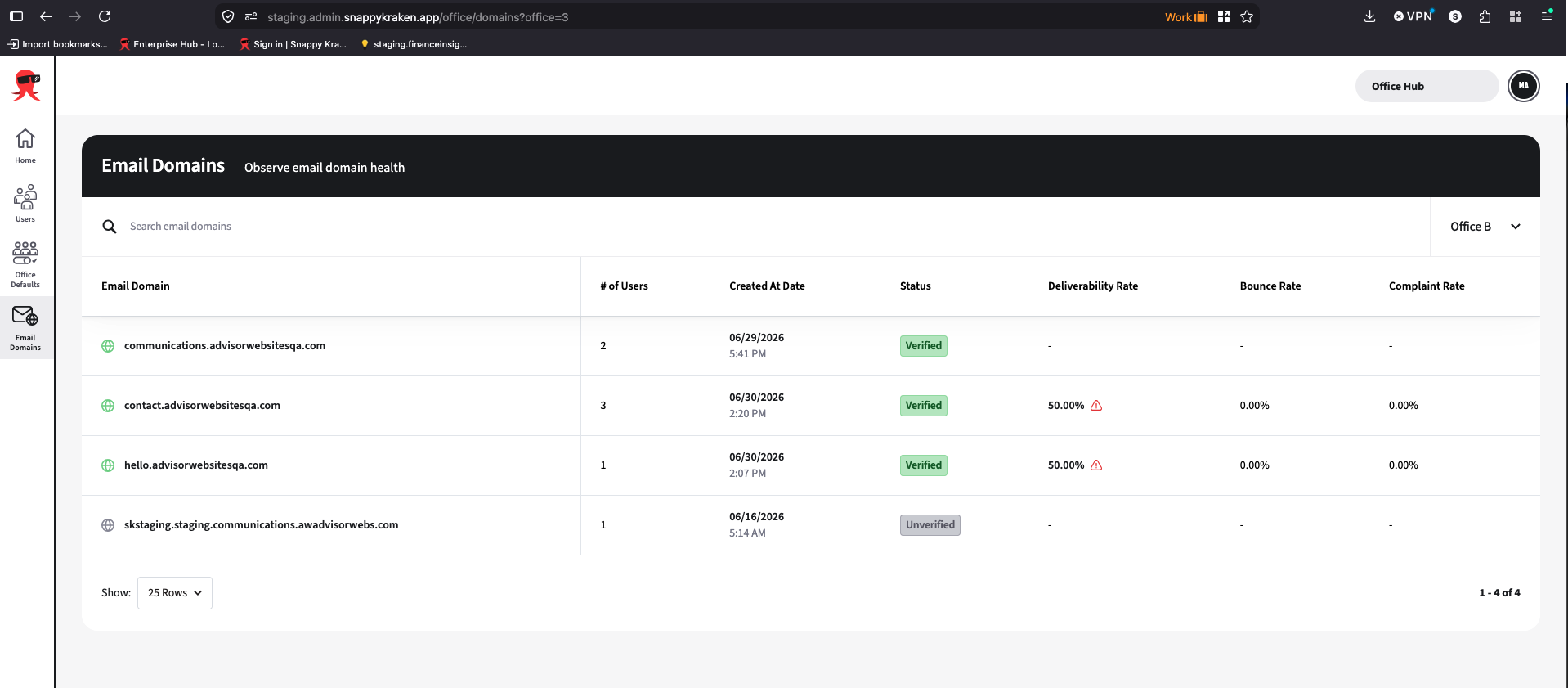
- Search by domain name and check your office filter.
- Review Status and the three health rates.
- Note any red alert icons.
- Confirm that the advisor is using this domain as their selected primary sending domain.
Office Hub is view-only. You cannot verify a domain, change its primary selection, or edit an advisor’s contact list from this page.
Choose the next step
The domain shows Unverified
Ask the advisor and domain administrator to review sending-domain setup in Campaigns. DNS records authorize sending on the domain’s behalf; verification is separate from health.
An unverified domain can show historical rates from earlier sends. Those values do not confirm that the domain is currently verified or ready to select as primary. DNS changes can take up to 48 hours to update.
Deliverability is flagged or bounce rate is high
Ask the advisor to review recent sending activity, send volume, and invalid or expired email addresses. A very small number of sends can create extreme rates.
If several advisors share the domain, its rates include all sending activity for that domain—even activity outside your management scope or enterprise. Do not attribute the rate to one advisor solely because their domain appears in your list.
Complaint rate is high or recipients report spam
Work with the advisor to review list quality and engagement. Encourage cleaning bad or expired addresses and reviewing disengaged contacts.
Shared sender-pool reputation can also influence spam filtering. Good activity helps protect the pool; bounces, spam complaints, and poor engagement can harm its reputation. Domain rates do not capture every factor providers use for placement.
Use Why are my emails going to spam? for a deeper explanation.
Rates are healthy, but opens or clicks fell
Review the email subject, content, layout, links, images, and audience with the advisor. Providers may place promotional messages in a less visible folder even when delivery rates are healthy.
Suggest testing shorter, conversational copy, fewer images and links, natural subject lines, and a more engaged audience segment. Promotions is not the same as spam. See Why did my email opens or clicks drop?
Rates show dashes or look outdated
Rates cover the last 30 days and refresh once per day in batches. Dashes mean no data, not unhealthy.
- For a new domain, wait until it has sent email and the next nightly refresh has run.
- Ask the advisor to confirm sending activity within the last 30 days.
- Compare other reports using the same domain and 30-day window.
- If an active domain stays without data after multiple refreshes, contact Support.
The domain is missing
Confirm primary-domain selection, your advisor access, and your filters. Only selected primary domains appear in Office Hub. Search accepts domain names, not advisor names or email addresses.
What to include when contacting Support
- The affected advisor account and sending domain
- The type of issue: delivery failure, spam, engagement, or missing data
- Sending dates and when the issue started
- Relevant rates, alerts, and verification status
- A recent email subject and body and the audience or segment used
- The reported recipient provider or folder placement, if available
- The checks already completed
Provide only the account and contact details necessary for investigation. If the domain list repeatedly fails to load, include the error message and a screenshot instead.