
Review the sending domains used by advisors you can access, identify flagged rates, and understand what Office Hub’s domain list does—and does not—show.
Before you begin
- Office Hub must be enabled for your enterprise platform.
- You must have Office Hub access as a Marketing Administrator or Enterprise Support Administrator.
Open the domain list
- Sign in with Office Hub access.
- Select Email Domains in the sidebar.
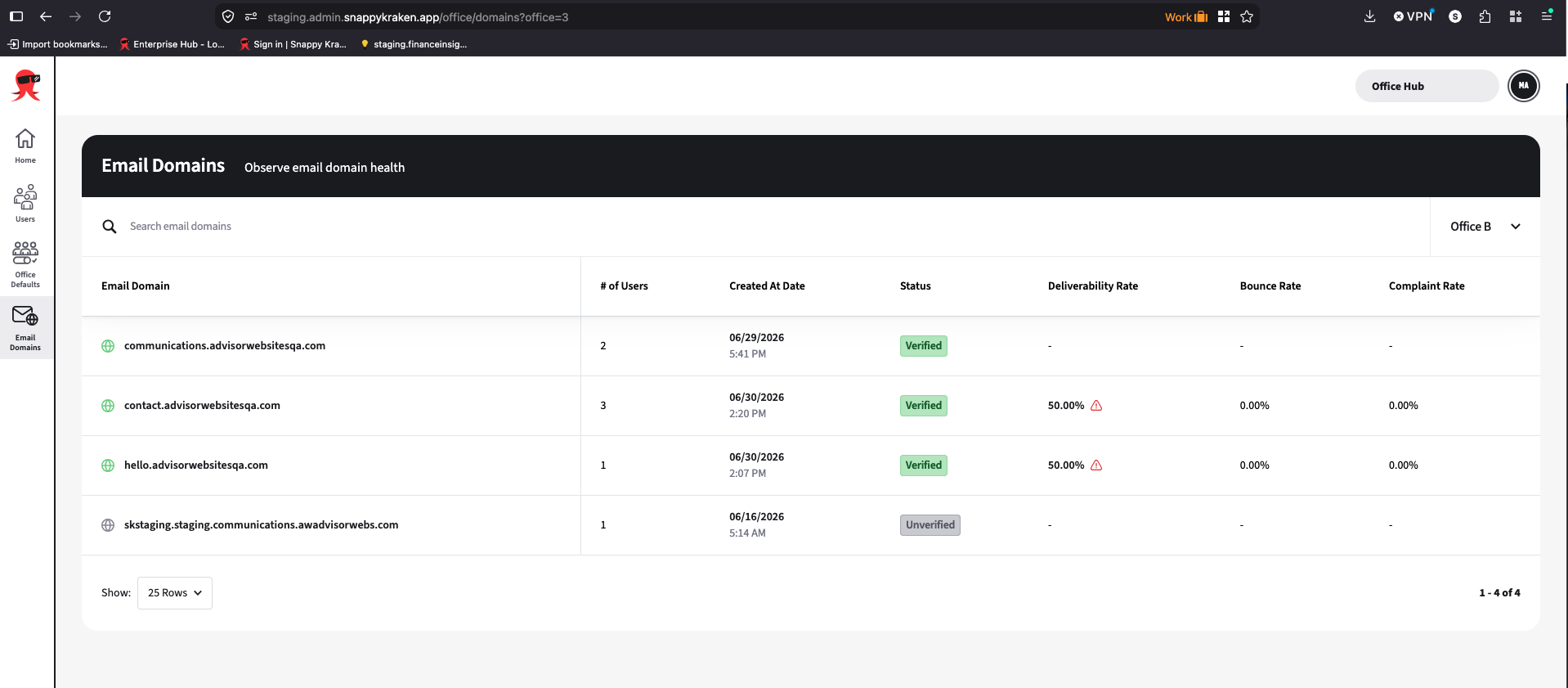
- Review the domain rows and rates.
- Use Search email domains to search by domain name. Advisor names and email addresses are not supported by this search.
- Use the office filter to choose a specific office, All Offices, or advisors in no office. The selected office carries over between the Email Domains and Users pages.
- Select a sortable column header to order the results.
Which domains appear?
The list includes only each advisor’s selected primary sending domain, including a default subdomain if it is selected. Domains attached to an advisor but not selected as primary are not shown.
Marketing Administrators see domains for advisors they manage. Enterprise Support Administrators see domains for advisors within their enterprise access scope. Several advisors using the same domain appear as one domain row.
Understand the columns
| Column | What it shows |
|---|---|
| Email Domain | The sending domain |
| # of Users | All advisors in your enterprise who have that domain selected, including advisors managed by other Marketing Administrators; it excludes other enterprises |
| Created At Date | When the domain was created |
| Status | Verified or Unverified—not an overall health label |
| Deliverability Rate | Recent email delivery rate |
| Bounce Rate | Recent email bounce rate |
| Complaint Rate | Recent spam complaint rate |
The list shows a user count, not the names of the advisors using each domain.
Understand health alerts
| Metric | Healthy range | Flagged when |
|---|---|---|
| Deliverability Rate | 95% or higher | Below 95% |
| Bounce Rate | 2% or lower | Above 2% |
| Complaint Rate | 0.1% or lower | Above 0.1% |
A red alert icon appears next to each rate outside its healthy range. Each rate is evaluated independently; there is no separate unhealthy status badge in the Status column.
Important limits
- Rates cover a fixed 30-day window and update once per day in batches, not live.
- Health is per domain, not per advisor or office. Rates include all traffic from that domain, even from advisors outside your management scope or in another enterprise.
- There is no minimum send volume. A small number of sends can produce extreme percentages.
- A dash means no data, not unhealthy. New domains need sending activity and a completed nightly refresh; domains with no sends in the last 30 days have values cleared on refresh.
- Verification is separate from health. An unverified domain can still show rates from earlier activity.
- Thresholds are platform-wide, and no email or in-app notification is sent at this time when a rate becomes unhealthy.
- Healthy rates do not guarantee inbox placement or high engagement.
- The page is view-only. Rows are not clickable, and there is no actions menu.
- You cannot add, verify, delete, or change a primary domain in Office Hub. Coordinate any changes with the advisor and the appropriate domain administrator.
Troubleshooting the list
A domain is missing
Confirm that it is the advisor’s selected primary domain, that the advisor is in your access scope, and that search or office filters are not excluding it.
The list could not be loaded
Reload the page. If the error “The email domain list could not be loaded.” continues, contact Support.
A domain is flagged or has unexpected values
Use Help an advisor troubleshoot email delivery and engagement to review send volume, recent activity, and the appropriate next steps.