
Before you begin
Office Hub invitations are available for existing advisors on the same Enterprise. An advisor who is already assigned to an office cannot be moved through an Office Hub invitation. To move the advisor to a different office, contact your Enterprise Support Administrator or our Support team.
Send an invitation
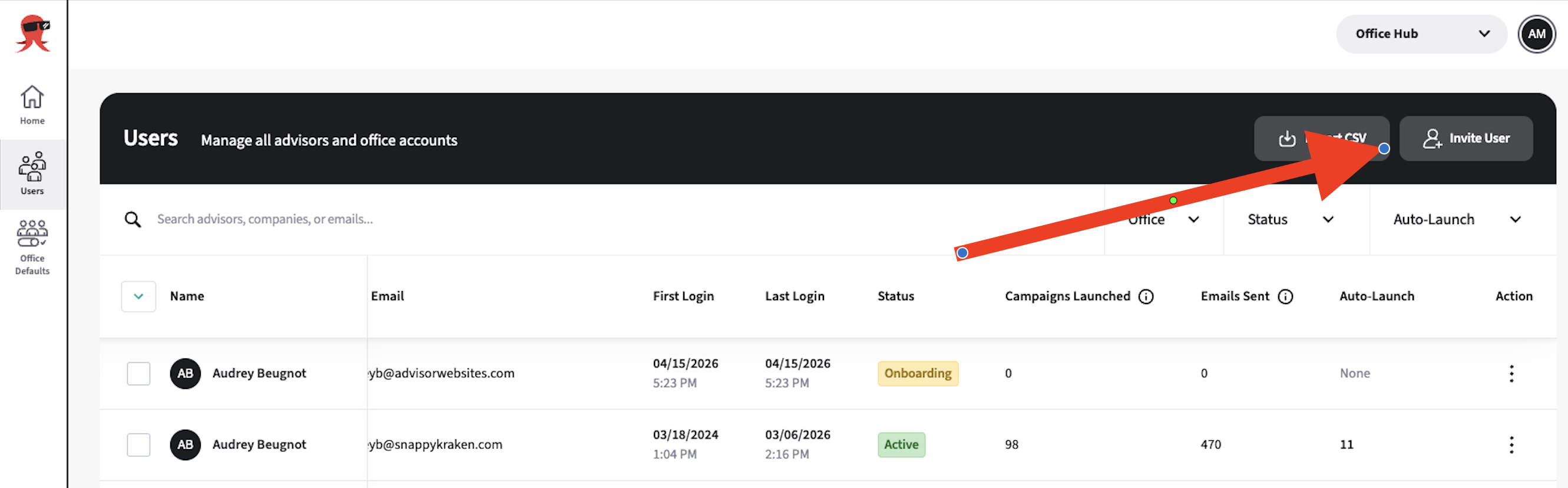
Open Users in Office Hub.
Select Invite User.
Enter the advisor’s exact account email address.
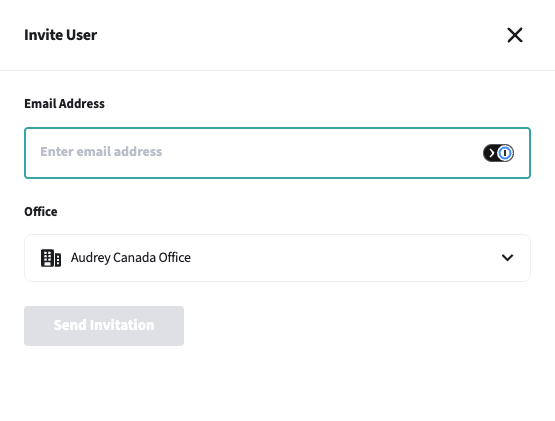
If you manage more than one office, select the office for the invitation.
Select Submit.
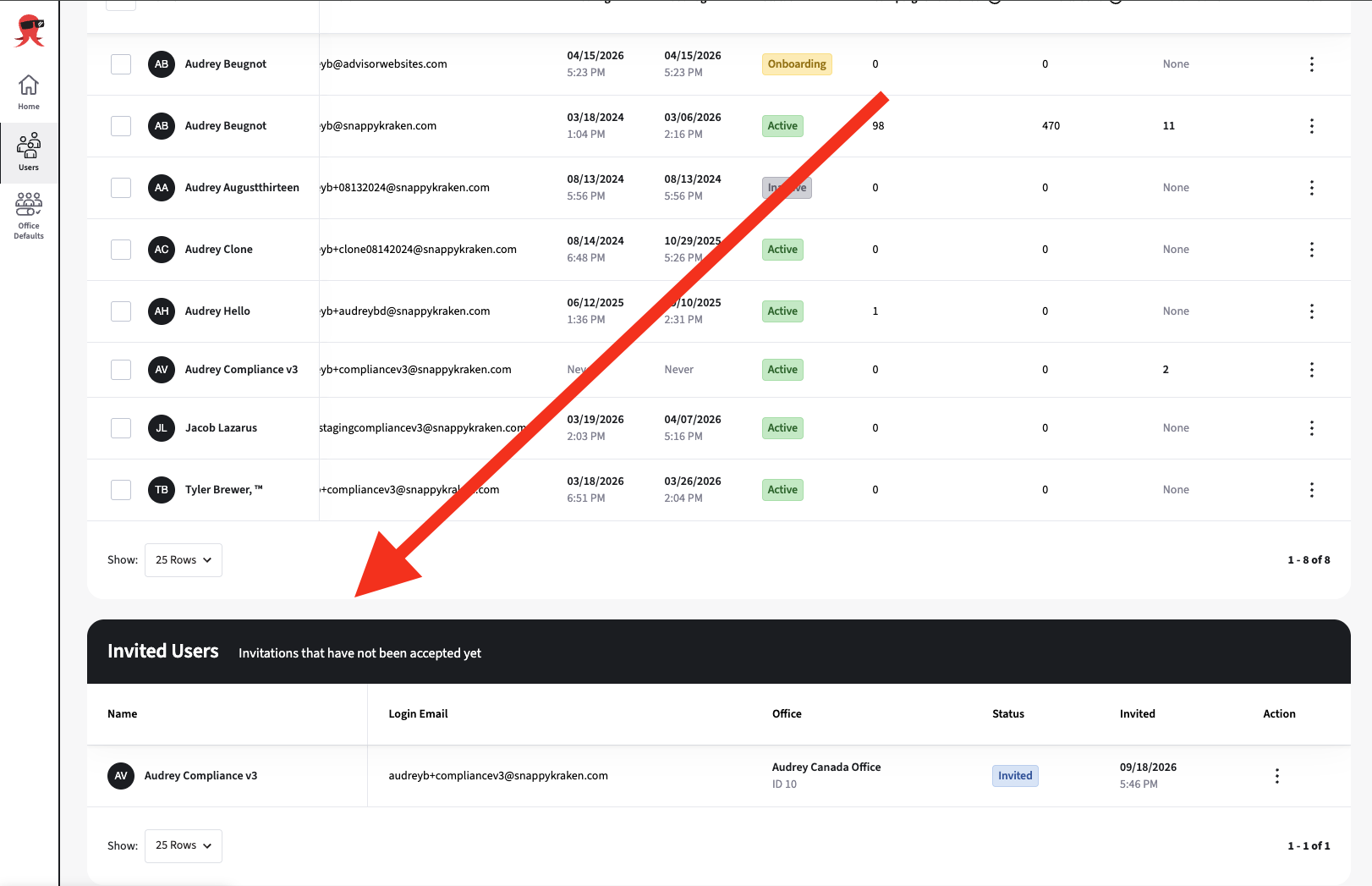
The advisor appears in the Invited Users panel with an Invited badge until they respond.
What happens after you send the invitation?
The advisor receives an email with a link to accept or decline the invitation from their advisor account.

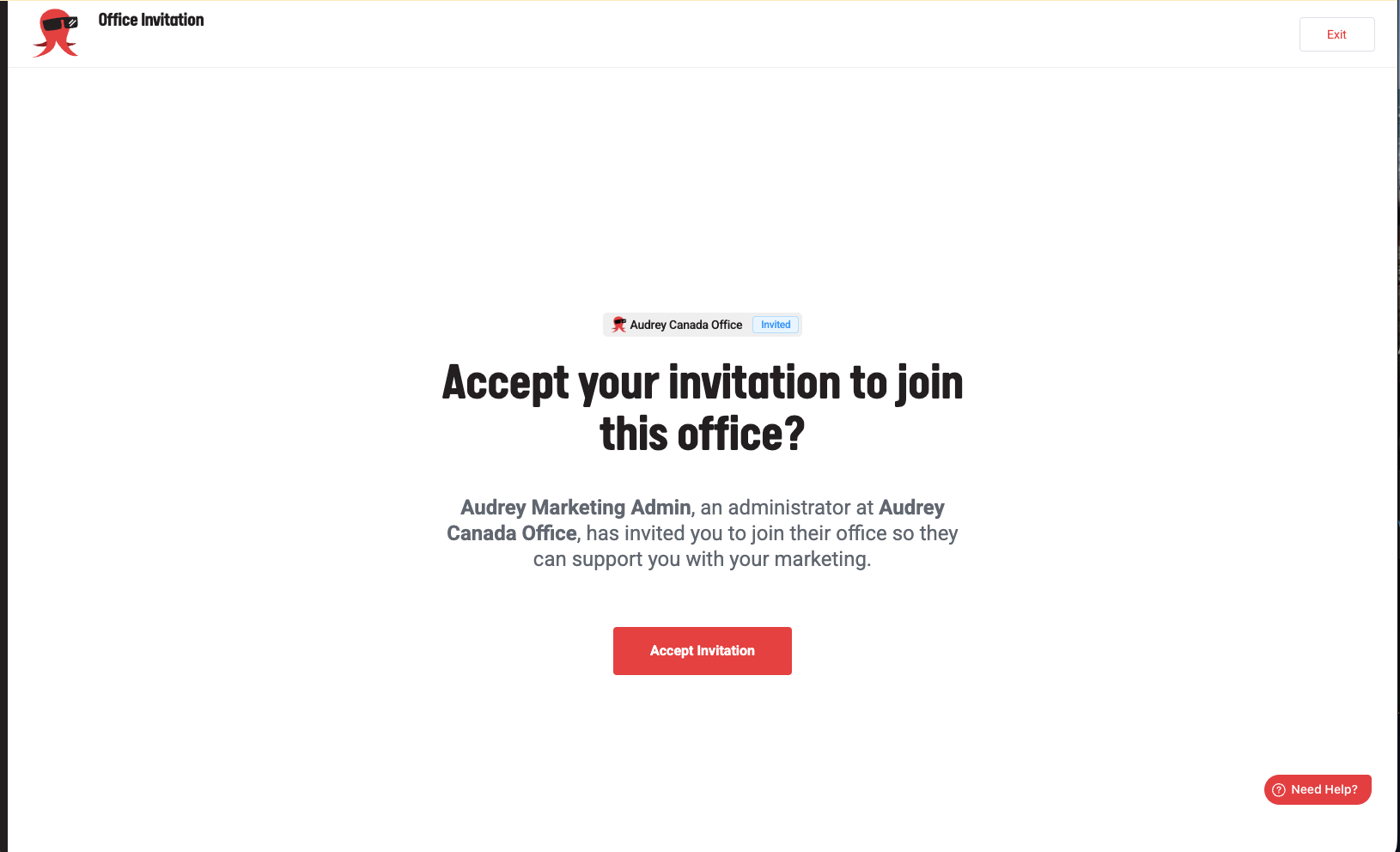
Accepting the invitation adds the advisor to the office.
Declining marks the invitation Declined and keeps the row visible.
Re-inviting a declined advisor clears the decline and sends a new invitation.
Withdrawing a pending invitation removes it from the invitation list.
Invitation limitations
- You can invite only an existing advisor on the same Enterprise. If the email is not eligible, either because it belongs to another enterprise or does not exist, an error message will appear.
- To move an advisor who is already assigned to an office, contact an administrator who can update the advisor’s office assignment in the Brain.