
What this article helps you do
Use this guide to identify and resolve common sign-in, Advisor Workspace, product, and administrator access issues for users in your organization. It explains what Workspace administrators can check and when to contact Snappy Kraken Support.
Before you begin
Identify the affected user's account email (which may differ from their business or campaign sender email), the affected product or workspace, and any exact error messages. Confirm whether the issue affects one user or multiple users.
1. Sign-in and account access
If a user cannot sign in or their account cannot be found:
- Confirm that the user is using the correct organization sign-in page.
- In the Brain, open Users and search for the user's account email. Confirm that the account belongs to your organization.
- Check whether the account email is verified. If the email is unverified, follow the verification process available to your role. If the address was recently changed, confirm that the new address is correct and verified.

- If the user needs help resetting their password, follow your organization's approved process. Refer sign-in issues you cannot resolve to Support.
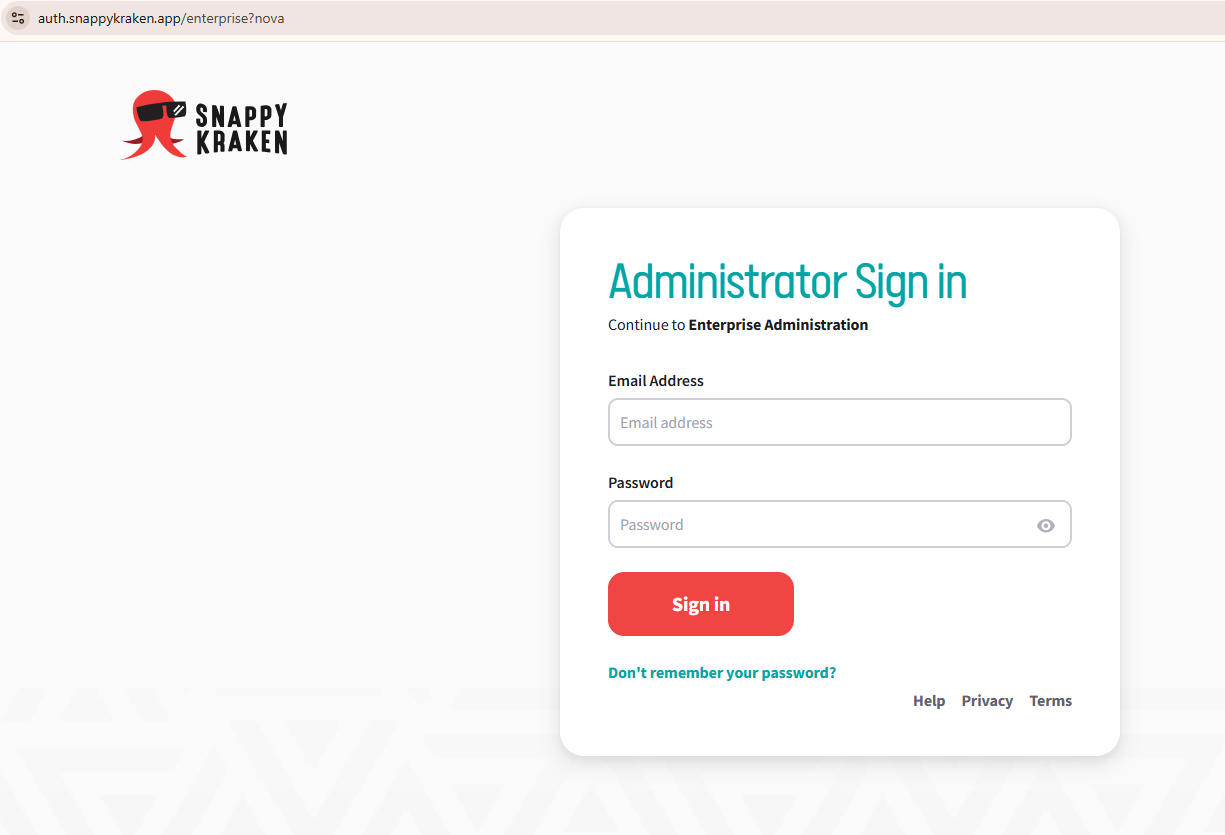
Ask the user to close existing sessions and sign in again. If the issue continues, contact Support.
2. Advisor Workspace roles, onboarding, and approval
If the user can sign in but cannot access Advisor Workspace, review their assigned role, onboarding status, and profile approval. These are separate requirements, so having the correct role does not necessarily mean onboarding or compliance approval is complete.
- In the Brain, open Advisor workspaces > Users and locate the user by their account email.
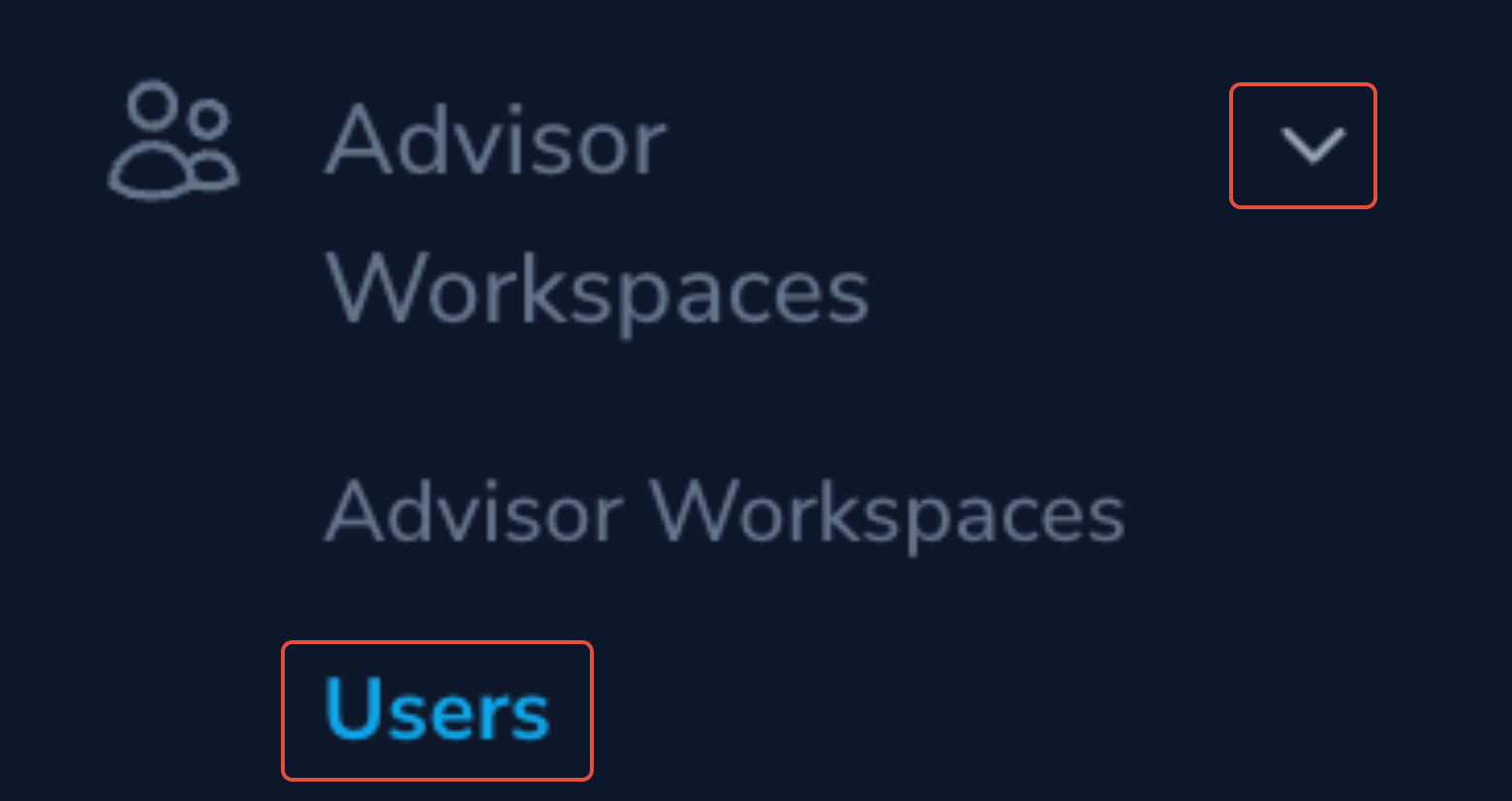
- User role: Under User Roles, confirm that Advisor Workspace is assigned. If it is missing, assign the role if you have permission.
- Onboarding: Confirm that the user has completed the required onboarding steps. If onboarding is incomplete, direct the user to finish the remaining steps.

- Profile approval: If compliance approval is required, confirm that the profile has been approved by an authorized compliance reviewer or administrator.


If onboarding or approval is incomplete, follow the appropriate process before testing access again.
Once the required role, onboarding, and approval are in place, ask the user to sign out and back in. If access still fails, contact Support.
3. Product access and subscriptions
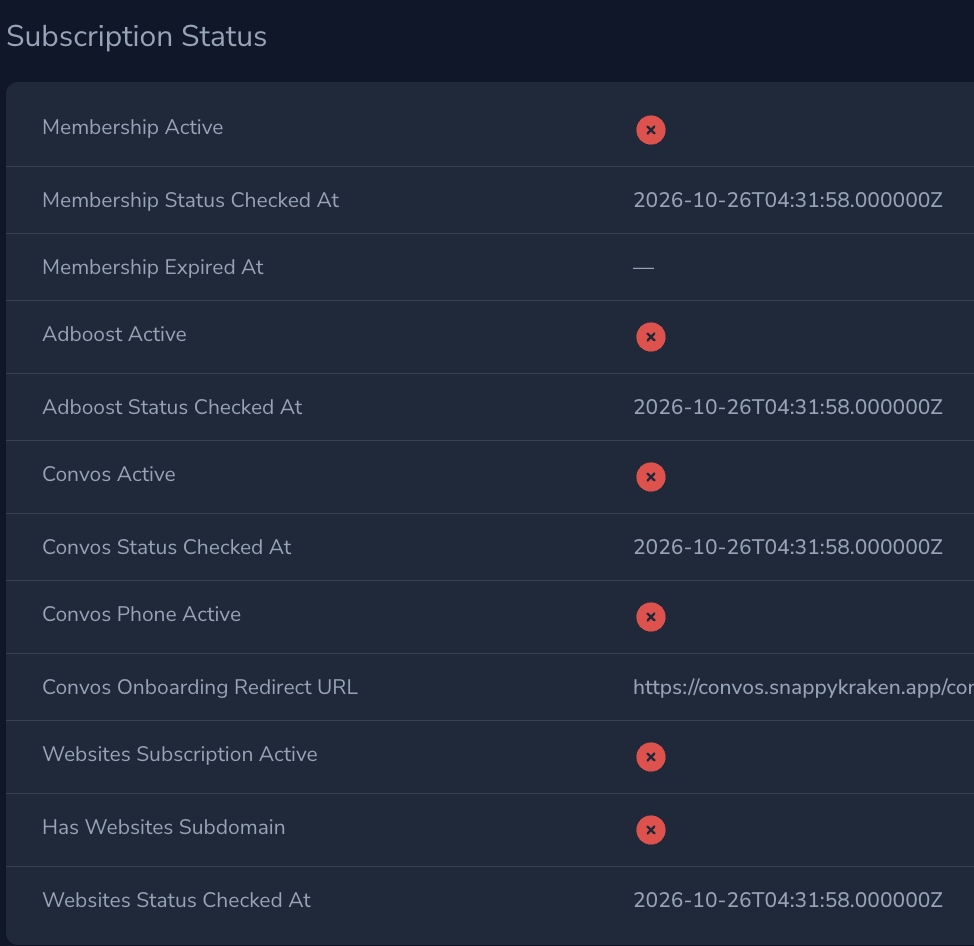
If the user can access Advisor Workspace but cannot open Campaigns, Convos, Websites, or Marketing Hub, confirm that the relevant product is active in the account's subscription status section.
Having access to Advisor Workspace does not automatically mean that every Snappy Kraken product is included in the account's subscription. If a specific product is unavailable, check its subscription status before investigating other account access settings.
If a subscription was recently changed, confirm its current status. If the status shows active but product access remains unavailable, contact Support with the affected account and product.
4. Marketing Admin access to advisors
If a Marketing Admin cannot see or manage an advisor, first confirm that the advisor is assigned to them in the Brain.
- In the Brain, open Users and select the Marketing Admin's account.
- Locate the Users managed by Marketing Admin section.
- Confirm that the affected advisor appears in the list. If the advisor is missing, select Attach and assign the advisor, provided you have the required permissions.
- Confirm that the advisor has the Advisor Workspace role and belongs to the same organization as the Marketing Admin.


A Marketing Admin can manage multiple advisors, and an advisor can be assigned to more than one Marketing Admin. These assignments determine which advisors the Marketing Admin can access through Office Hub.
If the advisor assignment, role, and organization are correct but access is still unavailable, contact Snappy Kraken Support with the affected Marketing Admin and advisor account information.
5. Office Hub and campaign sharing
Office Hub access
If a Marketing Admin cannot access Office Hub, first confirm that Office Hub is enabled for your organization and that the Marketing Admin has been granted access.
Office Hub access can be configured in two ways:
- All Marketing Admins: Every Marketing Admin in the organization receives Office Hub access.
- Selected Marketing Admins only: Access must be granted individually to each Marketing Admin.
Organization-wide Office Hub settings are managed through Enterprises > Select organization > Actions > Set Office Hub access in the Brain. Enabling Office Hub or changing the organization's access configuration requires Snappy Kraken Support.
When the organization uses Selected Marketing Admins only, authorized administrators can check individual access by opening Users in the Brain, selecting the Marketing Admin, and locating the Office Hub access checkbox under Basic information. This checkbox only appears when selected access is configured.
Important: Marketing Admins granted Office Hub access are directed to Office Hub when signing in instead of the Brain, unless they have another role that requires Brain access.
If the Marketing Admin can access Office Hub but cannot see their advisors, review the advisor assignments described in Section 4. Access to Office Defaults also requires the Marketing Admin to be assigned as an administrator of that office.
If Office Hub is not enabled for your organization, or the required access settings are unavailable to your administrator role, contact Snappy Kraken Support.
Campaign sharing
If a Marketing Admin cannot access campaign-sharing features or share campaigns with an advisor, first confirm that they can access the intended advisor accounts using the checks in Section 4.
If the Marketing Admin needs to access Campaigns from their own Advisor Workspace, confirm that they have the required Advisor Workspace role and an active subscription to the relevant product.
Also verify that the intended advisor accounts have the appropriate product subscriptions. If the advisor assignments, roles, and subscriptions are correct but campaign sharing remains unavailable, contact Snappy Kraken Support with the affected Marketing Admin, advisor accounts, and details of the issue.
When to contact Support
Contact Snappy Kraken Support when an issue remains unresolved after the relevant checks or requires a platform-level change, including sign-in issues, account association corrections, and access or subscription problems that cannot be resolved with your administrator permissions.
Include the following information to help Support investigate:
- Organization name and affected user's account email.
- Affected Advisor Workspace, product, or feature, and relevant user role or subscription details.
- Exact error message and screenshots, if available.
- Checks already completed and their results.
- Number of affected users and business impact.