
This guide helps Workspace administrators understand which account and product access changes they can manage directly and which require assistance from Snappy Kraken Support. It also outlines the information Support needs when submitting a request.
What Workspace administrators can manage
Depending on their assigned permissions, Enterprise Support Administrators can manage many account and user settings through User Management in the Brain.
- Review and update user details and assigned roles.
- Verify account information and review onboarding status.
- Review user groups where permitted.
- Confirm which advisors are linked to a Marketing Admin and update those links when authorized.
- Review advisor and office information when Office Hub is available.
- Review subscription status to identify which products are available to an advisor.
Some account changes, such as password or login email updates, depend on your organization's sign-in configuration. Single sign-on (SSO) accounts may require assistance from your organization's identity administrator or Snappy Kraken Support.
Important: Do not change roles or onboarding status simply to bypass a required onboarding step or compliance approval.
What requires Snappy Kraken Support
Some account and Workspace settings cannot be changed through the available administrator controls. Contact Snappy Kraken Support for assistance with:
- Subscription, product entitlement, or billing changes.
- Enabling Enterprise Hub or Office Hub, or changing restricted Workspace access settings.
- SSO setup or unresolved SSO sign-in issues.
- Multi-factor authentication resets.
- Requests to move an eligible account between organizations.
- Changes to restricted settings, such as sign-in page or compliance configuration.
- Snappy AI credit changes.
- Workspace or product access issues that cannot be resolved through available administrator controls.
Workspace administrators may be able to view subscription information, but subscription and billing changes require Support.
Locating user account information
When requesting assistance, Workspace administrators can use User Management in the Brain to locate the affected user's account information.
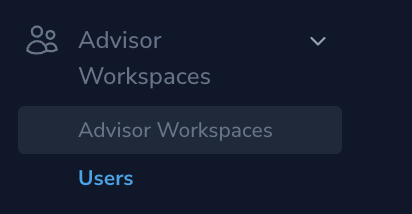
The account email used to sign in may be different from the business or sending email address shown in the user's profile. Make sure to provide the account login email when contacting Support.
User Management also displays account details such as the user's ID and assigned roles, which can help Support identify the correct account/ issue.

 Note: You might see slightly different options based on your role.
Information to provide when contacting Support
If an issue requires assistance from Snappy Kraken Support, please contact enterprisehelp@snappykraken.com and include the following information to help our team investigate efficiently:
- Organization name and account: Identify the affected organization and account.
- Affected user: Provide the account login email address and user ID of the account experiencing the issue.
- Error details: Provide a description of the issue, the exact error message, and relevant screenshots if available.
- Steps attempted: Describe any actions already taken and their results.
- Impacted users: Specify how many advisors or users are affected.
- Business impact: Explain which tasks are blocked and how the issue is affecting your organization.
- Timing: Include when the issue began and any urgent deadlines, if applicable.
Providing these details when opening a Support request helps reduce unnecessary back-and-forth and allows our team to investigate more efficiently.
If a Support request is already open for the same issue, reply to that request with any additional information rather than opening a new one.
Important: Never include passwords, verification codes, or other sign-in secrets. Remove unrelated sensitive information from screenshots.