
Enterprise accounts can control how advisors sync selected contact activity from Snappy Kraken to a connected CRM. When activity sync is enabled, supported engagement events are sent to the CRM during the nightly sync so teams can view prospect and client activity alongside other CRM records.
Find out more about what your advisors will see here.
Enable activity sync for your fleet
Fleet admins can make activity sync available to advisors by enabling it in the Brain.
- In the Brain, select Fleets from the left-side menu.
- Edit your fleet using the pencil icon.
- Locate the [CRM Name] Activity Sync Availablecheckbox.
- You will have to enable it for multiple CRMs if you offer more than one CRM to your advisors. Snappy Kraken supports Redtail, Salesforce, Salentica, Practifi and Wealthbox.
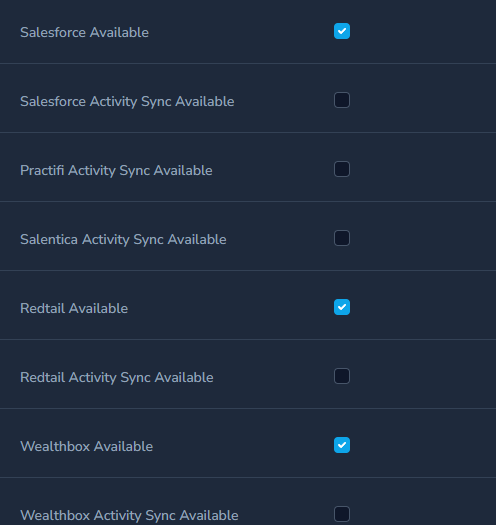
- You will have to enable it for multiple CRMs if you offer more than one CRM to your advisors. Snappy Kraken supports Redtail, Salesforce, Salentica, Practifi and Wealthbox.
- Check the box to enable activity sync.
- Save your changes.
- Impersonate an advisor with a connected CRM to confirm the CRM integration is active for the fleet.
- Let advisors know they can turn on activity sync from their CRM integration settings.
NOTE: If Marketing Administrators can sync contacts by visibility from their account, this feature cannot be enabled.
Supported activity types
Activity sync can send the following engagement events to the CRM:
- Form submissions
- Campaign unsubscribes
- Email opens
- Landing page views
What appears in the CRM
The CRM activity record includes details about the engagement event, such as the contact name, campaign, step, event date, and related URLs when available.
Form submission
When a contact submits a form, the CRM activity includes:
- Form submission title
- Contact name
- Campaign name and ID
- Campaign URL
- Step name and ID
- Form type
- Submission date
- Summary of submitted fields
Campaign unsubscribe
When a contact unsubscribes from a campaign, the CRM activity includes:
- Campaign unsubscribe title
- Contact name
- Campaign name and ID
- Campaign URL
- Unsubscribe date
- Confirmation that the contact was set to Do Not Contact for that campaign’s emails
Email open
When a contact opens an email, the CRM activity includes:
- Email open title
- Contact name
- Email subject
- Campaign name and ID
- Campaign URL
- Step name and ID
- Open date
Landing page view
When a contact views a landing page, the CRM activity includes:
- Landing page view title
- Contact name
- Landing page URL
- Campaign name and ID
- Campaign URL
- Step name and ID
- View date
Important notes
- Activity data is only recorded after activity sync is enabled.
- If a synced group is removed from two-way sync, that group is also removed from activity sync.
- If no groups remain in the activity sync settings, activity sync is disabled.
- Availability may vary by CRM and enterprise configuration.
Troubleshooting
If activity sync is not available or activities are not appearing in the CRM:
- Confirm that CRM integration is enabled for your enterprise fleet.
- Confirm that the advisor’s CRM integration is connected.
- Confirm that activity sync is available for the account.
- Confirm that the account is not using contact syncing by visibility instead of ownership for Marketing Admins.
- Confirm that at least one group is selected for sync.
- Confirm that at least one activity type is selected.
If the issue continues, contact Support with the CRM name, advisor account, selected sync groups, and examples of activities expected to appear in the CRM.