
The Contact Syncing by Visibility feature allows Marketing Admins to access their own dashboard of campaigns and import contacts from supported CRMs, including contacts they only have visibility to (not just contacts they own).
Supported CRMs
- Salesforce
- Practifi
- Salentica
Requirements
- CRM Version: Fleet must be on CRM v2
- User Roles: Marketing Admin users must have both Marketing Admin role and Vessel Admin role
How It Works
Contacts in CRM systems can have different visibility settings. When this feature is enabled, Marketing admins can import contacts they have visibility to and contacts they own.
This allow them to access a centralized dashboard where they can view and manage all contacts that their different advisors are managing in one place.
Using the Feature as a Marketing Admin
- Visit this link to log in as a Marketing Admin.
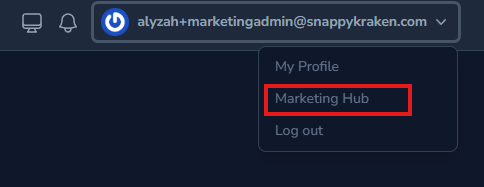
- Click the user account name at the top right corner and select Marketing Hub.
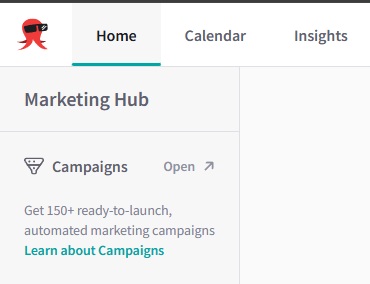
- Navigate to the Campaigns dashboard.
- Follow these integration guides to connect and import contacts from your CRM.
- Follow this article to launch campaigns for the advisors managing these contacts.
Important Notes:
- During onboarding, marketing admins will have the option to replace their sending email address with a compliance approved email address. Unless changed, campaigns will be sent from the Marketing Admin's email address.
- By default, all replies will be sent to the same email address.
- When you’re already logged in and looking to impersonate users instead, visit https://brain.snappykraken.com/ and follow the rest of this tutorial.
Enabling the Feature
Only fleet admins can enable this feature but there are two ways to do it:
Option 1: Fleet-Level Activation
- Login to the Brain and navigate to the Fleets section.

- Edit your fleet using the pencil icon.

- On the fleet settings, enable "Can Marketing Admin view all contacts on Salesforce" by clicking on the checkbox.

- Click Update Fleet to save your changes.

Option 2: User-Level Activation
- Login to the Brain and navigate to the Users section.
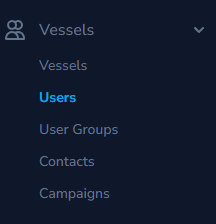
- Locate the user you want to edit.

- Edit the user using the pencil icon to see it's settings.

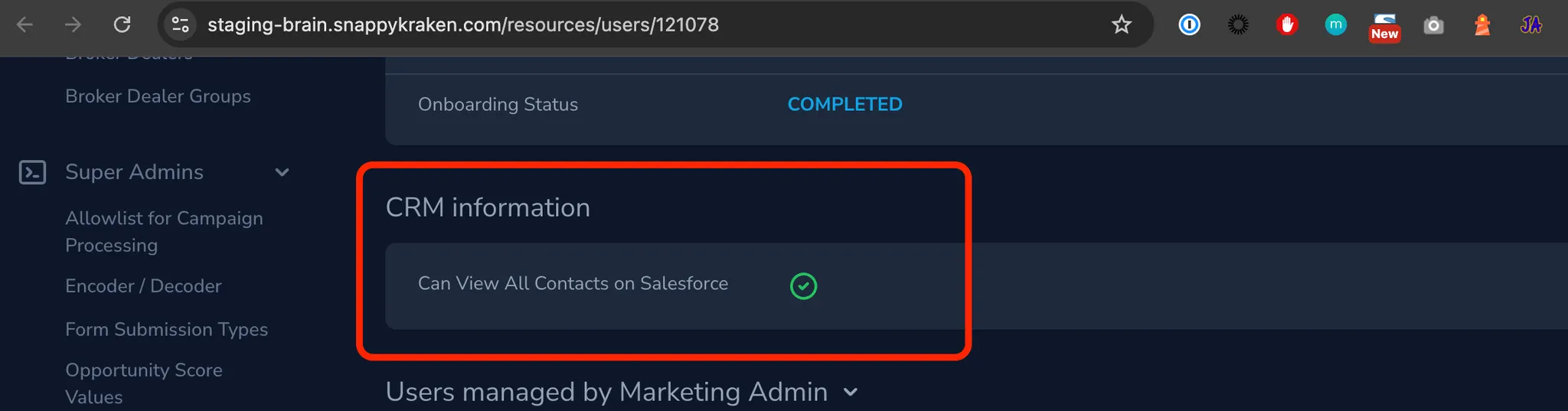
- Scroll down to the CRM information section and check the "Can View All Contacts on Salesforce for that individual Marketing Admin user" option to enable the feature.
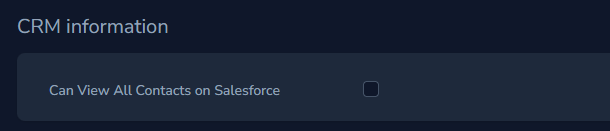
- Click "Update User" to save your changes.
Adding Vessel Admin Roles
To use this feature, Marketing Admins need their own campaigns dashboard. This requires adding Vessel Admin roles to their user accounts.
- In the Brain, locate the Marketing Admin user.
- Click the user and scroll down to the "User Roles" section.
- Click "Attach User Role".
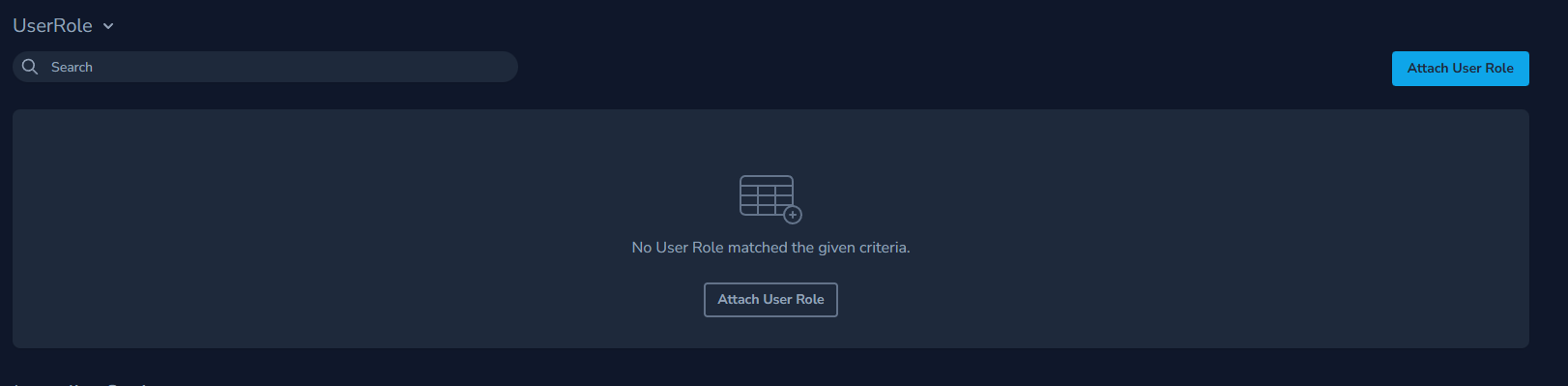
- Select "Vessel Admin" from the dropdown.
- Click "Attach User Role" again to save your changes.

Important Notes
- When the feature is enabled, the Activity Sync section is not available in the Marketing Admin's dashboard
- Contact syncing is a one-way import from the CRM to Snappy Kraken. Changes made to contact details within the dashboard will not sync back to the CRM
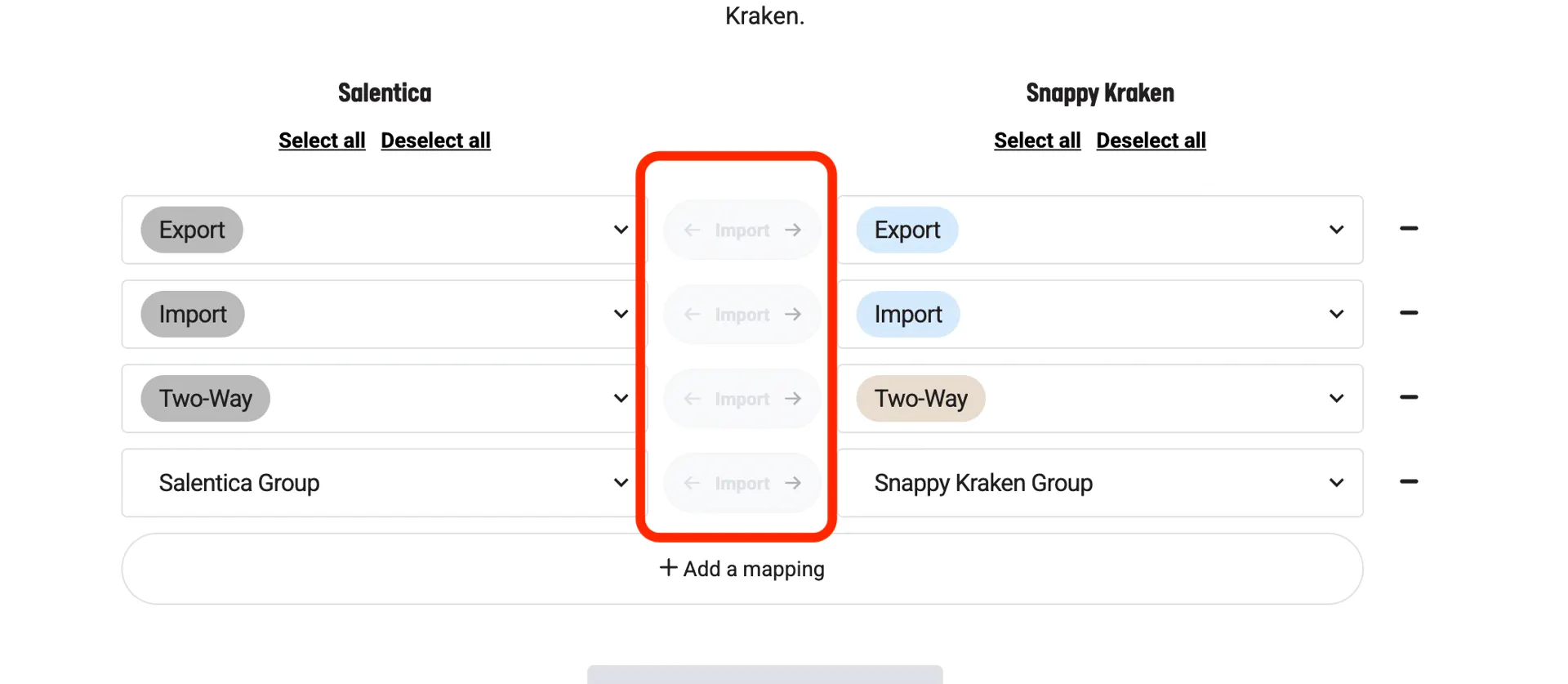
- This also means that if a contact is unsubscribed from the dashboard by a marketing admin, it will not propagate to the CRM. The marketing admins need to unsubscribe this contact from the CRM side.
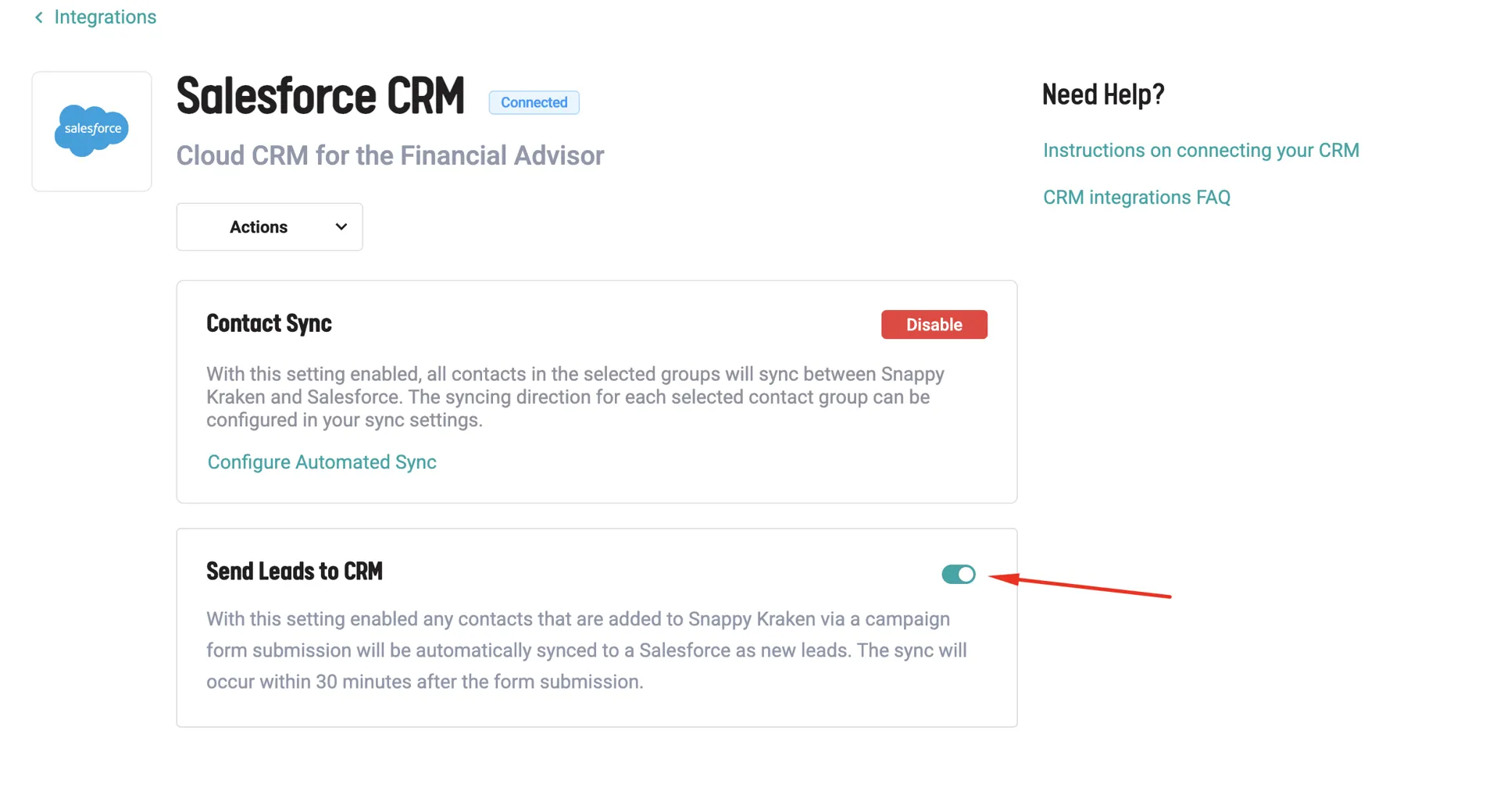
- Lead sync can be enabled, but incoming leads from form submissions or lead capture will only create new entries in the CRM if they don't already exist—existing Leads/Contacts will not be updated
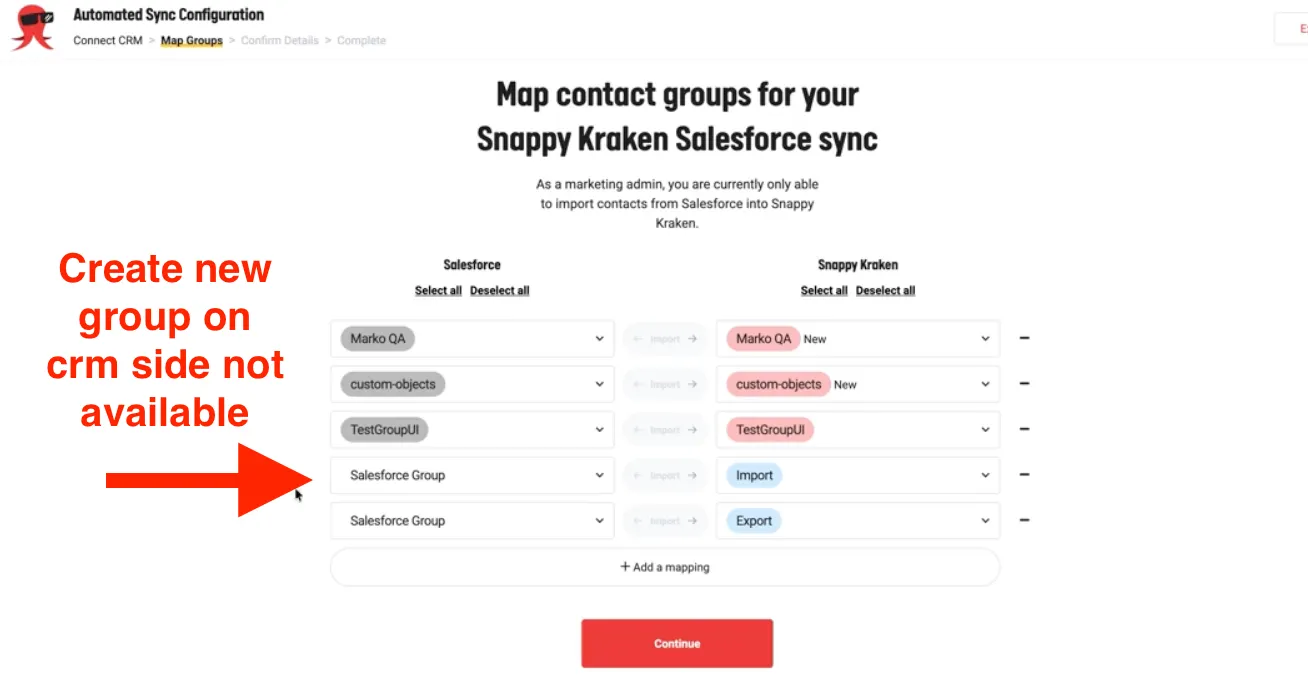
- Marketing Admins cannot create new groups on the CRM side from the contact mapping page
- All contacts from different advisors can be viewed and managed from a single centralized location